Every modern Android phone can convert JPG to PDF using only built-in tools—the Print → Save as PDF function, your default Gallery or Photos app, or Files by Google—without installing a separate PDF converter app. This guide covers converting a single image at a time, step by step.
Table of Contents
Why Convert JPG Images to PDF on Your Android Phone?
Converting a JPG file to a PDF on an Android device is quick and solves real problems. You might need to email an ID card photo as a formal document, submit a receipt for a reimbursement request, or send a signed contract you snapped with your camera.
In each case, a PDF file gives the recipient a consistent, professional layout that won’t accidentally rotate or crop on their device.
JPG is a photo format optimized for pictures, while PDF preserves page layout and opens reliably on any system. Android supports multiple image formats that can be converted to PDF, including JPG, PNG, BMP, GIF, and TIFF, so even if your source image isn’t a JPEG, the same native flows apply.
You can use built-in features or dedicated apps on Android for JPG to PDF conversions, but this article stays focused on the native tools already on your phone.
This guide covers converting a single existing JPG image—not screenshots and not merging multiple pictures into one document.
Method 1: Use Android’s Print → Save as PDF (Works on Most Phones)
The system print menu has been available since Android 4.4 introduced the native print framework, and Android 5.0 added print preview. Today it works on Android 11 through Android 15 devices from Samsung, Google Pixel, OnePlus, Xiaomi, and others.
This method works from any app that can open an image gallery, Google Photos, Files by Google, or even a messaging app when viewing a downloaded photo.
Step-by-Step: Print an Image to PDF
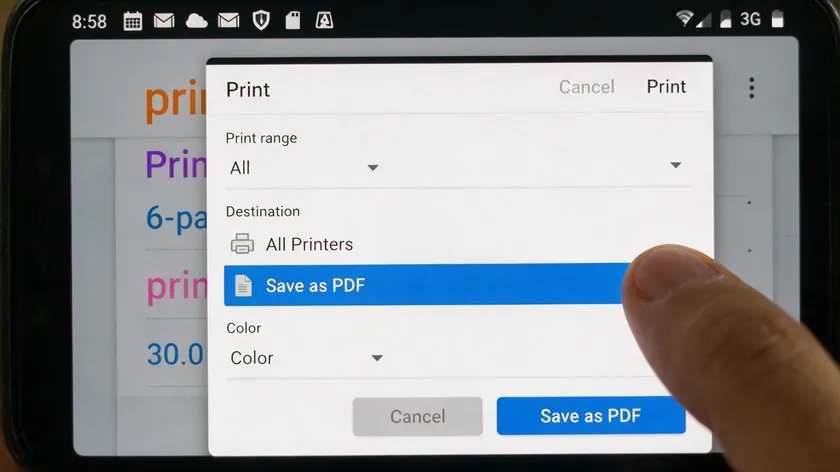
- Open the JPG in your preferred photo viewer (e.g., the default Gallery app).
- Tap the menu icon (three dots) and choose “Print” or “Print…”
- In the printer chooser, select Print and choose Save as PDF from the drop-down list.
- Adjust page orientation (portrait or landscape) so the image fits nicely on the page. You can set page size to A4 or letter, and margins can be customized during the PDF conversion.
- Tap the PDF icon or “Save” button and choose a folder such as Downloads or Documents.
On Samsung DeX or tablets, the Print button might appear in a different menu, but the Save as PDF destination works the same way. Use “Fit to page” under paper settings so the resulting PDF doesn’t look pixelated or heavily cropped.
The JPG to PDF conversion process can be done without installing apps—it all runs offline on your device.
This method creates a single PDF from one image file. If you need multi-image PDFs, several dedicated apps on the Play Store allow batch conversion, merging multiple images into one PDF file.
Method 2: Convert JPG to PDF from Your Gallery or Photos App
Most stock Gallery and Google Photos apps on Android phones between 2020 and 2026 include a “Print” option that internally uses the same system PDF engine. To convert a JPG file to a PDF on Android, open the image in Google Photos or the gallery—the conversion process is identical to Method 1 under the hood, but the steps feel more photo-centric for non-technical users.
Step-by-Step: Convert from Gallery or Google Photos
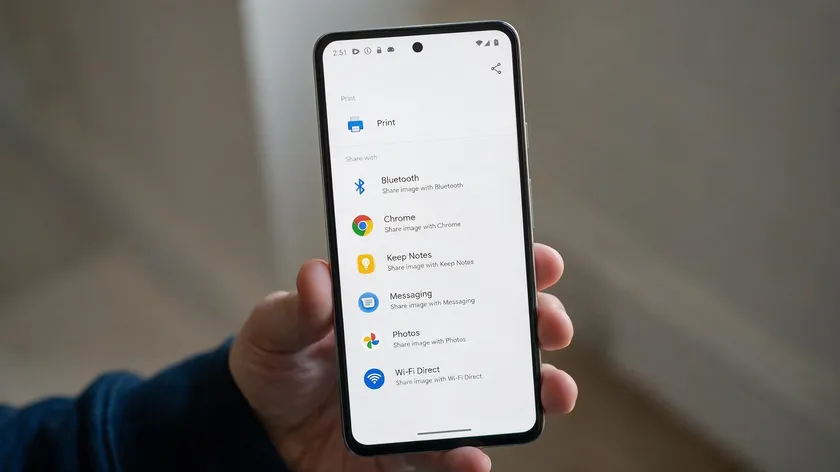
- Open the photo from the camera or pictures album.
- Tap Share or the three-dot menu.
- Choose “Print” or “Print image.”
- In the printer list, select “Save as PDF” and save the new PDF file.
For Google Photos specifically:
- Open Google Photos, select the image, and tap the three dots.
- Use “Print” (often under “Open with printer”).
- Choose “Save as PDF” and confirm the folder name and file name.
Several dedicated Android apps also convert JPG images to PDF directly from the gallery if you prefer that route, though it isn’t required.
Good to Know: Naming and Verifying Your PDF
Give your PDF a meaningful name—something like “ID-card-Aug-2026.pdf” instead of “IMG_20260813_102314.pdf.” This makes files easier to find later when emailing or uploading. Before sharing, open the resulting PDF in any viewer app and zoom in to verify the image appears correctly centered and not overly compressed.
Method 3: Use Files by Google to Convert an Image File to PDF
A reputable file manager can facilitate JPG to PDF conversions on Android, and Files by Google ships by default on many phones (Pixel, Motorola, Nokia, and some Xiaomi) from 2021 onward. It’s especially useful when your JPG lives in an unusual folder.
- Works well when your JPG is in Downloads, WhatsApp media folders, or custom folders.
- Lets you see the exact file size and location of the image file before converting.
- Makes it easier to keep PDFs in a specific folder structure on your device storage.
Step-by-Step: Convert an Image Using Files by Google
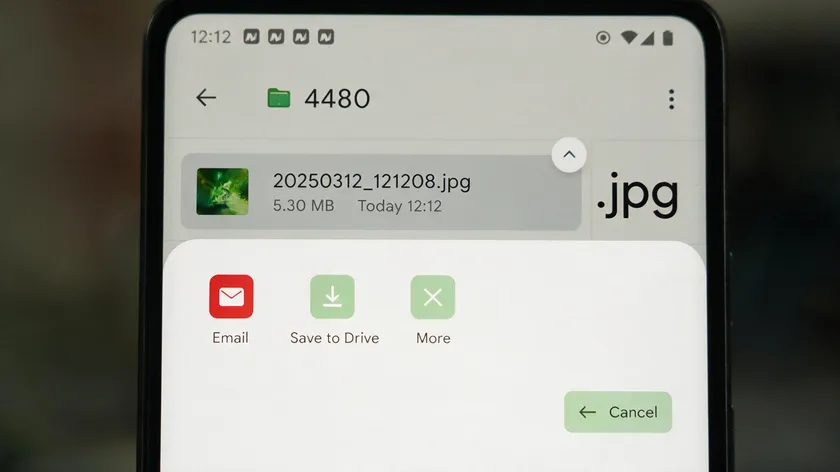
- Open Files by Google and browse to the folder containing your JPG.
- Tap the image to preview it full-screen.
- Use the three-dot menu or share icon and choose “Print.”
- Select “Save as PDF” as the printer, adjust orientation and paper size, and then tap Save.
Good to Know: Keeping Your Files Organized
Save converted PDFs to consistent locations like /Downloads, /Documents, or a dedicated /PDFs folder so they’re easy to access from email or messaging apps later.
Files by Google can show both the original JPG and the new PDF side by side, letting you compare file size and decide whether to delete the original to free up storage space.
How to Control Image Quality and File Size in Your JPG‑to‑PDF Conversions
High-resolution photos from a 48 MP or 108 MP camera can create PDFs of 3–8 MB. Image quality can be balanced between size and resolution by adjusting a few settings before you convert.
How Paper Size and Orientation Affect Quality
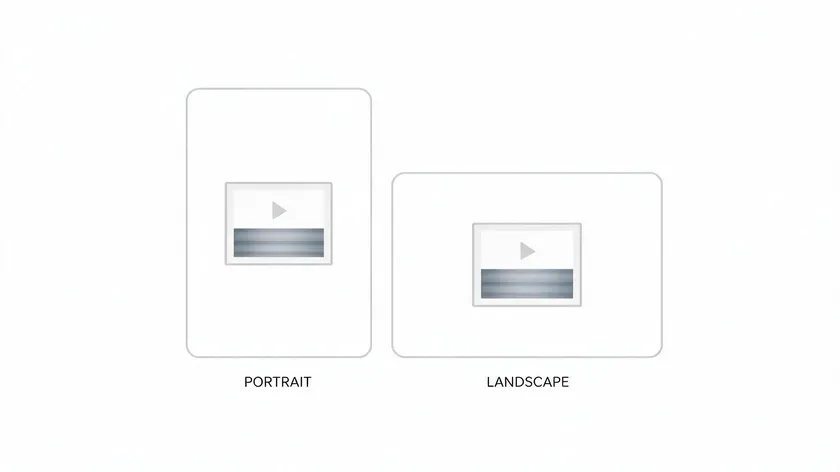
- Choosing A4 or Letter with “Fit to page” usually keeps text or ID photos readable. You can adjust page size and orientation before converting to get the best result.
- If the image looks tiny on the PDF, switch orientation or try a smaller paper size where available.
Tips to Reduce PDF File Size
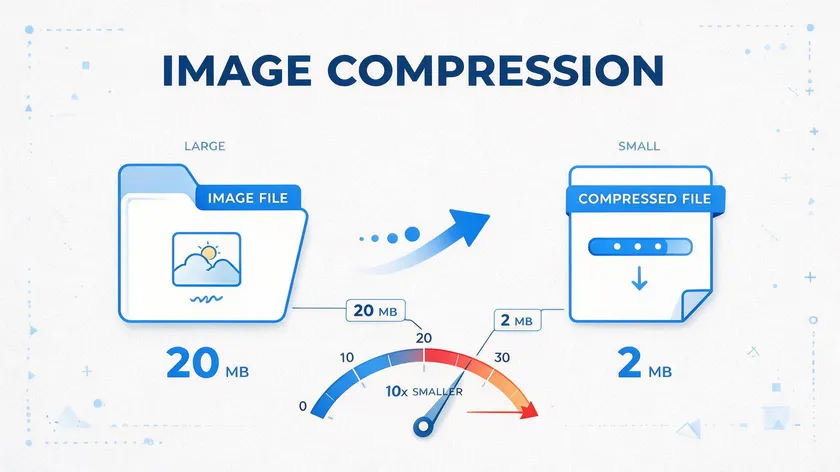
- Crop the image in the Gallery app before printing to remove unneeded background.
- Use the camera’s “Medium” or “Small” resolution when capturing photos meant for PDF conversion.
- For very large images, create a duplicate with reduced resolution in the photo editor, then convert that version to PDF.
| Use Case | Recommended Resolution | Expected PDF Size |
|---|
| ID card scan | ~1500 × 2000 px | 300–600 KB |
| Receipt or document | ~1200 × 1600 px | 200–500 KB |
| Artwork or full photo | ~4000 × 3000 px | 1.5–3 MB |
| High-res camera shot (unresized) | 8000 × 6000 px+ | 3–8 MB |
If a PDF is still too large, you can open it in a generic PDF tool later to reduce file size further, but the core conversion happens natively.
Checking Quality Before You Share
Zoom into the final PDF on your phone before sending it. Verify text is readable and the image isn’t overly blurry from compression. If something looks off, go back, edit or crop the original JPG, and convert PDF again.
Where to Save and How to Share Your New PDF (Including Google Drive)
Once you convert JPG to PDF on your Android device, you’ll typically either send it immediately or store it for future use.
Finding Your Converted PDF
- Using Files by Google’s “Documents” or “Downloads” category.
- Using the manufacturer’s file manager on Samsung, Xiaomi, or Oppo devices.
- Sorting by “Recent” to quickly locate PDFs created in the last few minutes.
Sharing the PDF from Your Phone
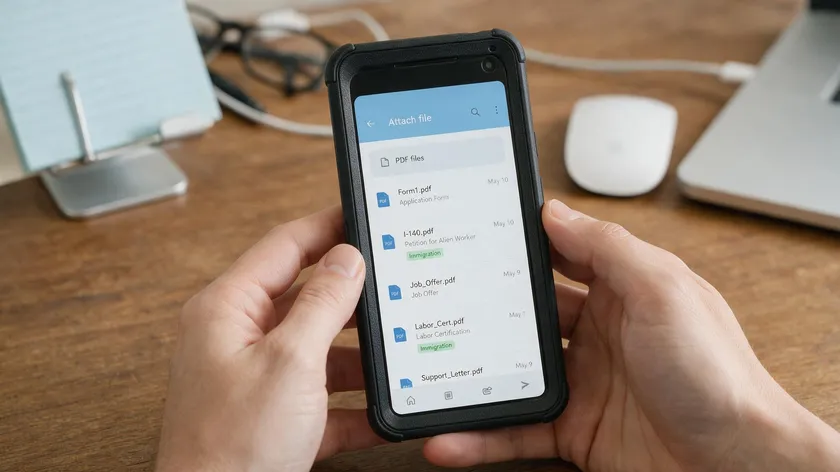
- Opening the PDF in any viewer app and tapping the share icon.
- Attaching the PDF from within Gmail, Outlook, or messaging apps by browsing to the folder where it was saved.
- Checking that the file name clearly indicates what the document is before sharing.
Backing Up to Google Drive (Optional)
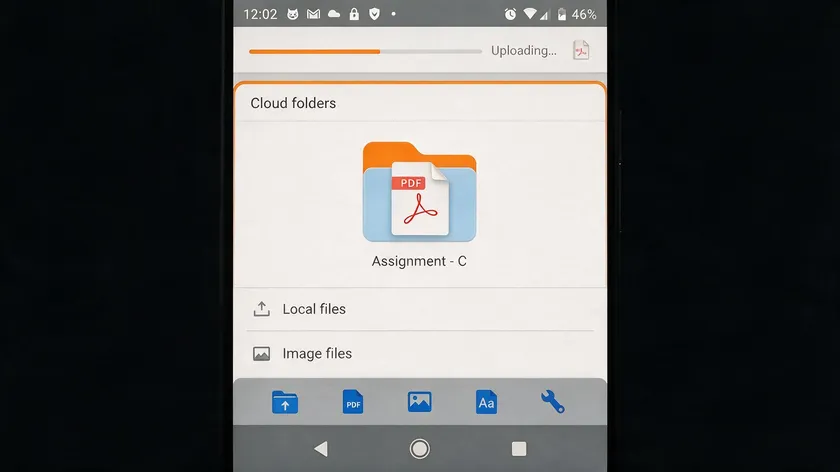
- Using Google Drive, you can upload a JPG and generate a PDF, or simply upload your already-converted PDF for automatic backup.
- Saving to Drive makes it easy to open the same PDF later on a Windows PC, Mac, or Chromebook—true cross-platform access.
- The actual conversion in this article happens on the device; Drive is just for storage and sharing.
Create folders like “Receipts 2026” or “ID and travel” and consistently save PDFs there so they’re easy to search later. Any files you no longer need can be deleted to reclaim device storage.
Key Takeaways
- You can convert JPG to PDF on almost any recent Android phone using built-in tools—the Print → Save as PDF function, your default Gallery/Photos app, or Files by Google—without installing a separate converter app.
- The three main workflows are starting from the Gallery/Photos app, starting from Files by Google or another file manager, and using the universal Print dialog from whichever app currently shows your image.
- Converting JPG to PDF helps with easier sharing, consistent layout across devices, and better control over file size and image quality.
- Check orientation, paper size, and basic cropping to balance image quality and file size in the final PDF.
- This guide focuses on converting one image file at a time—combining several images or converting screenshots follows different workflows covered in other dedicated guides.
- After conversion, you can store, sync, and share the resulting PDFs easily via email, messaging apps, or cloud services like Google Drive.
If you regularly convert images and documents, explore the full range of online PDF conversion tools on pdfapp.com. They let you convert JPG, PNG, and other image formats to PDF from any device or browser.
FAQs
Here are answers to a few extra questions about converting JPG images to PDF on Android that weren’t fully covered above.
Can I convert JPG to PDF on Android without an internet connection?
Yes. All native methods in this article—Print → Save as PDF from Gallery, Photos, or Files by Google—work entirely offline because the conversion happens on the device, not on a remote server. An internet connection is only needed if you want to email the PDF or upload it to a cloud service afterward.
Some browser-based converters also exist as alternatives, offering JPG to PDF conversion without app installation and support for multiple image formats—many remove uploaded files from their servers automatically after a short period for security. But native Android conversion requires zero internet and no browser cache concerns.
Will converting a JPG to PDF reduce the image quality?
In most cases, Android’s built-in PDF engine keeps image quality close to the original. Minor compression can occur depending on paper size and scaling choices. Zoom into the resulting PDF to verify readability, and crop or adjust the image before converting if text looks too small. You can also add text or annotations later in a PDF editor if needed.
Can I change the orientation or margins of the image in the PDF?
Yes. The print dialog lets you choose portrait or landscape orientation and sometimes offers “Fit to page” or “Fill page,” which effectively controls margins around the image. Choose the orientation matching the photo’s shape—portrait for tall images, landscape for wide ones—to minimize empty borders in the final document.
Where is my converted PDF stored on my Android phone?
Most Android phones default to saving PDFs in folders such as “Downloads” or “Documents.” Use Files by Google or your device’s file manager and sort by “Recent” to locate the newest PDF quickly, then move it to a dedicated folder if desired. Files won’t be automatically deleted from your device storage unless you remove them manually.
Do I need a special app to open the PDF after converting?
No special app is required on most Android devices because they ship with a built-in PDF viewer or a default browser that can open PDFs. Users who frequently read, edit, or post PDFs may prefer a dedicated PDF reader for features like the ability to recognize text or add text annotations, but for simple viewing and sharing, the stock tools on your phone are usually enough. You can also download a free PDF editor from the Play Store if you want more control.