
You can edit a PDF on iPhone either with Apple’s built-in Markup tools (for quick annotations and signatures) or in Safari using the browser-based editor at pdfapp.com to add text, drawings, highlights, images, and signatures.
Markup can annotate a PDF document, including drawing, highlighting, adding text boxes, and signing, but it cannot change the existing text inside the PDF file.
The same is true of a browser editor: it adds new content on top of the page.
pdfapp.com runs entirely in the iPhone browser, so there is no app to install, and it can add new text, images, drawings, highlights, and signatures.
The same steps work on iPad, but this article focuses on how to edit a PDF on iPhone specifically.
This guide is for anyone who needs to annotate, sign, or add new text and images to a PDF on an iPhone.
It matters because knowing what each tool can and cannot do saves you from hunting for a way to change existing text that neither Markup nor a browser editor offers.
Table of Contents
Quick Start: Edit a PDF on iPhone with pdfapp.com
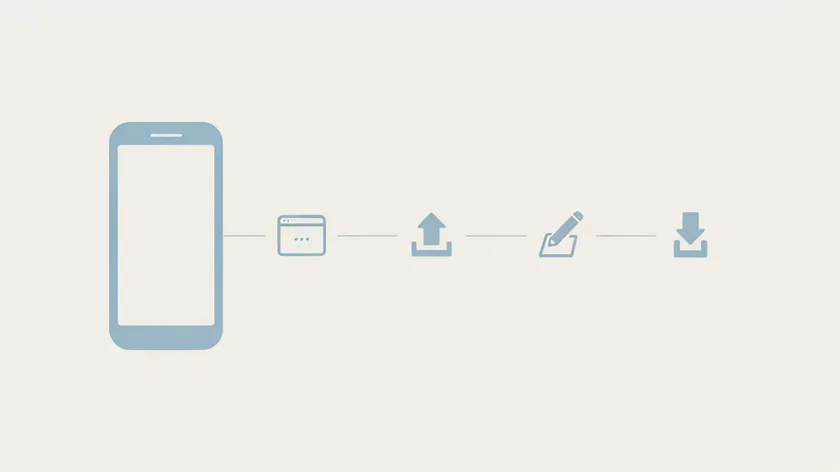
The fastest way to edit PDFs in Safari is to use pdfapp.com. Here is the workflow:
- Open Safari and go to pdfapp.com.
- Tap to upload a PDF file from the Files app, iCloud Drive, or another storage app.
- Wait for the PDF document to load in the online editor.
- Select a tool from the toolbar to add new text blocks, insert images, draw, highlight, or sign.
- Download the edited PDF back to your iPhone and save it into the Files app, or share it via Mail or Messages.
You can open the editor and try the tools before paying, but downloading the edited PDF requires starting a paid trial or subscription on pdfapp.com.
Check the current terms on the checkout screen before you confirm. For more advanced workflows on any device, see the full editing a PDF guide.
Method 1: Use iPhone Markup for Quick PDF Annotations
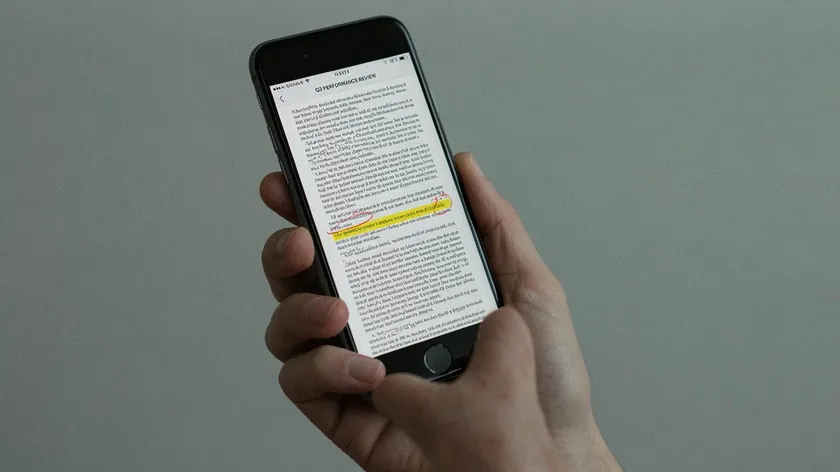
Apple’s built-in Markup is ideal for quick annotations on a PDF on iPhone. It handles comments, signatures, and simple shapes, but Markup does not allow editing of existing PDF text. Apple’s own guide to Markup explains each tool in detail.
Markup is built into iOS, so it works on iPhone, iPad, and iPod touch without installing anything. Besides PDF documents, it also lets you annotate photos and screenshots in apps such as Mail, Messages, and Photos.
Open a PDF in Markup
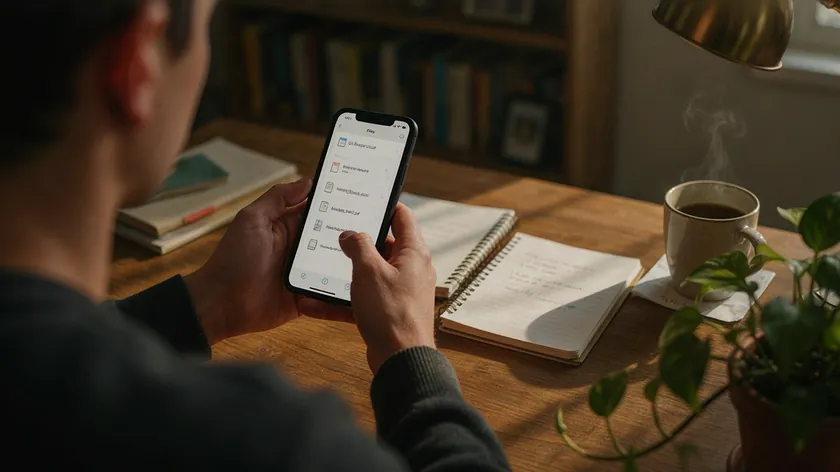
Open a PDF from the Files app or a mail attachment. Tap the file, then tap the Markup icon (the pencil icon in the toolbar).
The exact screen can look slightly different depending on your iOS version. Scroll to the page you need, and pinch to zoom for better control on a small screen.
In Mail, you can attach a PDF to a new email, tap the attachment, and then tap the Markup button to start annotating.
Tap the plus button to add a signature, text, and more, and tap Done before you send the email.
What Markup Can Do
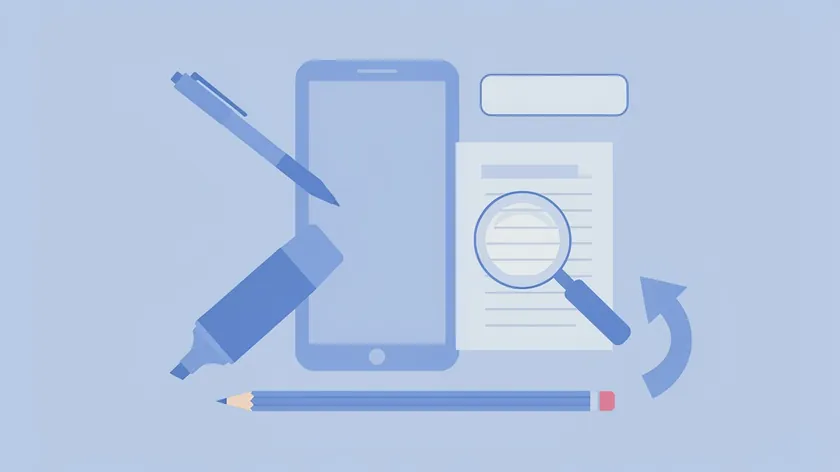
Markup lets you draw with pen, pencil, and highlighter tools. You can add text boxes to type notes or add comments, insert shapes like arrows and rectangles, place a magnifier loupe, and adjust colors, font, font size, and line thickness.
To draw, choose the pen, highlighter, or pencil, pick a color, and start drawing on the page. Tap the same tool again to change the opacity, or tap another tool to change the thickness.
Use the lasso to move a drawing, the eraser to remove a stroke, and Undo to reverse a mistake.
Tap the plus button to add a text box, a signature, a magnifier, or shapes. For text, you can change the color, font size, and alignment.
To insert shapes, drag a shape to where you want it, resize it with the blue dots, and use the green dots to adjust the curve of an arrow or a speech bubble.
Apple’s Markup tools support signing documents and adding annotations, but every edit is layered on top of the PDF pages. You cannot edit text embedded in the original PDF document, move existing paragraphs, or fix typos in the existing text of the file.
Sign a PDF with Markup
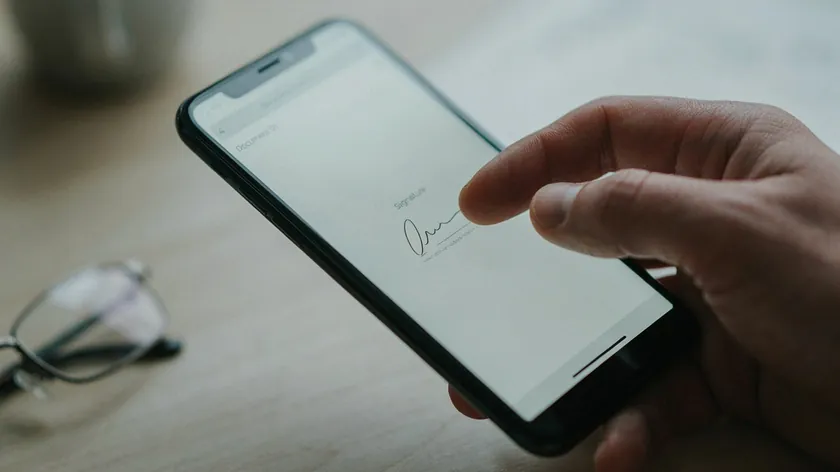
To sign a PDF, tap the “+” icon in Markup, choose Signature, and create one with your finger. On iPad, you can use Apple Pencil for more precision.
Markup lets you add or create a signature quickly for any document. You can sign PDF contracts and add signatures to forms directly on your iPhone this way.
Save and Share the Annotated PDF
Tap Done, then choose to save to Files or open the share menu to send it via Mail, Messages, or AirDrop directly from your iPhone. The annotations become part of the saved document.
Method 2: Edit PDFs in Safari with pdfapp.com
The browser editor at pdfapp.com works in Safari on an iPhone with no app to install. It covers the same everyday jobs as Markup (add text, draw, highlight, sign) and also lets you add images to PDFs.
You can add images to PDFs on iPhone by uploading logos or photos directly into the editor.
Once your PDF is open, tap the text tool and place a new text block where the original PDF did not have text; for example, a blank line, a date, or a name. The original text of the PDF cannot be changed this way.
After the PDF loads, page thumbnails appear in a side panel, and a toolbar lists the tools for selecting, signing, highlighting, adding text, drawing, and adding images.
Tap a tool, then tap the page to use it. This is PDF editing with the same everyday functionality as Markup, from a browser on any device.
For deeper instructions, see the guides on how to add text to a PDF and how to highlight in PDF.
Many users want to edit a PDF on iPhone to complete PDF forms or sign documents. You can sign PDFs directly on your iPhone using various methods, including Markup and a browser editor. Apple’s built-in tools can also fill out forms.
Interactive PDF forms contain fillable fields built into the document. Tap fillable fields to type in PDF forms on iPhone; the cursor appears inside the field, and you can scroll through the form, check boxes, and select dropdown options.

Non-interactive (flat) PDF forms do not have built-in fields. Add text boxes for non-interactive PDF forms using Markup, or use pdfapp.com to position typed text neatly over blank lines and labels.
Drag each text block into place so entries align with the printed labels on the page.
Save a copy of each completed and signed PDF file into the Files app for record keeping. You can share it via email or cloud storage directly from iPhone.
What to Do When You Need to Change Existing Text
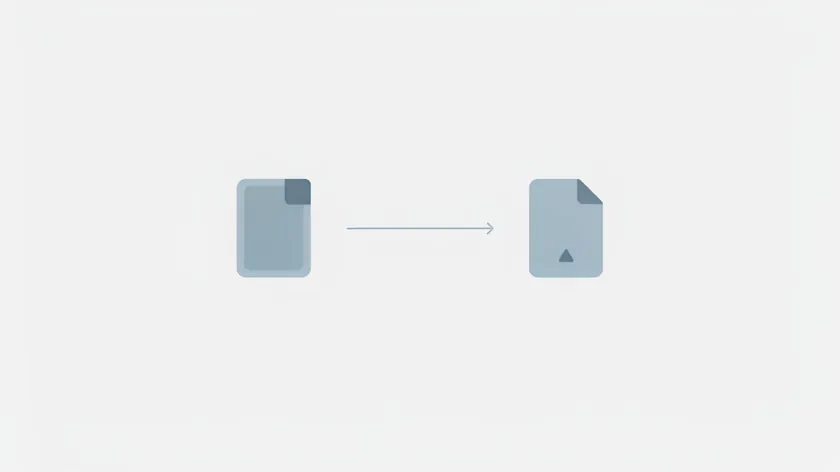
Neither Markup nor a browser editor like pdfapp.com changes the original text of a PDF; both add new content on top of the page.
For scanned documents, Optical Character Recognition (OCR) is required to edit text in scanned PDFs. The practical options are: edit the original source file (Word, Pages, Google Docs) and export it again as a PDF, or convert the PDF to an editable format first.
If you only need to fix a typo or update a date, open the source file, make the change, and export a new copy as a PDF.
If you would rather change the original text directly on an iPhone, third-party apps can do it. According to their own pages, PDF Expert lets you edit PDF text, images, and links, and the PDFgear iPhone app can add, delete, or modify text in a PDF, reorder, rotate, add, delete, or extract pages, and describes itself as free. Both are separate apps that you install.
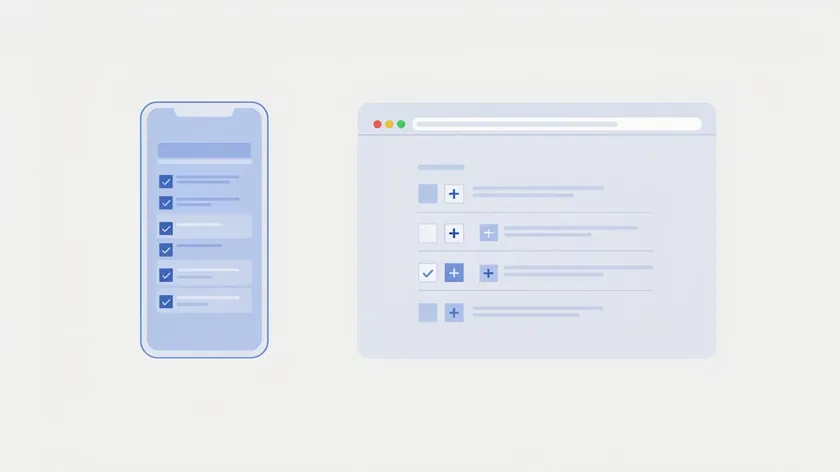
Both tools work on iPhone, but their editing features cover different ground. Here is a side-by-side review:
| Task | iPhone Markup | pdfapp.com in Safari |
|---|
| Edit existing text in a PDF document | Not supported | Not supported (adds new text on top) |
| Add new text boxes | Supported | Supported |
| Add notes and drawings | Supported (pen, pencil, highlighter, shapes) | Supported |
| Add a signature | Supported | Supported |
| Add images to a PDF file | Not listed in Apple’s Markup guide | Supported |
| Fill interactive PDF forms | Supported (tap fields to type) | Add text boxes over the fields |
| Highlight text in a PDF | Supported | Supported |
| Works outside Apple devices | Apple only | Any browser, including Android and computer |
Start with Markup for quick annotations and signatures. Switch to pdfapp.com when you need to insert images or work from a device that is not an iPhone.
Because it runs in any browser, the same steps work on an Android phone or a computer, so you are not tied to Apple devices.
Tips for Managing and Sharing Edited PDFs on iPhone (and iPad)
Once you can edit PDFs, you need a clean routine to store, name, and share your edited PDF files on iPhone and iPad.
Name and Organize Your Edited PDFs
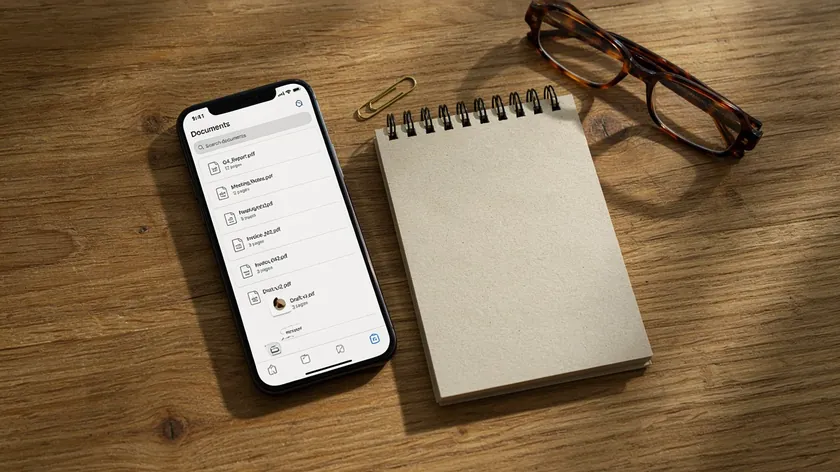
Name files clearly: use a pattern like “Contract-ClientName-Edited.pdf.” Organize them in the Files app using folders and iCloud Drive so you can search and access them across devices.
Avoid Losing Your Changes
After editing in the browser editor, download the final PDF and save it to Files before navigating away. Verify the new version opens correctly on your iPhone before you delete older copies.
Review the final PDF on your phone and scroll through every page before you send it. Use the search field in the Files app to find the saved copy quickly.
Share Edited PDFs Securely
Use Mail for one-to-one sharing, Messages for quick exchanges, and iCloud Drive sharing links when files are large. Avoid editing sensitive data on public Wi-Fi.
The Same Tips on iPad
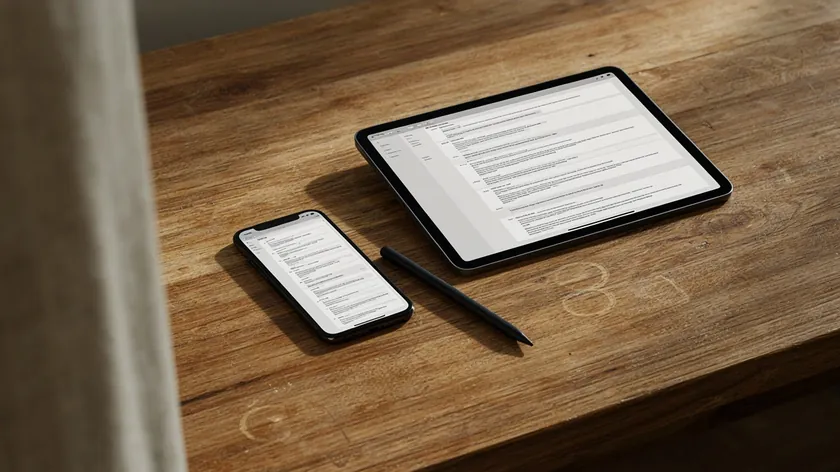
The same file-management tips apply on iPad. You can start editing a PDF on iPhone and continue later on the iPad if needed, thanks to iCloud sync.
Because the editor works in any browser, you can also reopen the same file on a computer when you need a larger screen.
Key Takeaways
- Markup is best for quick annotations, signatures, and simple PDF forms on iPhone, but it cannot edit existing text inside a PDF document. The same applies to pdfapp.com.
- pdfapp.com in Safari lets you add text, images, drawings, highlights, and signatures on an iPhone without installing an app.
- Save edited PDFs back into the Files app or iCloud Drive and share them directly from your iPhone for work, school, or personal use.
- The same steps work on iPad, but this article focuses on how to edit a PDF on iPhone specifically.
Ready to edit your next PDF? Open pdfapp.com in Safari on your iPhone and start editing without installing another app. Note that downloading the edited file requires a paid trial or subscription.
FAQ
Can I Fully Edit Existing Text in a PDF on My iPhone?
Apple’s Markup tools on iPhone cannot change existing text inside a PDF document; they only add annotations on top of the page. pdfapp.com also adds new text on top of the page and does not change the original text.
To change existing text, edit the original source file and export it again as a PDF.
Do I Need to Install an App to Edit PDFs on My iPhone?
Basic PDF editing (highlighting, drawing, signing) is built into iOS via Markup in the Files app, Mail, the Notes app, and other apps, so no extra app is required for annotations.
PDFApp.com runs entirely in the browser, so to add text, images, drawings, and signatures on an iPhone, users only need Safari and an internet connection.
How Do I Edit a PDF on My Phone?
On an iPhone, use Apple’s Markup for quick annotations, or open pdfapp.com in Safari to add text, images, drawings, and signatures. On an Android phone, a browser editor works the same way: see our guide on how to edit a PDF on Android.
How Can I Edit a PDF on My iPhone for Free?
Markup is included with iOS, so annotating and signing do not need an extra app or a payment. pdfapp.com lets you try the editor, but downloading the edited file requires starting a paid trial or subscription.
Does the iPhone Come with a PDF Editor?
Not a full one. iOS includes Markup, which lets you draw, add text, shapes, and a signature on a PDF, but it does not change the original text.
For other jobs, such as adding images, use a browser editor like pdfapp.com.
Does This Also Work on iPad, or Is It Only for iPhone?
Both Markup and pdfapp.com work on iPad as well as iPhone, with the same core editing steps. iPad users benefit from the larger screen and optional Apple Pencil for more precise annotations, while still following the same browser-based editing process described for iPhone.
Is It Safe to Upload My PDF Files from iPhone to an Online Editor?
Use only HTTPS websites when uploading PDF files. Avoid editing sensitive documents on shared or public networks. According to the pdfapp.com FAQ, file transfers are protected with SSL/TLS encryption and uploaded files are used solely for processing and never shared with others.
Check the pdfapp.com privacy page for full details. You can always delete downloaded copies from your iPhone and clean out unneeded PDFs from Files after you finish editing.
Can You Edit a PDF on an iPhone?
Yes. Markup and a browser editor like pdfapp.com cover annotations, new text, images, and signatures. Changing the original text in the PDF needs the source file or a conversion to an editable format.