Yes, you can edit a PDF on an Android phone without installing anything. Open pdfapp.com in Chrome, upload your PDF, make your edits, and download the result. That works because pdfapp.com is a responsive, web-based editor that runs right in your mobile browser.
This guide is for anyone who needs to fix a typo, add a note, or insert an image in a PDF away from a computer. Editing in the browser saves you from installing an app, granting permissions, and using up phone storage. Here is the complete flow, from a quick edit to secure sharing.
Table of Contents
Quick Start: Edit a PDF on Android in Under a Minute
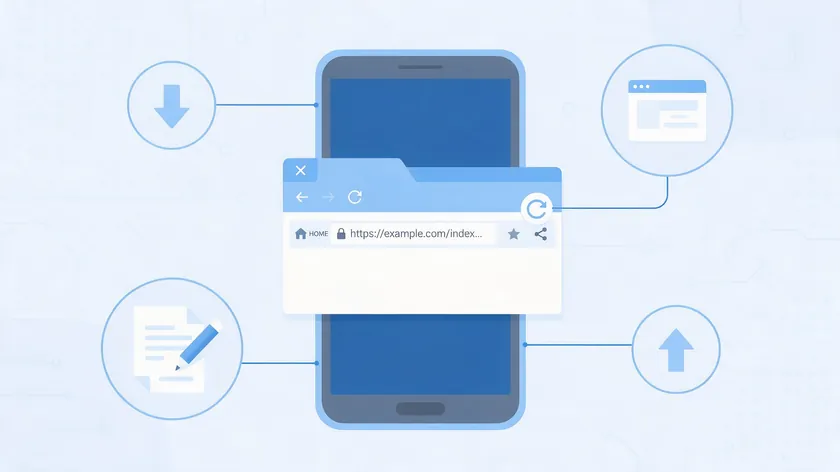
Wondering how to edit a PDF on Android? Here is the fastest path. More detail and options follow in later sections.
- Open Chrome (or your browser) on your Android phone and go to pdfapp.com.
- Upload your PDF by browsing your Downloads folder or picking it from Google Drive, Dropbox, or OneDrive.
- Once the PDF loads, edit the text you want to change, or use the editing tools to add notes or images.
- Download the edited PDF to your phone, then send it with your phone’s share menu (email, WhatsApp, or Google Drive).
This flow is the same whether you want to fix a typo, add notes for review, or insert a logo image into a PDF file.
For deeper instructions on editing text, highlighting, or searching inside PDFs, see our guides on editing a PDF, adding text to a PDF, highlighting in a PDF, and searching for keywords in a PDF.
Open pdfapp.com in your Android browser and try it with your own PDF.
Why Android Can’t Natively Edit PDFs Well (And What Actually Works)
Android phones include a basic PDF viewer, but not a full PDF editor. The three points below show what is built in, what people really want, and what works instead.
What Chrome can do with a PDF on Android
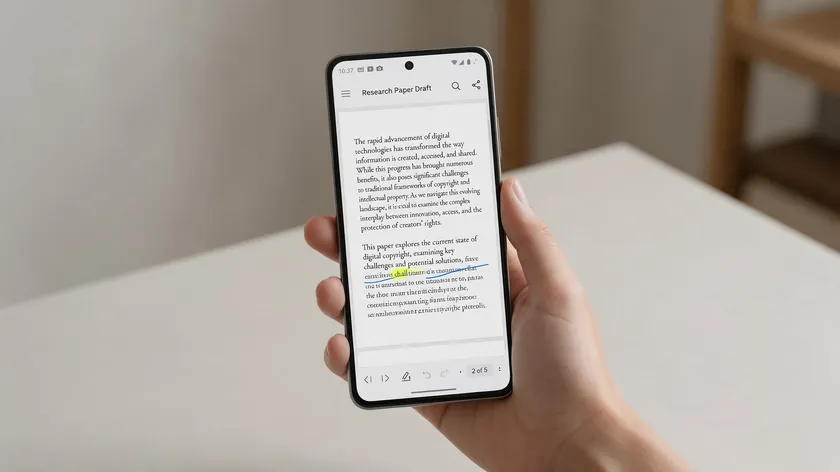
Chrome on Android 12 and up can open, search, and select text in a PDF, and its Edit button opens the file in Google Drive for pen and highlighter markup.
Changing existing text or replacing images is not part of that toolkit. Google Drive allows limited PDF editing through Google Docs, though the format and layout often break during conversion.
What most people mean by “edit PDF” on a phone
What most people mean by “edit PDF” on a phone is more practical: change a word or a date, add a note, drop in an image, and save the result as a PDF again.
Why a browser-based editor can replace an app
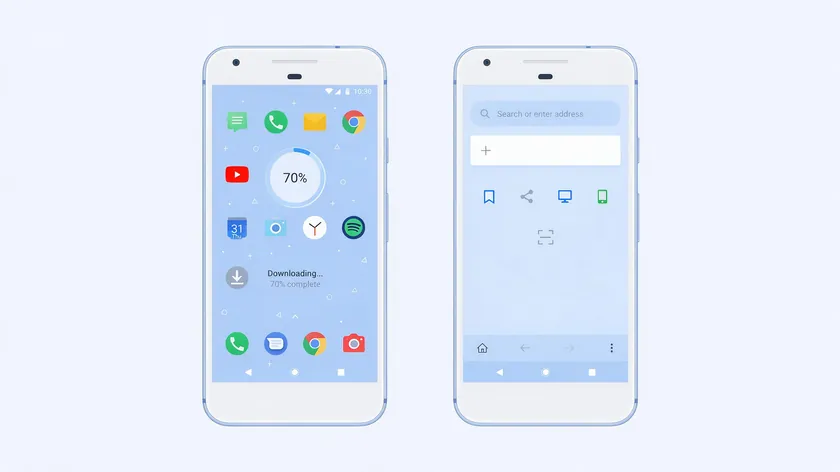
Play Store apps such as Adobe Acrobat, PDFgear, and iLovePDF can do this, but they mean installing something, granting permissions, and sometimes paying for full features. A browser-based editor like pdfapp.com, one of the online tools that run in Chrome, avoids the install entirely, works the same on desktop and mobile, and keeps the editing tools consistent regardless of device.
The rest of this guide walks through the whole flow on an Android phone: open the PDF from storage or cloud, edit it in the browser, then download or share the result.
Step-by-Step: Open and Edit PDF Files on Your Android Phone
This section walks through each step for Android phones of any brand—Samsung, Google Pixel, OnePlus, or Xiaomi.
What you need before you start
You need an Android phone or tablet with an up-to-date version of Chrome, a stable internet connection, and your PDF saved in the Files app or in Google Drive. Android smartphones from any brand should work. Because the editor runs in your browser, the steps should be the same whether you have a Samsung phone, a Google Pixel, a OnePlus, or another Android device, and you do not need to install an app first.
Open the PDF in the browser-based editor
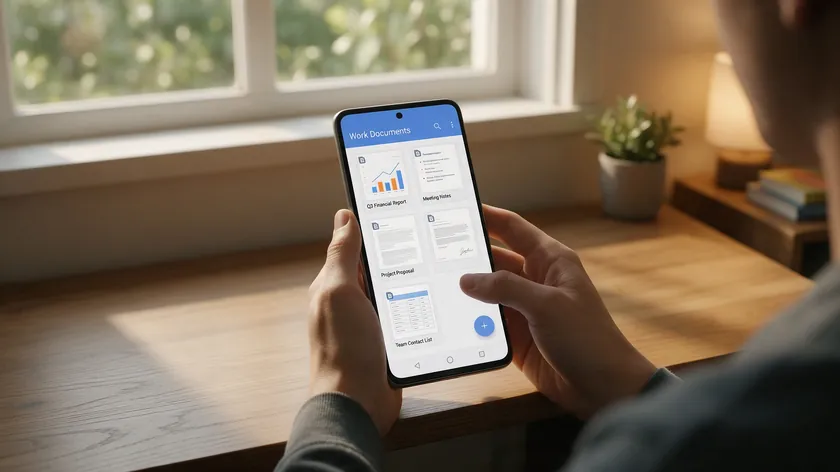
Locate your PDF document in the Files app (or My Files on Samsung devices) under Downloads or Documents. Then either open pdfapp.com first in Chrome and choose the PDF from your phone, or share the file from the Files app and pick the browser if Android offers that option.
How the PDF opens in the online editor on Android
Pages load with pinch-to-zoom and vertical scroll, just like a typical mobile document viewer. The page layout adapts to the narrow phone screen.
Make basic edits: edit existing text, add notes, and add images
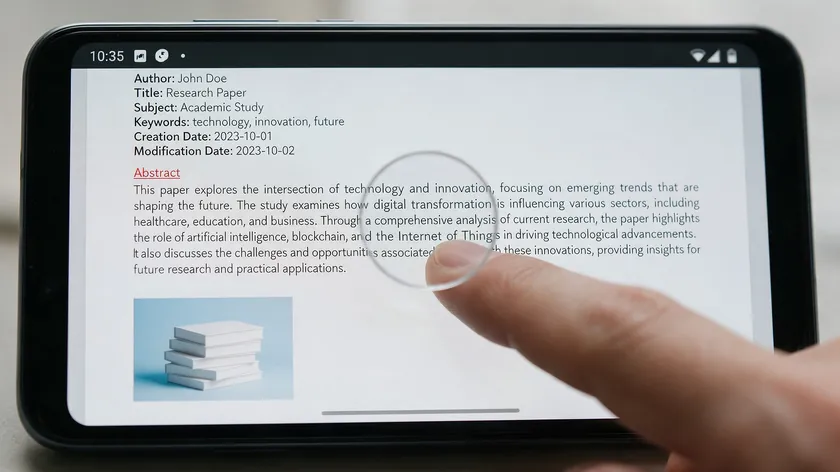
Tap on existing text to edit it—correct a name, update a date, change an amount. Use the editing tools to add notes or comments. Add images such as a scanned signature PNG, a company logo, or photos from your gallery, then drag to reposition.
Save, download, or share the edited PDF from Android
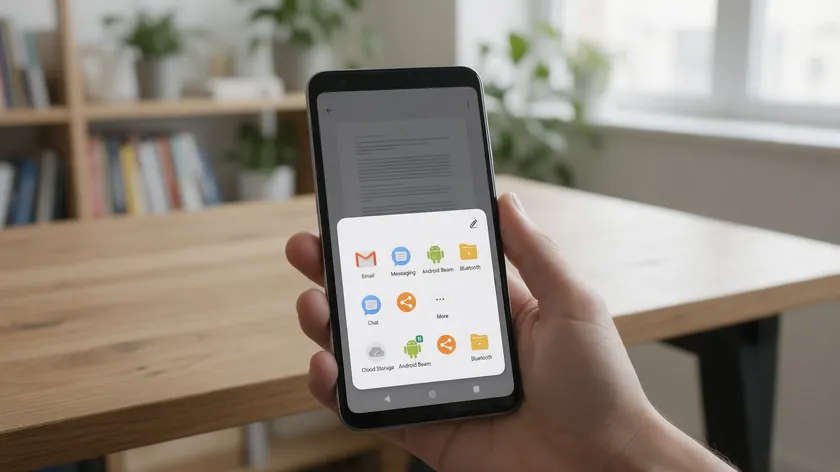
When you finish editing, download the updated PDF, which is stored locally in the Downloads folder on your phone. Editing in the browser does not require signing up, but you will need an account to download the finished file.
Once the file is in your Downloads folder, use Android’s share sheet to send the document via Gmail, WhatsApp, Telegram, or upload it straight to Google Drive.
Tip: If the page looks too small, rotate your phone to landscape for more editing space. If some tools or the toolbar seem hidden in mobile mode, tap Chrome’s three-dot menu and enable “Desktop site.”
What You Can (and Can’t) Edit in a PDF on Android
Basic edits work well on a phone, but not every PDF behaves the same. Scanned documents, locked files, and interactive forms each have quirks worth knowing.
Editing existing text on mobile
Editable PDFs—where you can select text—let you edit existing text, fix typos, change dates, and update short paragraphs. In practice, you edit PDF text the way you would in a simple document, one short change at a time.
For long-form rewrites, a desktop or computer is more comfortable. Our full guide to editing a PDF covers comprehensive instructions.
Adding notes and annotations
On Android phones you can annotate a PDF by highlighting important passages and adding notes for feedback. See our guide on how to highlight in PDF for the full walkthrough.
Adding images and simple graphics
Users can add images like signatures, stamps, or simple graphics from their phone’s gallery or camera. Adding a scanned signature image is also a simple way to sign a document from your phone. Keep images small and precise on mobile—save heavy layout work for a desktop device.
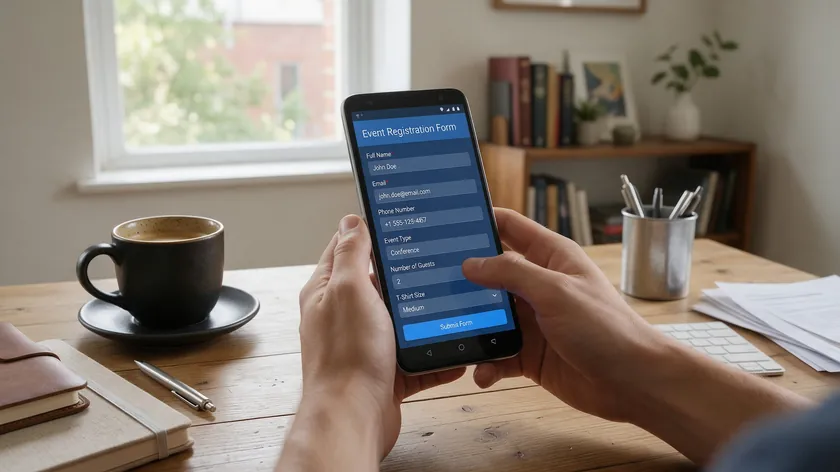
Interactive PDF forms let you fill forms directly on the page by tapping the form fields and typing, and they are usually easier to complete with your phone in landscape mode. Flat PDFs only look like forms, so you add text boxes over each blank line to fill them in instead.
Our guide on how to add text to a PDF covers that step by step.
Limitations with scanned PDFs and locked files
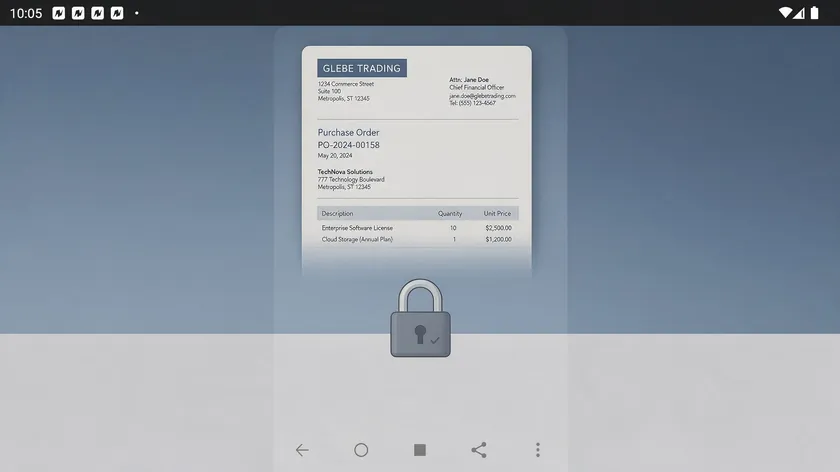
Scanned PDFs are essentially photos of page content. OCR features are needed to edit scanned PDFs instead of annotating them, and on mobile this process can be slower or unavailable in free online tools. Password-protected or restricted PDFs prevent editing until unlocked, which sometimes requires a desktop tool.
When to edit on your phone or on a computer
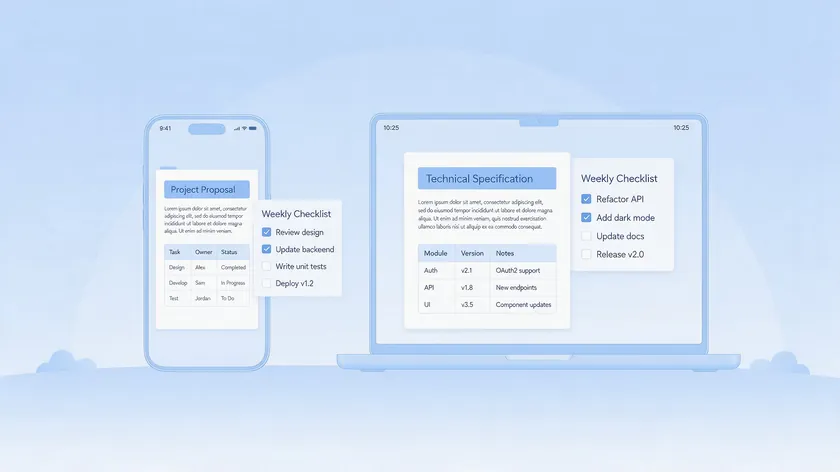
Use this quick guide to decide whether to edit on your phone or on a computer.
| Task | Best on | Why |
|---|
| Quick corrections (typos, dates, amounts) | Android phone | Short edits are easy on a small screen |
| Adding notes or comments | Android phone | Leave feedback without a computer |
| Adding a signature or an image | Android phone | Works well when the image is small and precise |
| Heavy text rewrites | Desktop | Long-form editing is more comfortable on a computer |
| Complex layout changes | Desktop | Heavy layout work is easier on a larger screen |
| Bulk page management | Desktop | Handling many pages is easier on a larger screen |
As a rule of thumb, use your Android phone for quick fixes and save big rewrites for a computer.
Working on an iPhone? The same browser-based steps apply there, so you can start a quick fix on one device and finish on the other. See how to edit a PDF on iPhone for the Safari workflow.
Tips for Smoother PDF Editing on Android Phones
These tips are optional but helpful for Android users who do mobile PDF editing regularly.
Usability tips for small screens
Rotate your Android phone to landscape for complicated edits. Zoom in before editing text or tapping small toolbar icons to avoid mis-taps. A cheap stylus makes it easier to draw freehand notes and tap precisely.
Use an Android tablet for more room
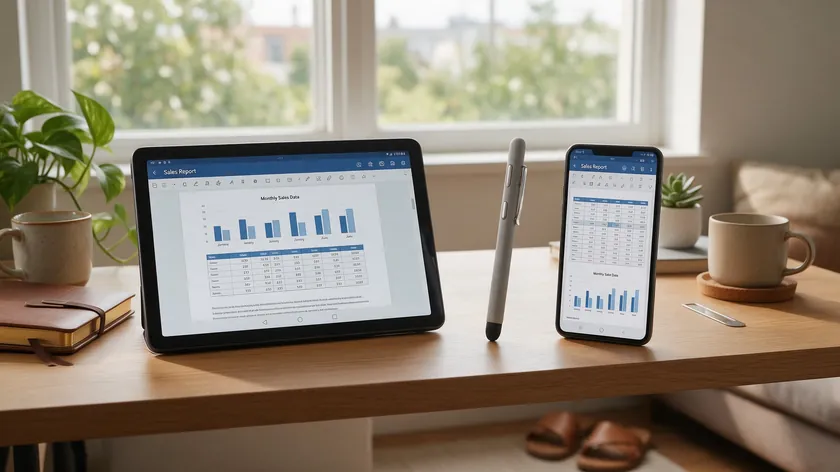
An Android tablet follows the same Chrome steps and gives you a larger screen for precise edits, which helps with small text and image placement.
Close background apps and ensure a stable Wi-Fi or 5G internet connection when uploading large PDF files. Download a copy after major edits, especially on older Android phones, so your work is not lost if the connection drops.
Free up storage before large PDFs
Large PDFs and heavy images take up space on your phone. Free up some storage before you download edited copies, and delete old versions you no longer need.
Keep a copy of the original PDF
Make a copy of the PDF in the Files app before you start, so you can go back if a change goes wrong. Keep the untouched original in Google Drive or your Downloads folder until you have checked the edited file.
File management best practices
Rename edited PDF files (e.g., “Contract-2026-Edited.pdf”) in the Files app, giving each one a clear title so versions stay easy to tell apart. Store important files in cloud storage from the Android share menu so they are accessible on desktop later.
Mobile PDF editing with one editor on Android and desktop
pdfapp.com works the same way from both Android and desktop, keeping menus consistent. For deep dives into specific features, follow our other guides rather than re-learning a separate mobile interface.
Downloading, Sharing, and Keeping Your Edited PDFs Secure
Finishing the edit is only half the job—where the file goes and how secure it remains matters just as much.
How downloads work on Android
Most browsers (Chrome, Samsung Internet) save downloaded PDFs to the Downloads folder accessible via the Files app. Verify the edited file opens correctly before deleting the original.
Common sharing paths from an Android phone
Tap the download notification to open the edited PDF, then use Android’s share icon to send via Gmail, Outlook, WhatsApp, or upload to Google Drive. For work documents, sharing a link to a cloud-stored PDF is often better than attaching large files.
Find your edited PDF later
Open the Files app and check the Downloads folder, or open Chrome, tap the three-dot menu, and choose Downloads to see every file you have saved. Renaming the file right away makes it much easier to spot.
Open the PDF in another viewer
When a PDF is open in Chrome, tap the three-dot menu and choose Open with to view it in a different PDF viewer on your phone. This is handy when you only want to read or print the final file.
Basic security and privacy considerations
Avoid uploading sensitive documents—passports, financial records, medical PDFs—on public Wi-Fi. Clear downloaded PDFs from shared or family Android phones if the document is confidential. For ongoing collaboration, keep the edited PDF in a cloud workspace and re-open it in pdfapp.com whenever you need more changes.
You can safely manage edited PDFs from your Android phone with just a browser and a few taps.
Key Takeaways
- You can edit PDF files on any Android phone directly in a browser using pdfapp.com, with no APK or Play Store download needed.
- Open a PDF from Chrome on Android, make quick changes (edit existing text, add notes, add images), then download and share the updated PDF in a few taps.
- For deeper how-tos, see our guides on editing a PDF, adding text to a PDF, and highlighting in a PDF.
- This method works in a standard mobile browser such as Chrome and is ideal when you need to edit PDFs away from a computer.
- Your documents stay in PDF format, with no forced conversion, and the workflow is built for small screens.
Ready to try it? Open pdfapp.com in your Android browser and start editing directly—add text, insert images, and more without installing anything. You will only need an account when you are ready to download your finished file.
FAQ
Can I edit PDFs on Android without installing any apps?
Yes. You do not need an app such as Adobe Acrobat, PDFgear, or iLovePDF. A responsive web-based PDF editor running in Chrome or another browser on your Android phone is enough for most everyday edits—fixing text, adding notes, and inserting images.
You do not need to visit the Play Store, though you will need an account to download the finished file.
Can I edit a PDF file on my Android phone for free?
Editing in the browser is free to use with pdfapp.com, but you will need an account to download the finished file. Check the current plan details on pdfapp.com before you start, since they can change.
Does Android have a built-in PDF reader?
Yes, in a basic way. Chrome on Android 12 and up can open a PDF, search it, and select text, and its Edit button opens the file in Google Drive for pen and highlighter markup.
That is a viewer with simple markup, not a full editor, so changing existing text still takes a web-based PDF editor.
Can I edit an already made PDF?
Yes. A PDF that already exists can be opened in a browser-based PDF editor on your Android phone, where you can change existing text, add notes, and insert images, as long as its text is editable. Scanned PDFs are the exception, because their text is part of an image and usually needs OCR first.
How do I edit a scanned PDF on my Android phone?
Scanned PDFs act like images, so you can add notes, add images, or annotate on top of them, but you cannot truly edit existing text unless OCR is applied. OCR is usually a separate step, and on an Android phone it can be slower or limited.
Is it safe to edit sensitive PDF files on my Android phone?
It can be, with precautions. Use editors that connect over HTTPS and, ideally, process files on your device rather than uploading to a server. Avoid public Wi-Fi for sensitive documents, and delete local downloads from shared Android devices when finished.
Why can’t I edit some PDF files on Android even in a PDF editor?
The most common reasons are password protection, restricted permissions set by the document creator, or image-only (scanned) pages with no selectable text layer. Unlocking the file or applying OCR, sometimes on a desktop, resolves most of these issues.
Can I start editing a PDF on Android and finish on my computer later?
Yes. Because the tool is web-based, you can download the partially edited PDF to Google Drive or another cloud service from your Android phone, then re-open it in the same editor on your desktop to complete the work.
Can I edit a PDF on an Android tablet or an iPhone too?
An Android tablet follows the same steps in Chrome, and the larger screen makes precise edits easier. Because the editor runs in a browser, you can also open it on an iPhone, so you can start on one device and finish on another.
How can I add a signature to a PDF on my Android phone?
Save your signature as an image, such as a PNG or a photo of your signature on paper, then add it to the PDF as an image and drag it into place. Keep the image small and precise so it sits neatly on the signature line.