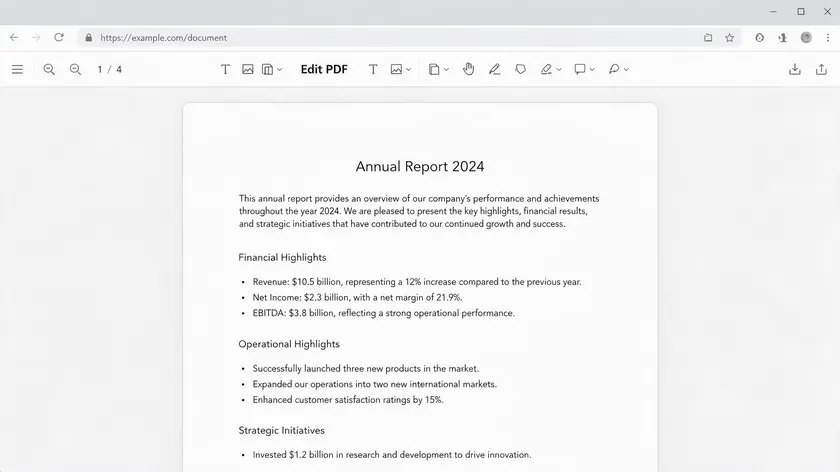
Editing a PDF used to mean opening it in a bulky desktop app or converting it to Word and hoping the formatting survived. Today, you can start editing a PDF right now, directly in your browser at pdfapp.com—no downloads, no installation. This guide covers every practical way to edit a PDF, from quick browser-based fixes to when a paid desktop tool actually earns its price.
Table of Contents
Quick Start: How to Edit a PDF Online in Your Browser
The fastest way to edit a PDF is to do it right in your browser. No downloads, no installation required—just open an online PDF editor, upload your file, make your changes, and save. Most web browsers on Windows, macOS, and Chromebooks support this workflow, which makes it ideal for quick fixes like correcting a typo before a meeting.
Here’s a high-level walkthrough that works with most browser-based editors, including pdfapp.com:
- Upload—Navigate to the editor and drag your PDF file onto the page or click the upload button.
- Edit—Use the toolbar to add text, insert an image, delete a page, or rearrange the page order.
- Save—Once your edits are complete, export the file. You can save a modified PDF as a new file to preserve the original document.
- Download—Download the edited PDF to your device or share it via a link.
Many free PDF tools let you start editing without signing up. However, saving or downloading the finished file often requires creating a free account. On pdfapp.com, for example, in-browser editing actions don’t require signup, but you’ll need an account to download your completed file.
This browser-first approach works especially well when you need to correct a single detail—swapping “Q3 2025” for “Q3 2026” in legal contracts, for instance—without installing heavy desktop software.
What “Editing a PDF” Really Means
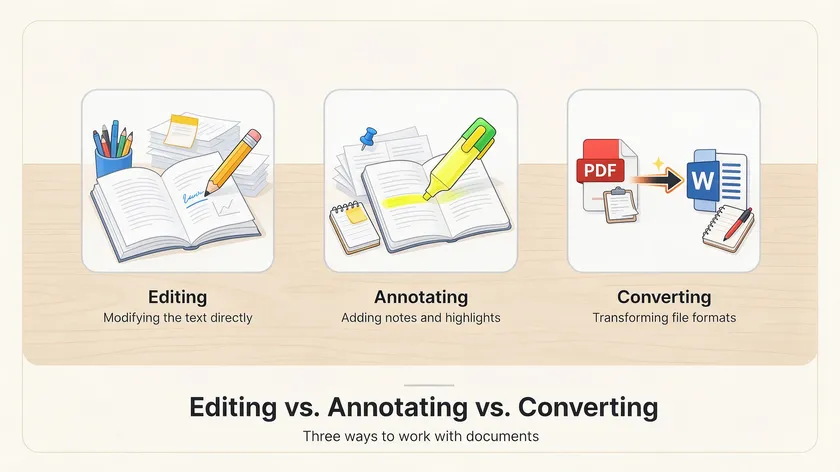
When most people say they want to “edit a PDF,” they mean one of several things: changing a date in a contract, swapping out a logo, deleting a blank page, or fixing a misspelled name.
Editing a PDF typically involves using a PDF editor to open the file and make changes to the actual content—the words, images, and layout that define the document.
PDF editors allow direct text and image editing on the page layout, which separates real editing from simpler actions like adding comments.
It helps to draw a clear line between true PDF editing and annotation. Annotations—highlights, comments, sticky notes, and freehand markups—sit on top of the page. They’re great for review and feedback, but they don’t change the underlying PDF content.
If you highlight a sentence, the original text remains untouched beneath the markup. True editing modifies the content stream itself: rewriting a paragraph, replacing a product photo, or removing an outdated page entirely.
Here’s what falls into each category:
- Editing: Changing existing text (“2025” → “2026”), replacing images, deleting or reordering pages, and adjusting form fields.
- Annotating: Adding highlights, comments, sticky notes, or text boxes layered over the page without modifying the original content.
- Converting: Exporting the PDF to a Word doc, PowerPoint, or other file type and editing there is useful, but it is a different workflow.
Not every PDF file is created equal. Some PDFs contain real, selectable text. Others—especially scanned documents—are essentially images of pages. You cannot edit text in a scanned PDF without first running optical character recognition (OCR), and many free tools do not include that feature.
Editing a PDF document depends on the scale of edits required and the type of file you’re working with, so knowing what you’re dealing with saves frustration before you begin editing.
Adobe invented the PDF format in 1993 and has over 30 years of experience refining it. That history is part of why PDF remains the universal standard for sharing documents that look the same on every screen—and why editing them requires purpose-built tools rather than a basic text editor.
Editing Text in PDF Documents
Changing text is the number one reason people search for a PDF editor. Whether you need to update a contract date, correct a client name, or fix a typo in a product brochure, the core question is the same: can I edit PDF text directly, or do I need a workaround?
There are two main approaches:
Editing existing text
You click on a word or paragraph and type over it, just like a word processor. The editor modifies the underlying PDF text, preserving fonts and spacing where possible. Tools like pdfFiller support editing existing text in PDFs directly.
Adding text boxes
You place a new text box on top of the page and type fresh content. This works even when the original text is locked, but the result is an overlay rather than a true content change.
Free PDF editors typically excel at letting you add text boxes anywhere on the page. Full “edit existing text” capabilities—where the editor reflows paragraphs and matches fonts—are often limited to paid plans or desktop apps like Acrobat Pro.
Canva’s PDF editor allows adding and deleting text and images, while Smallpdf enables adding text, shapes, and images to PDFs, though deep paragraph-level editing may require a subscription.
For detailed, step-by-step instructions on adding text to a PDF, check out a dedicated “How to Add Text to a PDF” guide rather than trying to cover every scenario here. The key takeaway: for small, targeted changes—swapping a date, correcting a name—a browser-based editor handles it quickly.
For rewriting entire paragraphs, you may be better off editing the original source document (a Word file or Google Docs draft) and re-exporting to PDF format.
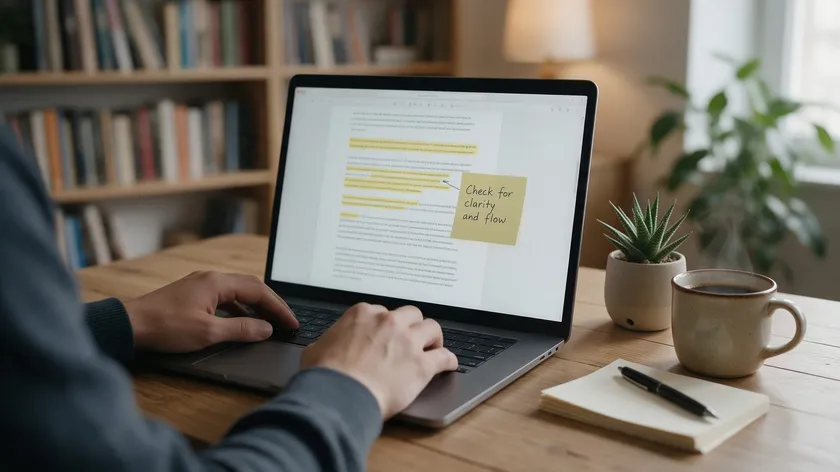
Annotation is the lighter side of PDF editing—it doesn’t change the underlying document, but it’s essential for collaboration and review. You can add comments and highlights in a PDF for review purposes, making it easy for teams to exchange feedback without altering the original content.
Common annotation tools include
- Highlights and underlines—Mark important passages in research papers or lesson plans for later reference.
- Comments and sticky notes—Add sticky notes in the margin to flag questions or suggestions during a review round.
- Strikethrough and freehand drawings—Strike through outdated text or add drawings to sketch quick visual notes on a diagram.
Adobe Acrobat’s online editor allows adding comments and annotations, and most free online PDF editor tools support at least basic markup. Students can highlight a 2024 research article, project teams can annotate a 2026 marketing plan, and managers can leave feedback on offer letters—all without permanently altering the PDF content.
Annotation doesn’t replace editing, but it’s often the right tool when the goal is collaboration rather than revision. For step-by-step highlighting instructions, a dedicated “How to Highlight in PDF” guide covers the specifics in depth.
Reordering, Deleting, and Extracting PDF Pages
Editing a PDF isn’t only about changing text. Page-level management—reordering, deleting, rotating, or extracting pages—is just as common. PDF management tools facilitate merging, splitting, and rotating pages, and most modern editors make these tasks straightforward.
Typical page-organization tasks include:
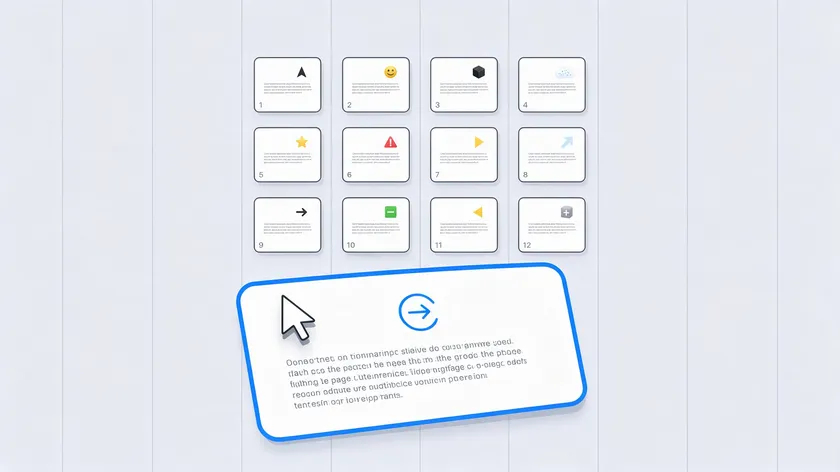
- Reordering—Drag-and-drop page thumbnails to rearrange a report so the executive summary comes first.
- Deleting—Remove a blank page from a 10-page contract or strip out an outdated appendix.
- Extracting—Pull a single page (like a signature page) out of a large PDF and save it as its own file.
- Merging—Combine two monthly reports into one PDF document for easy sharing.
- Splitting—Break a large 200-page policy manual into smaller, more manageable sections.
Most free PDF tools handle page operations well, though you may encounter caps on page count or file size. A file larger than 50–100 MB, for example, might exceed the free tier of some online tools. For everyday documents—contracts, invoices, lesson plans—these limits rarely matter.
Inserting and Adjusting Images in a PDF
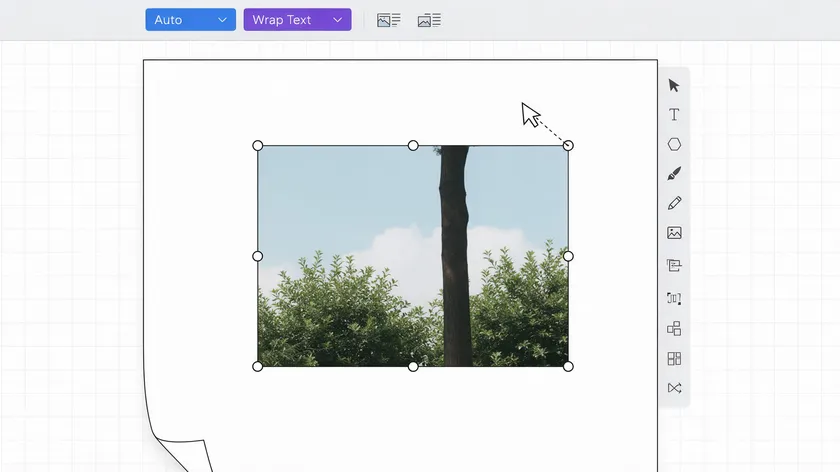
Adding images, logos, signatures, product photos, and screenshots is a core part of PDF editing. Most editors let you insert a jpg or png file, then resize, move, and rotate it until it sits exactly where you need it on the page.
Common scenarios include:
- Inserting a scanned signature image onto a contract.
- Updating a company logo in a 2024 brochure.
- Adding screenshots to a training manual.
Basic controls are consistent across tools: click an “Insert Image” button, select your file, then drag the image into position. It layers over or alongside existing text and graphics. Keep file size in mind—dropping a 10 MB photo into a two-page PDF can bloat the output significantly. Resize or compress images before inserting when possible.
For a detailed, step-by-step walkthrough, a specialized “How to Insert a JPEG into a PDF” article covers the process from start to finish. This section is meant to signal that adding images is part of editing a pdf, not to replace that deeper guide.
PDF forms and e-signatures are among the most practical reasons to edit PDF documents. Whether you’re signing a freelance contract, filling out a tax form, or completing HR onboarding paperwork, the workflow is similar: open the PDF, fill in the form fields, sign, and send.
There are two types of PDF forms you’ll encounter:
These have pre-built form fields (text inputs, checkboxes, and dropdowns) that you click and type into directly. Adobe Acrobat allows users to create fillable forms from scratch, and pdfFiller enables users to turn static PDFs into interactive fillable forms. Canva’s PDF editor allows users to edit and fill PDF forms easily as well.
Flat PDFs
These look like forms but have no interactive fields. You’ll need to add text boxes manually over each blank line to fill them out.
For signing, most editors offer three options: type your name in a script font, draw a signature with your mouse or trackpad, or upload a signature image. Once signed, you can download the file or share it via a link for others to countersign.
The ability to sign PDFs and share PDFs from one platform makes electronic signing practical for everyday tasks like approving offer letters, completing rental agreements, or returning signed lesson plans to a school administrator.
Many tools also support easy sharing through download links or email-based workflows, reducing the need to print, sign, and scan.
Choosing the right tool depends on what you need to accomplish. Below is a comparison of four widely used options, judged fairly on price, text-editing capability, and browser support.
| Tool | Platform | True Text Editing | Free Tier | Browser-Based |
|---|
| pdfapp.com | Web browser (Win, Mac, Chromebook, mobile) | Yes—edit text and images | Free features available; download requires account | Yes—no install needed |
| Adobe Acrobat Pro | Desktop (Win, Mac) + Online | Yes—full editing, OCR, redaction, forms | No free full-editing version; paid monthly subscription | Desktop app + limited browser version |
| LibreOffice Draw | Desktop (Win, Mac, Linux) | Yes—open and edit text/graphics. | Fully free, open source, no watermarks | Desktop only—must install |
| Sejda | Web + Desktop | Yes—edit existing text, replace images. | Free tier with task/hour limits, page caps | Both browser and desktop |
Adobe Acrobat is widely regarded as the most robust PDF editing option, especially for professionals handling complex layouts, OCR on scanned documents, and accessible PDF forms daily.
LibreOffice Draw is the strongest fully free desktop alternative, though complex documents can lose some layout fidelity. Sejda bridges browser convenience with more serious editing features, and pdfapp.com offers the fastest browser-first on-ramp for people who want to begin editing without installing anything.
Your needs should dictate your choice. If you edit PDF documents all day in a legal office, Acrobat Pro’s advanced features and reliability justify the subscription. If you need to fix a single typo in a resume once a quarter, a free online PDF editor handles it in seconds.
Editing PDFs Without Adobe Acrobat
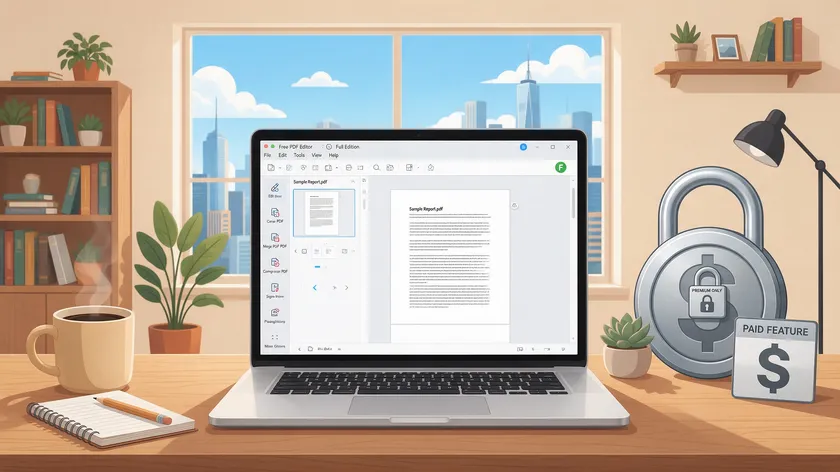
How can you edit a PDF without Adobe Acrobat? It’s one of the most common questions people ask, and the answer is straightforward: free or lower-cost alternatives exist for simple PDF edits and annotations.
Realistic options include:
- Browser-based editors like pdfapp.com or Sejda—no installation required, works on Chromebooks and any device with a web browser.
- Office suites like LibreOffice Draw—open the pdf, edit text and graphics, and re-export. Free and offline, ideal for students on a budget.
- Lightweight desktop viewers like PDF-XChange Editor or Foxit Reader—annotation and basic text-box editing without a full Acrobat subscription.
For students on Chromebooks in 2026 or small businesses that don’t want recurring subscriptions, these alternatives cover most everyday tasks. Where they fall short: some online tools add watermarks on exported files, limit daily tasks, or lack support for editing scanned PDFs.
If you need full editing power—batch processing, certified redaction, or advanced form creation—a paid tool like Acrobat Pro remains the standard.
Many editors also offer PDF conversion features—Adobe Acrobat, for example, converts PDFs to Word, Excel, and PowerPoint.
Converting to a Word doc, editing there, and re-exporting to PDF is sometimes the fastest workaround when direct PDF editing hits a wall.
Working With Scanned or Uneditable PDFs
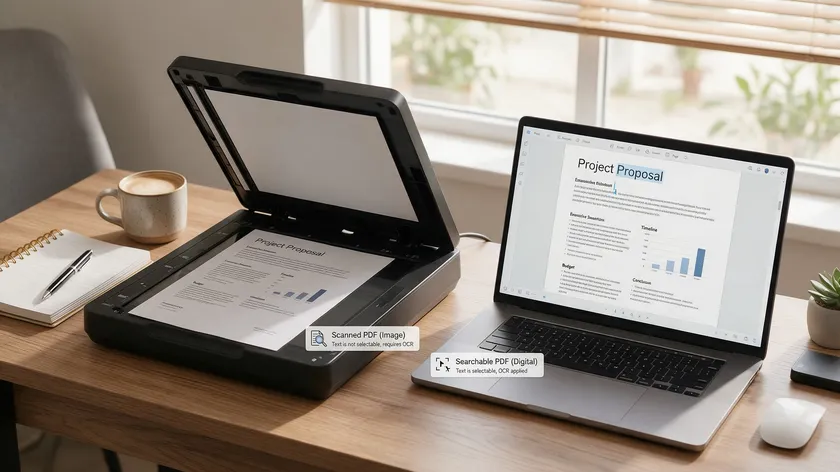
Some PDFs resist editing entirely. If you can’t select or search text in your file, you’re likely dealing with a scanned PDF—a document where each page is stored as a single image rather than structured text. Zooming in reveals fuzzy, pixelated letters instead of crisp, selectable characters.
Optical character recognition (OCR) is needed for editing scanned PDFs. OCR analyzes the image, identifies letters and words, and creates a hidden text layer that makes the content searchable and editable.
Open-source engines like Tesseract power many OCR tools, though accuracy depends on scan quality, font complexity, and language.
Without OCR, your options are limited:
- Add text boxes or annotations on top of the image—an overlay, not true editing.
- Retype short sections into a new document manually.
- Ask the sender for the original Word, Google Docs, or InDesign file.
Not every free PDF editor includes OCR. Check the tool’s feature list before expecting to turn a scanned PDF into a fully editable document. Even with OCR, complex layouts—multi-column pages, tables, and embedded graphics—may not reflow cleanly.
For high-stakes scanned documents like legal contracts or archival records, a desktop tool with strong OCR (such as Acrobat Pro) produces the most reliable results.
Handling Password-Protected and Restricted PDFs
PDFs can carry two types of protection: an open password (required just to view the file) and permissions restrictions (limiting printing, copying, or editing). Check for security restrictions when editing a PDF, as this may limit actions even in a powerful editor.
You generally cannot bypass password protection or owner restrictions without authorization, and attempting to do so may violate organizational policy or law. If you receive a locked file and need to make changes, the best path is simple: ask the document owner for an unlocked version or have them export a new PDF with editing enabled.
Some editors allow limited actions on restricted files—adding comments, for example—but full PDF editing remains blocked by design. Password protection is a security feature, not a bug, and respecting it protects everyone involved.
Editing PDFs on Mobile Devices
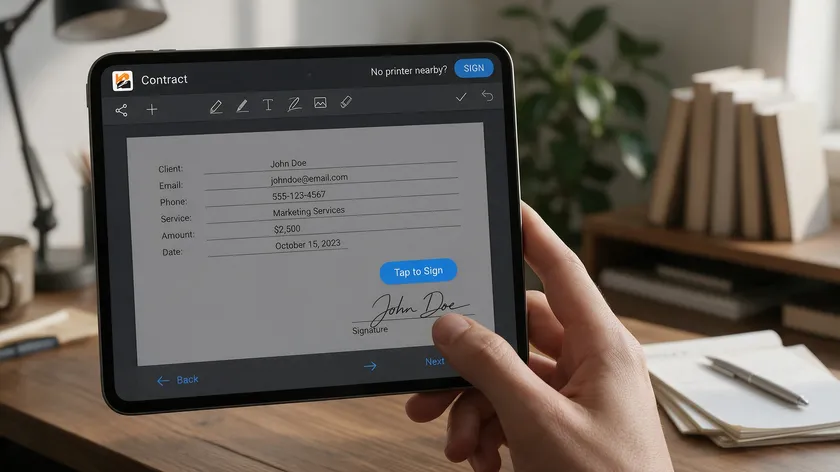
Mobile PDF editing is practical for simple tasks. On iOS and Android, you can fill out PDF forms, sign PDFs, annotate, and make small text changes using native apps or browser-based editors. Approving and signing a PDF contract from your iPhone on the train, or highlighting lecture notes on a tablet during a November 2026 class, works well enough for quick jobs.
Most browser-based free PDF editors function in mobile web browsers, though small screens make precise text or image placement harder. Touch input is less accurate than a mouse for aligning text boxes, and on-screen keyboards slow down heavy typing.
For complex editing—reflowing paragraphs, adjusting multi-page layouts, and inserting and positioning multiple images—start on a laptop or desktop. You can always review and sign PDF documents on mobile afterward. Think of mobile as the finishing step, not the workshop.
For step-by-step phone guides, see how to edit a PDF on iPhone and how to edit a PDF on Android.
Common Problems When Editing PDFs (and Quick Fixes)
Even experienced users run into frustrations when editing PDF documents. Here are the most common problems and concise remedies.
Fonts changing after edits
If the original font isn’t embedded in the PDF file, the editor substitutes a different one, shifting layout and spacing. Fix: use standard fonts (Arial, Times New Roman) or embed fonts when exporting.
Text reflow breaking layout
Inserting or deleting words can push surrounding text into unexpected positions. Fix: make small, local edits rather than rewriting entire paragraphs inside the PDF.
Images moving unexpectedly
Resizing one element can bump others. Fix: lock aspect ratios and position images after all text edits are complete.
File size exploding
A 3 MB annual report can balloon to 25 MB after inserting high-resolution images. Fix: compress images before inserting, reduce resolution to 150 DPI for screen use, and run the editor’s built-in compression on export.
Always save a backup copy before major changes. If your layout breaks in an unfamiliar PDF editing tool, you can revert to the original and try a different approach. Small, incremental edits are safer than sweeping overhauls.
Best Practices for Sharing and Storing Edited PDFs
Once your edits are done, how you share and store the file matters as much as the edits themselves.
Sharing securely. Several editors build sharing directly into the workflow—Adobe Acrobat, for instance, allows sharing PDFs for collaborative feedback. When you need to share PDFs with external parties, use password-protected files or expiring links whenever the content is sensitive.
Security measures. Not all editors handle data the same way. Adobe Acrobat protects files uploaded with secure storage on its servers. Before uploading confidential data to any online tool, review its security page for encryption, retention policies, and compliance certifications.
Naming and version control. Use descriptive file names like “Contract-ACME-2026-10-01-v3.pdf” to avoid confusion between drafts and signed copies. A clear naming convention saves time when you’re searching through folders months later.
Cloud storage. Organize edited PDFs by year, client, or department in cloud storage services like Google Drive, OneDrive, or Dropbox. Some editors offer unlimited cloud storage on premium plans, which can simplify the workflow if you manage a high volume of documents.
These platforms also support easy sharing with teammates and external collaborators from one platform.
Before distributing a file externally, double-check that sensitive information is properly redacted—not just covered by a colored box—or removed entirely. A black rectangle layered over text in a PDF can often be removed by someone with the right tool, exposing the data underneath.
Key Takeaways About Editing a PDF
Editing a PDF covers a wide spectrum—from correcting a single word to reorganizing a 200-page manual. Here’s what matters most:
- Editing vs. annotating vs. converting—Know the difference. Editing changes PDF content directly. Annotating adds markup on top. Converting exports to another format for editing elsewhere.
- Browser-based tools handle most everyday tasks—adding text, inserting images, reordering pages, and signing PDF documents can all happen in a free online PDF editor with no software to install.
- Paid tools earn their keep for complex work—editing scanned PDFs with OCR, creating fillable forms with complex form fields, batch automation, and certified redaction still require advanced features found in desktop software or premium subscriptions.
- Security matters—Always verify how an online tool handles your uploaded files before sharing confidential legal contracts or financial data.
- Start simple, then specialize—A browser-based edit PDF workflow is enough for most people. Explore dedicated guides for adding text, highlighting, inserting images, and searching keywords as your needs grow.
Ready to try it? Open any PDF at pdfapp.com and start editing directly in your browser—add text, insert images, and rearrange pages without installing anything. It’s free to use for in-browser edits; you’ll only need an account when you’re ready to download your finished file.
FAQ
Below are quick answers to common questions that go beyond the main guide. Each is kept brief and practical for readers who just want to know what to click or which limitation they’re facing.
Can I completely edit a PDF for free?
Many free PDF tools let you add text boxes, comments, and signatures without paying anything. However, true “edit existing text” features—where you click on a word and retype it while preserving fonts and layout—are often limited or watermarked on free tiers.
A free PDF editor is usually sufficient for light changes like adding a date, inserting a logo, or signing a document.
For a one-off complex project, consider a short-term trial of a more powerful tool. Acrobat Pro and Sejda both offer trial periods that include full editing capabilities. If you only need to make changes once, that approach is more practical than a permanent subscription.
How do I keep the formatting when I edit text in a PDF?
Formatting shifts happen when the editor can’t find the exact font used in the original document. It substitutes a similar font, and suddenly line spacing, paragraph breaks, and alignment all change. To minimize this, stick to small, local edits—changing “2025” to “2026” rather than rewriting a full paragraph.
If possible, edit the original source file (the Word doc, PowerPoint, or design file the PDF was exported from) and re-export to PDF. This preserves formatting far more reliably than editing PDF text directly.
When you must edit inside the PDF, match the font name and size as closely as you can, and review the output carefully before sending.
Why can’t I select or search text in my PDF to edit it?
Your PDF is almost certainly a scanned image rather than a text-based file. The editor sees one large picture per page instead of individual words and characters, which is why you can’t click on or search PDF text.
Optical character recognition can convert scanned documents into searchable, editable text, but not every free PDF editor includes OCR.
Your practical options are to use a tool with built-in OCR (Acrobat Pro is the most reliable), retype short sections manually, or ask the sender for the original editable file.
For more advanced search tips—including searching across large reports and multi-file collections—a dedicated “How to Search for Keywords in a PDF” guide covers the specifics.
Is it safe to upload confidential PDFs to an online editor?
It depends on the tool. Reputable editors encrypt files in transit and at rest, publish clear data-retention policies, and comply with standards like GDPR, SOC 2, or ISO 27001. Adobe Acrobat protects files uploaded with secure storage on its servers.
For highly sensitive documents—medical records, financial statements, classified legal contracts—consider using an offline desktop editor that processes files locally, so the data never leaves your device. Always read the security measures and privacy policy before uploading anything confidential.
How do I search inside an edited PDF to find keywords?
Once a PDF contains selectable text (not just images), built-in search works in most PDF readers. Press Ctrl+F (Windows) or Cmd+F (Mac) and type the word or phrase you’re looking for. The reader will jump to each match in the document, making it easy to locate a client name, a specific date, or a clause number in a long edited pdf.
If your edited PDF still doesn’t support search, the file may contain image-only pages that weren’t processed with OCR. A dedicated “How to Search for Keywords in a PDF” guide explains how to handle multi-page reports and scanned documents in more detail.