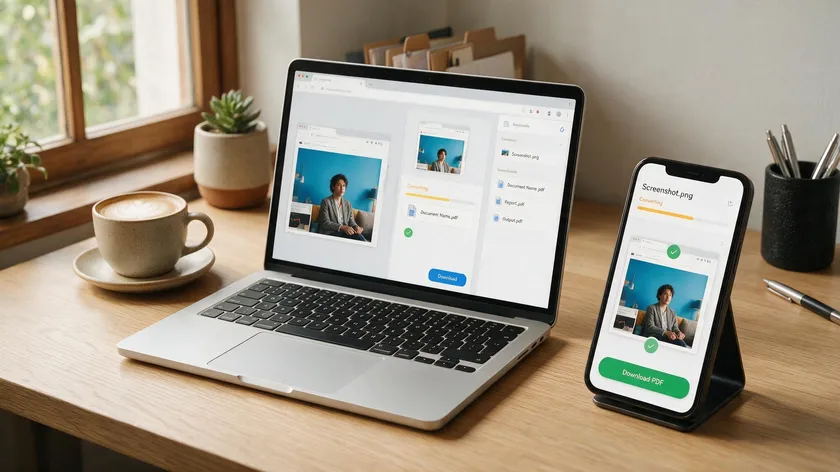
Screenshots are just image files—PNG, JPG, or HEIC—so converting them to a PDF file uses the same basic tools as any photo. No extra software is needed. This guide covers how to turn screenshot into pdf on every major device (Windows, Mac, iPhone, and Android), plus free online tools and how to combine multiple screenshots into a single PDF document.
Table of Contents
Why Convert a Screenshot to a PDF?
Screenshots start life as loose image files that are awkward to email, print, or archive. A pdf format wraps those images into a consistent layout that looks the same on any operating system, any screen, and any printer. PDF files are easier to share and access across devices than a handful of separate PNGs.
Common reasons to convert screenshots to PDF include:
- Sharing chat conversations or bug reports with a support team
- Saving receipts, tickets, or signed forms as a compact document
- Combining step-by-step app instructions into one pdf file
- Printing web-page captures with proper margins and orientation
Combining multiple screenshots into one PDF keeps related information together, and once they are in PDF format, you can annotate screenshots—adding arrows, highlights, or comments—using desktop or online PDF tools.
| Device | Fastest Method | Combine multiples? |
| Windows | Photos app → Print → Microsoft Print to PDF | Yes (File Explorer) |
| Mac | Finder Quick Action → Create PDF | Yes |
| Android | Gallery/Photos → Print → Save as PDF | Yes (Google Photos) |
| iPhone/iPad | Photos app → Share → Print | Yes |
How to Turn a Screenshot into a PDF on Windows
These methods work on any Windows 10 or Windows 11 screenshot, whether it’s saved as png, jpg, or another common image file. Built-in print options allow converting screenshots into PDFs without additional software installations.
Converting a Single Screenshot (Photos App)
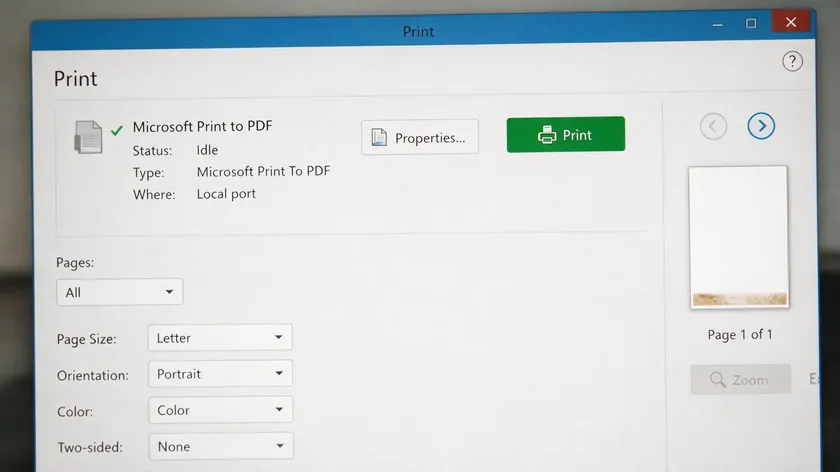
- Open the screenshot image in the default Photos app or any image viewer.
- Press Ctrl + P or go to File → Print.
- Select Microsoft Print to PDF in the printer dropdown menu to save a screenshot as PDF on Windows.
- Choose your paper size (Letter or A4) and orientation.
- Click Print, name the file, pick a save location, and hit Save.
Converting a screenshot into a PDF file is a quick process—usually under 30 seconds.
Converting Multiple Screenshots into One PDF (File Explorer)
- Open File Explorer and navigate to the folder containing your screenshots.
- Select several image files (hold Ctrl and click each one).
- Right-click the selection → Print → choose Microsoft Print to PDF.
- Set the layout to one image per page, pick orientation, then click Print.
The resulting pdf document contains each screenshot on its own page. File size depends on the image formats and resolution of your originals; landscape orientation often works better for wide screenshots.
How to Turn a Screenshot into a PDF on Mac
On macOS, you can create a PDF from a screenshot using Preview or Quick Actions—no extra software needed. The process works the same on any desktop or laptop Mac running macOS Mojave or later. For the full picture-to-PDF walkthrough on Mac, see our Mac guide.
Quick Method in Finder
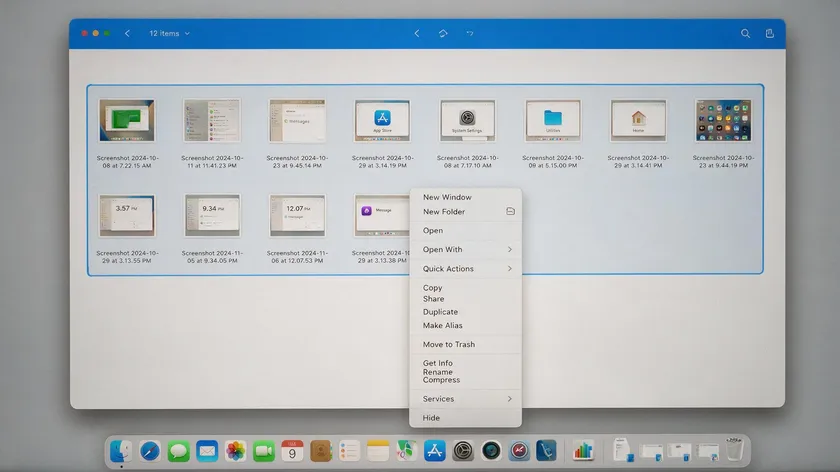
Select one or multiple screenshots in Finder, right-click, then choose Quick Actions → Create PDF. Finder instantly merges the selected images into a single PDF. If the option doesn’t appear, enable it under System Settings → Extensions → Finder → Create PDF.
Page order follows alphabetical filename sorting, so rename files with a prefix (01-, 02-) to control the sequence.
Using Preview (Single or Multiple Screenshots)
For a single screenshot, simply open it in Preview, then go to File → Export as PDF, choose a name and folder, and click Save. Mac’s Preview can export screenshots directly as PDFs.
To combine multiple images:
- Select several screenshots in Finder → Open With → Preview.
- Drag thumbnails in the sidebar to reorder pages.
- Go to File → Print, then click the PDF dropdown and choose Save as PDF.
Before exporting, rotate or crop screenshots in Preview and check margins. For frequent batch conversions, third-party apps like Permute (available via Setapp) can process dozens of screenshots into a single PDF at once.
How to Turn a Screenshot into a PDF on Android
Android saves screenshots as PNG or JPG image files. On Android, you can convert a screenshot to PDF using the Print function from the Gallery or Google Photos app.
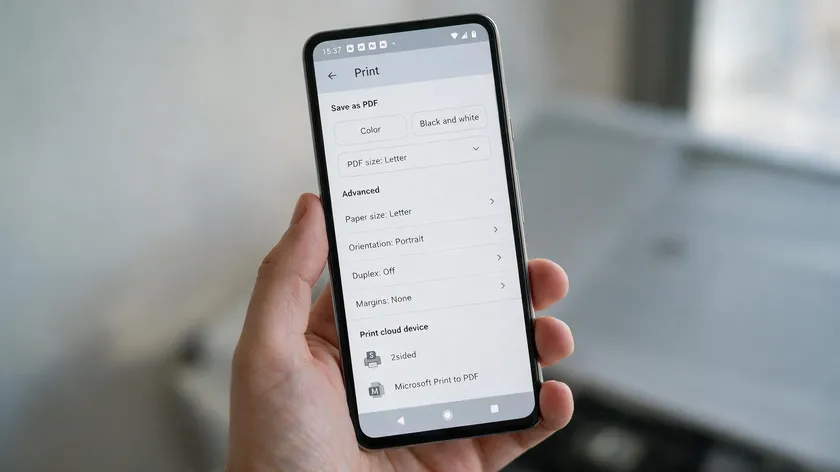
- Open the screenshot in Gallery or Photos.
- Tap the three-dot menu or Share.
- Select Print → choose Save as PDF instead of a physical printer.
- Pick a folder and tap Save.
To convert multiple screenshots into one PDF, select several images in Google Photos, tap Print, and choose PDF as the output. Many built-in tools and PDF apps let you combine multiple screenshots into a single multi-page PDF.
For more control over page order, margins, or compression, use a reputable free JPG to PDF converter app from Google Play. Some apps let you convert multiple JPG images in a batch and apply filters for file size reduction.
After conversion, check the file size. If the PDF is too large for email, use the app’s compress option to shrink it while keeping acceptable image quality.
How to Turn a Screenshot into a PDF on iPhone and iPad
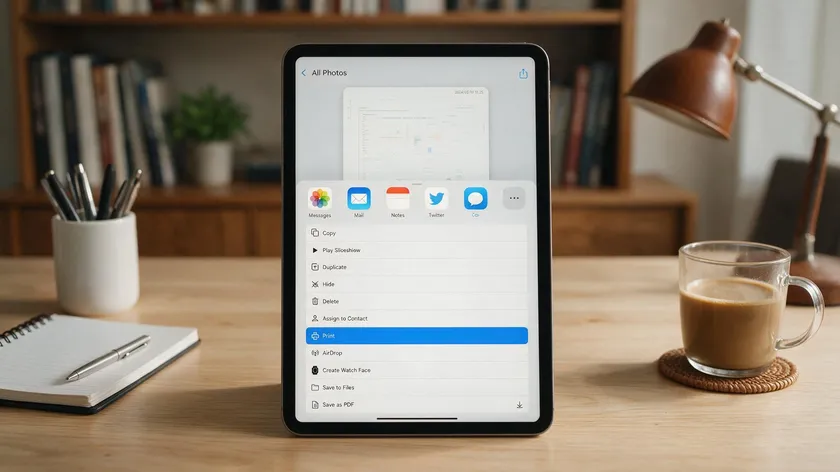
iOS treats screenshots like any other photo, so you can convert screenshots to PDF using built-in iPhone tools. To turn a screenshot into a PDF on iOS, use the Print/Share menu in the Photos app. You can also convert multiple screenshots at once.
- Most devices include a built-in way to create a PDF from an image; an iPhone is no exception.
- Once converted, use markup to annotate screenshots with text, arrows, or signatures before sharing.
- For complete, tap-by-tap instructions, follow the dedicated How to Save Image as PDF on iPhone guide.
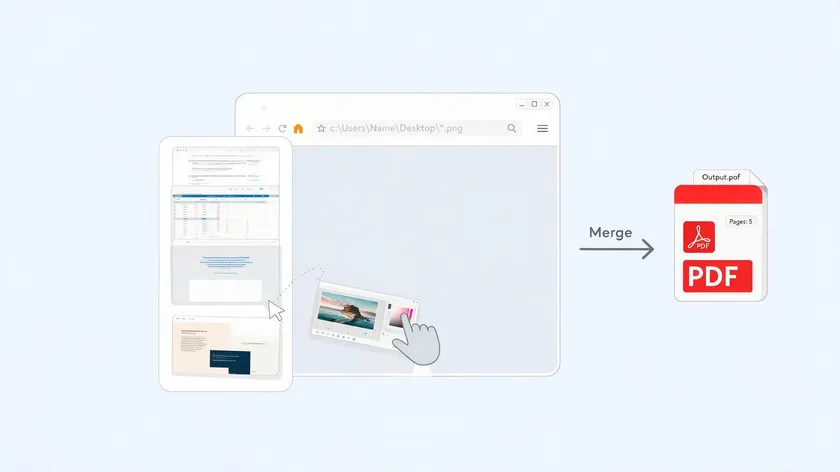
Free online image-to-PDF converters work on any mobile device or computer as long as you have a browser and an internet connection. Online PDF converters work on any device and browser.
The typical workflow:
- Open a free online JPG to PDF or image to PDF converter in your browser.
- Upload one or more screenshots—most online converters support JPG, PNG, BMP, GIF, and TIFF. Web tools allow dragging and dropping image files directly into browser tools for conversion to PDF.
- Arrange order, set orientation or margins, and then click convert.
- Download the finished PDF file.
Most online tools let you upload dozens of images at once, though limits vary by service, and PDF conversion tools maintain high image quality during conversion.
Many online tools delete files after conversion for privacy, but avoid uploading sensitive screenshots—bank details, ID documents, or private chats—to random websites. Use offline software when privacy is critical.
Combining, Compressing, and Annotating Screenshot PDFs
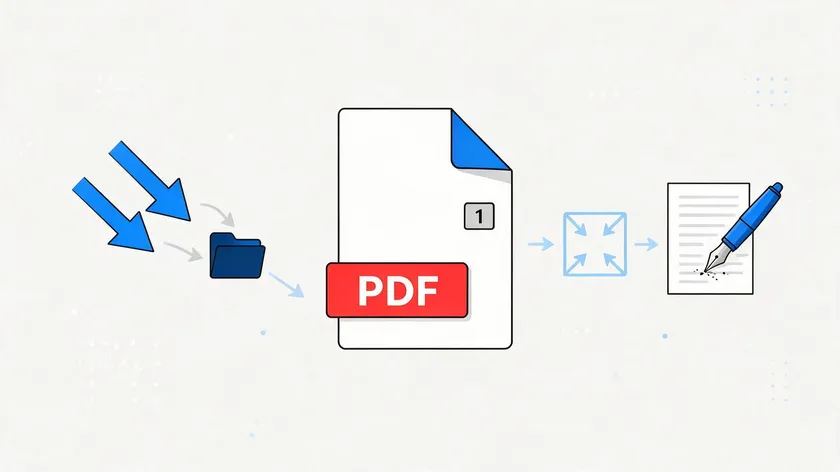
After you convert images to PDF, you can still edit them: merge separate PDFs, reorder pages, add notes, and reduce file size. PDF format allows for easy editing and merging of documents.
Combining Multiple Screenshot PDFs
Upload several screenshot PDFs into a “Merge PDF” tool—desktop or online—set the page order, and export as one PDF file. Many dedicated PDF programs can create PDFs directly from images and include options for merging and annotating.
Compressing Screenshot PDFs
Converting images to PDF compresses file sizes, saving storage space, but large batches of PNG screenshots can still produce heavy files. Use a “Reduce File Size” or compress feature to balance readability against much space savings.
Annotating Converted Screenshots
Annotation tools in PDF editors let you highlight areas, draw arrows, blur sensitive data, or add comments directly on the converted screenshot. This is useful for bug reports, legal evidence, or tutorials.
Recommend saving an uncompressed or unedited copy if the PDF contains important details that might be harder to read after compression or heavy annotation.
Key Takeaways
- Any screenshot (PNG, JPG, HEIC) can be treated like an image file and converted to PDF on Windows, Mac, Android, or iPhone or via a free online PDF converter.
- Windows users can select print and choose Microsoft Print to PDF from Photos or File Explorer, while Mac users can use Finder’s Quick Action or Preview’s Export as PDF.
- Android and iOS devices use built-in print and share options to convert screenshots, and third-party apps help when you need to convert multiple screenshots or adjust layout.
- Free online tools are convenient for quick conversions and combining many screenshots, but avoid them for highly sensitive images.
- After conversion, you can merge, compress, and annotate screenshot PDFs using standard PDF tools, including advanced desktop editors when you need deeper control.
Once your screenshots are safely converted and ready to share, browse all our PDF conversion tools to merge, compress, or edit them further—right from your browser, no download required.
Frequently Asked Questions
These questions cover special cases like long screenshots, quality loss, and editing needs that go beyond the step-by-step walkthroughs above.
Yes. As long as the long screenshot is saved as an image file—for example, a tall PNG from Android or iOS—it converts to PDF using the same methods listed above. PDF readers let you zoom and scroll more comfortably than viewing a raw image, because the document fits within standard page widths.
Will converting screenshots to PDF reduce the image quality?
Most built-in converters keep the original resolution, so PDF conversion retains high image quality during the process. Heavy compression or repeated saving can introduce artifacts. Use a “high quality” or “print” preset when details like small text or diagrams matter.
How do I convert multiple screenshots into one PDF on any device?
Place all screenshots in one folder, then use a tool that supports multiple uploads—File Explorer on Windows, Finder on Mac, an Android or iOS app, or a free online converter. Name files in order (01, 02, 03) before importing so pages stay sorted correctly in the resulting single PDF.
Can I edit text inside a screenshot after converting it to PDF?
A basic screenshot is just an image inside a PDF document, so you cannot natively edit its text. You need OCR (optical character recognition) and a full-featured PDF editor to recognize and convert text into editable content. This works best on clear, high-resolution screenshots.
Is it safer to convert sensitive screenshots to PDF offline?
Yes. Converting with offline tools on your own computer or mobile device is generally more private than uploading to a free online tool. Use trusted desktop or mobile apps for screenshots containing banking data, IDs, or confidential business information, and reserve online tools for non-sensitive content.