Every photo you snap on your phone, every image you scroll past on a website, and most email attachments containing pictures share one thing in common: they are almost certainly JPG files.
The JPG file format has been the backbone of digital images since the early 1990s, and it remains the most common image format on the web, in cameras, and across operating systems.
This article walks through what JPG means, how JPEG compression works behind the scenes, and when to choose JPG over other image formats like PNG or SVG.
Table of Contents
What is a JPG file? (Definition and basics)
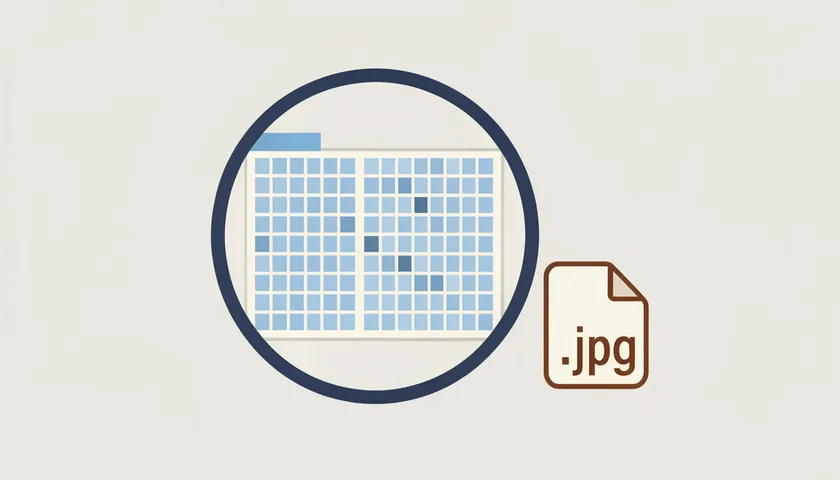
A JPG file is a digital image file that uses the JPEG compression standard to store photographic and complex-color content. The name “JPG” is simply the three-letter file extension for the JPEG file format, a convention rooted in early Windows systems that only allowed file names with extensions of three characters or fewer.
Here is what defines a JPG file at a glance:
- Raster format. JPG stores images as a grid of pixels, not as scalable shapes. Enlarging a JPG beyond its native resolution produces blur or pixelation.
- 24-bit color depth. Each pixel carries 8 bits per color channel (red, green, blue), which translates to up to 16.8 million colors. That range is wide enough to reproduce realistic photographs.
- Lossy compression. JPG reduces file size by permanently discarding image data the human eye is least likely to notice. This is the core trade-off: smaller files at the cost of some fidelity.
- No transparency. Standard JPG has no alpha channel, so it cannot store see-through backgrounds.
JPG is one of the most widely used image file types on the world wide web, in email attachments, and across consumer photography devices like digital cameras and smartphones.
JPG vs. JPEG: Is there any difference?
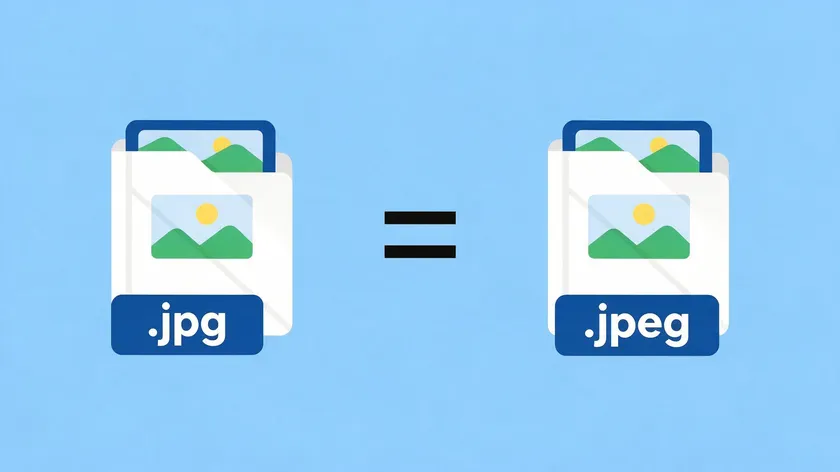
A common question is whether JPG or JPEG refers to different things. The short answer: they do not. Both JPG and JPEG point to the same type of compressed image file format and use identical compression, color support, and image quality characteristics. JPG and JPEG are identical file formats.
The only difference is the file extension itself:
- Three-letter limit. Older versions of Windows (MS-DOS through Windows 3.x) enforced an “8.3” naming scheme: eight characters for the file name, three for the extension. Because “JPEG” has four letters, the extension was shortened to “.jpg.”
- Four-letter extension elsewhere. Unix-based systems and some early Mac OS versions had no such restriction, so “.jpeg” was used freely.
- Today. Modern operating systems, including Windows 10, Windows 11, macOS, Linux, Android, and iOS, all open both .jpg and .jpeg files interchangeably. JPG files use the .jpg extension; JPEG files use .jpeg. Both JPG extensions work without conversion.
A few other, less common extensions also represent JPEG-compressed images: .jpe, .jfif, and .jif. The JFIF extension refers to the JPEG File Interchange Format, standardized as ISO/IEC 10918-5. All this boils down to the same underlying image data; users do not need to convert between any of these extensions for compatibility.
Who created JPG? (Joint Photographic Experts Group)
JPEG stands for Joint Photographic Experts Group, the committee that designed the jpeg standard. The group formed in 1986 under a joint mandate from ISO, IEC, and ITU-T, bringing together industry engineers and academic researchers focused on still-image coding.
The first JPEG standard, published as ITU-T Recommendation T.81 and ISO/IEC 10918-1 in September 1992, defined the core lossy compression method that billions of devices still use today.
Its goal was specific: create a universal, efficient file format for compressing photographic images captured by digital cameras, scanners, and transmitted over computer networks. The JPEG standard was established in 1992.
Since then, the same committee has overseen related standards:
- JPEG 2000 (wavelet-based compression, used in digital cinema)
- JPEG XR (originally developed by Microsoft)
- JPEG XL (aims to unify lossy, lossless, and HDR in one format)
Each of these is a separate image format from classic JPG. None has come close to displacing the original jpeg standard in everyday use.
How JPG compression works (simple overview)
JPEG compression is lossy, meaning that some image data is permanently discarded during the compression process. Once removed, that data cannot be recovered.
A useful benchmark: JPEG compression ratios typically range from 10:1 to 20:1. At 10:1, a 5 MB uncompressed bitmap shrinks to roughly 500 KB as a JPG, with quality that most viewers find indistinguishable from the original image.
Push the ratio to 20:1 or beyond, and noticeable artifacts like blockiness and blurring begin to appear.
The core idea behind the compression process is rooted in human perception. The human eye is far more sensitive to changes in brightness than to subtle shifts in color.
JPEG exploits this by compressing color information more aggressively than brightness information, discarding details that few people would notice.
At a high level, the full process involves these stages:
- Colorspace conversion (RGB to YCbCr)
- Chroma subsampling (lowering the resolution of color channels)
- Dividing the image into 8×8 pixel blocks
- Applying a discrete cosine transform to each block
- Quantization (rounding frequency coefficients, discarding fine detail)
- Entropy coding (losslessly compressing the remaining data)
Each step contributes to making files smaller while preserving as much perceptual quality as possible.
Colorspace conversion and chroma subsampling
Before compression begins, JPEG converts the image from the familiar RGB color space into YCbCr, a different way of organizing color spaces. In YCbCr, the Y channel holds luminance (brightness), while Cb and Cr hold chrominance (color difference information).
Why bother? Because the human eye resolves brightness detail at a much finer level than color detail. Separating the two lets the encoder treat them differently.
Chroma subsampling takes advantage of this. The most common scheme, called 4:2:0, stores the Cb and Cr channels at one quarter the resolution of the Y channel.
For every 2×2 block of pixels, there are four brightness samples but only one sample each for Cb and Cr. The result: a large reduction in data with minimal visible impact on photographic content.
This stage is lossy. Color information is approximated rather than preserved exactly, which can cause slight color bleeding around sharp edges or fine text. For photographs with smooth variations in color, the effect is nearly invisible.
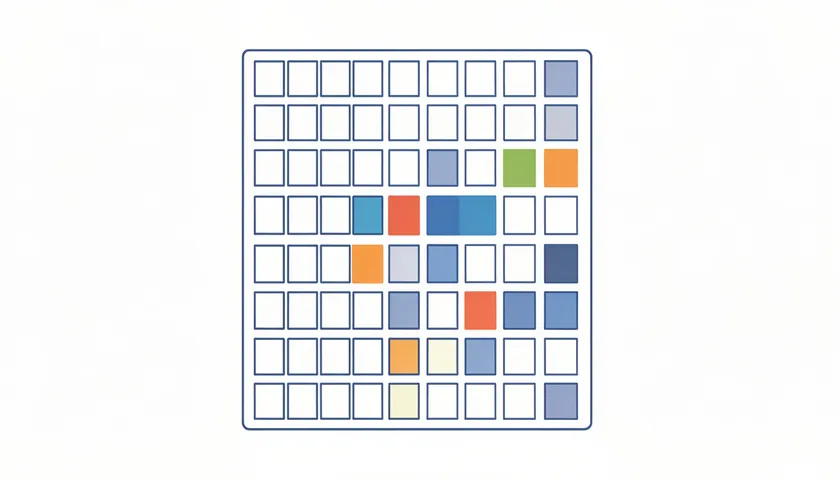
After colorspace conversion and subsampling, the encoder splits each channel into small 8×8 pixel blocks. Each block is then processed independently through a mathematical operation called the discrete cosine transform.
The discrete cosine transform converts each 8×8 block from the spatial domain (64 pixel intensity values) into the frequency domain (64 coefficients). The top-left coefficient, called the DC term, represents the average brightness of the block. The remaining 63 coefficients, called AC terms, capture progressively finer detail:
- Low-frequency coefficients represent smooth overall brightness and color transitions.
- High-frequency coefficients capture sharp edges, noise, and fine textures.
A critical point: the DCT itself is lossless. It reorganizes information without throwing anything away. The actual data loss happens in the next step, the quantization phase, where many high-frequency coefficients are rounded down or set to zero.
Because most natural photographic content has relatively little high-frequency energy, those coefficients tend to be small even before quantization, making them prime candidates for removal.
Quantization, compression ratio, and entropy coding
The quantization stage is where JPEG compression discards image data to save space. Each of the 64 DCT coefficients in an 8×8 block is divided by a corresponding value in a quantization matrix, then rounded to the nearest integer.
Larger divisors in the matrix push more coefficients to zero, producing a higher compression ratio and a smaller file size at the cost of lower quality.
The “quality slider” in professional image-editing software or any image viewer with export options controls these divisors internally. Setting quality to 90 out of 100 keeps divisors small and retains more detail. Dropping quality to 50 increases the divisors, and the resulting JPG can be 3 to 5 times smaller than the quality-90 version.
JPEG compression can result in visible artifacts at high ratios, particularly blocking (visible 8×8 grid patterns) and ringing near sharp edges.
After quantization, the stream of coefficients passes through entropy coding, a lossless step that compresses the data further based on statistical patterns:
- Zigzag scanning reorders the 64 coefficients so that long runs of zeros cluster together.
- Run length encoding compresses those zero sequences efficiently.
- Huffman coding assigns shorter binary codes to the most frequently occurring values, squeezing out remaining redundancy. (The jpeg standard also permits arithmetic coding as an alternative, though Huffman coding is the baseline default.)
Together, the quantization phase and entropy coding stage produce the final compressed bitstream stored in the JPG file.
Image quality: what JPG is good (and bad) at
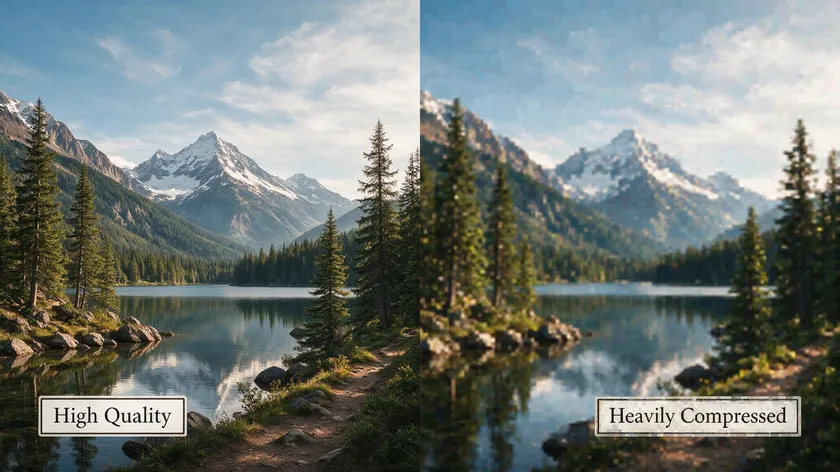
JPG performs very differently depending on the type of image and how much compression is applied. For photographs and busy, detail-rich scenes, JPG can shrink file size by factors of 10 to 20 while keeping quality that still looks convincing to the human eye.
Pushing compression too far, or applying JPG to the wrong kind of image, produces visible trade-offs and quality loss. Understanding where JPG shines and where it struggles helps you pick the right settings or the right format altogether.
What JPG is good at
Photographs with complex color gradients, subtle textures, and natural variation are the sweet spot. Portraits, landscapes, food photography, and product shots all compress well because the smooth variations in color and light tolerate lossy compression without obvious degradation.
JPEG images can display up to 16.8 million colors, which is more than enough for photographic realism. JPEG supports a color depth of 24-bit, corresponding to millions of colors.
Social media platforms, news sites, and online galleries rely on JPG images for exactly this reason: a high-resolution photo can load quickly without looking obviously degraded.
What JPG is bad at
Line art, logos, screenshots of user interfaces, and images containing text suffer under JPEG compression. These images have sharp edges and large areas of flat, uniform color.
The 8×8 block processing and quantization introduce visual artifacts like ringing (halos along edges), color smearing, and blocky transitions that are easy to spot.
JPG also lacks transparency. Any graphic that needs a see-through background, such as a logo overlay, requires PNG or SVG. JPEG does not support transparency or alpha channels.
Repeated saving of JPEG files leads to quality loss. Each save cycle re-encodes the image, compounding artifacts. If you open a JPG, edit it, save it, and repeat that process several times, the degradation becomes obvious.
For images that will be edited repeatedly, working in a lossless format and exporting to JPG only at the final step is the safer approach.
Typical JPG file sizes and resolutions
File size in a JPG depends on three factors: pixel count, image content complexity, and the quality setting chosen during export.
Consider a 12 megapixel smartphone photo at 4000 × 3000 pixels. As an uncompressed 24-bit RGB bitmap, that image would occupy roughly 36 MB (4000 × 3000 × 3 bytes). Saved as a JPG:
| Quality setting | Approximate file size | Visual result |
|---|
| 100 (max) | 8–12 MB | Near-lossless, very large for a JPG |
| 90 | 3–4 MB | Excellent quality for most purposes |
| 70 | 500–800 KB | Good quality, minor detail loss |
| 50 | 200–400 KB | Noticeable softness and some blocking |
The JPEG standard itself sets no strict maximum resolution. Practical limits come from device memory and software implementations. High-resolution JPGs remain common for large-format prints and high-density smartphone displays, where photographers save at moderate compression to preserve significant details.
Common uses of JPG files
JPG is the default output of nearly every consumer camera and smartphone because it balances image quality and storage efficiency out of the box. JPEG is commonly used for digital photographs. Here are the most frequent real-world applications:
Digital cameras and smartphones
Most devices shoot in JPG by default. Some also offer RAW, but JPG remains the standard for quick sharing.
Web publishing
JPEG images are efficient for web publishing due to smaller file sizes. Hero images, blog illustrations, and product galleries load faster when served as JPGs.
Email attachments
JPEG is suitable for social media and email sharing because of compact file sizes. A 3 MB photo is small enough to attach without hitting most email size limits. Once your JPG is ready to go out, see our tips on how to send pictures as PDF across email, WhatsApp, and AirDrop.
Platforms like Instagram, Facebook, and LinkedIn accept JPG uploads and often re-compress them on their servers.
E-commerce
An online store might resize product photos to 800 × 800 pixels and export at quality 70, producing files around 120 KB each. Pages with dozens of products still load within a few seconds.
JPEG files are universally compatible across various devices and platforms, which is why JPG remains the default for so many use cases.
The JPG format has persisted for over three decades for concrete reasons:
File size reduction
Compared to uncompressed formats like BMP or TIFF, JPG typically shrinks photos by factors of 5 to 20×. JPEG files use lossy compression, reducing file size to a fraction of the original.
Universal compatibility
Every major browser, operating system, camera brand, and image-editing application reads and writes JPG. This popular format works everywhere.
Adjustable quality
Users choose where they sit on the quality-versus-size spectrum. A wedding photographer might export at quality 95 for prints; a web developer might choose quality 70 for faster page loads.
Bandwidth efficiency
Smaller file sizes mean faster uploads, quicker page rendering, and lower storage costs for cloud services and mobile data plans.
These advantages explain why JPG remains the default choice across most consumer and web use cases, even as newer formats emerge.
Limitations and drawbacks of JPG files
No file type covers every scenario. JPG has specific weaknesses:
Lossy by design
JPEG compression discards some image data to save space. Once saved, lost detail cannot be recovered. The original image fidelity is gone.
Generation loss
JPEG files can lose quality with each save due to compression. Editing a JPG, saving it, editing again, and saving again compounds artifacts with every cycle.
No transparency
JPG cannot represent see-through areas. Logos, icons, and overlay graphics that need transparent backgrounds require PNG or SVG.
Artifacts on the wrong content
JPEG is less ideal for images needing sharp edges or transparency. Fine text, line art, and flat-color UI screenshots show blocking, ringing, and color smearing more visibly than photographs do.
For any of these situations, a lossless format like PNG or a vector format like SVG is a better match.
JPG compared to other image file types
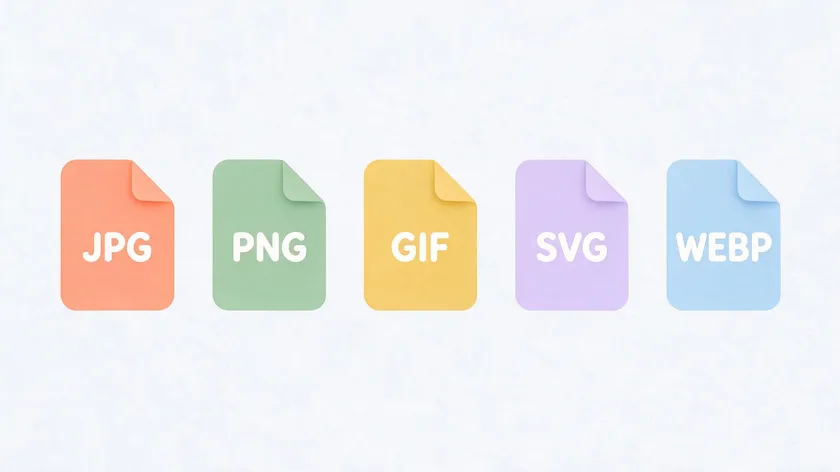
Choosing between image file types depends on what the image contains and where it will be used.
JPG vs. PNG. PNG uses lossless compression, so no data is lost during saving. PNG also supports full alpha-channel transparency. For photographs, PNG files are much larger than JPGs with no visible quality gain. For screenshots, UI elements, or graphics with text, PNG preserves sharp edges that JPG smears. That’s also why it’s worth checking the source format before you turn a screenshot into a PDF.
JPG vs. GIF. GIF supports only 256 colors, which makes it unsuitable for photographs. GIF does support simple animations and basic transparency (a single fully transparent color, unlike PNG’s full alpha channel). JPG supports full-color photos but no animation and no transparency at all.
JPG vs. SVG. SVG is a vector image format that stores shapes as mathematical descriptions rather than pixels. SVG scales infinitely without quality loss, making it ideal for logos, icons, and line art. JPG is raster-based; scaling up a JPG past its native resolution produces blur.
JPG vs. WebP and AVIF. Modern alternatives outperform classic JPG in compression efficiency. Benchmarks from 2025–2026 show WebP producing files 25–35% smaller than JPEG at equivalent perceptual quality and AVIF achieving roughly 50% smaller files.
Both WebP and AVIF support transparency and, in some cases, animation. The trade-off: JPG still has broader legacy support across older devices and software.
| Format | Best for | Key trade-off |
|---|
| JPG | Photos, complex images | Smaller file size with acceptable quality loss (lossy) |
| PNG | Sharp graphics, transparency | Lossless, but larger file size than JPG |
| GIF | Simple animations | Limited to 256 colors; supports basic (non-alpha) transparency |
| SVG | Logos, icons, line art | Scales infinitely without quality loss (vector, not raster) |
| WebP / AVIF | Modern web images | Better compression than JPG, but less legacy support |
How to open JPG files on different devices
Opening a JPG image file is straightforward on virtually any modern device. No special software is required. The exact steps vary by platform, but the process is a double-click or a tap away.
Windows
On Windows 10 and Windows 11, double-clicking a .jpg file opens it in the default Photos app. Users can right-click and choose “Open with” to select an alternative image viewer or editor. Windows Explorer also shows thumbnail previews of JPG files in folder views. Once you’re ready to turn that photo into a document, our guide on how to convert JPG to PDF on Windows covers every built-in method.
macOS
On macOS, JPG files open in Preview by default when double-clicked. Users who prefer another application (such as a dedicated photo editor) can change the default by right-clicking, selecting “Get Info,” and choosing a different app under “Open with.” The same Preview app can also export that JPG straight to a document — see our Mac conversion guide for the full walkthrough.
Android and iOS
On smartphones, JPG images open in the built-in Photos or Gallery app. Both Android and iOS display JPG thumbnails throughout the operating system, in messaging apps, and in file browsers. If you’re on an iPhone, our guide on converting JPG to PDF on iPhone covers the fastest built-in method, no extra apps needed. Jpeg images received via email or messaging apps can be tapped to view instantly.
Web browsers
Virtually all modern web browsers (Chrome, Firefox, Edge, Safari) render JPG images natively. Dragging a JPG file into a browser window displays it, and any JPG image file loaded from a URL renders without plugins or extensions.
Quick edits with built-in apps
Basic edits like cropping, rotating, resizing, and applying simple filters can be done with apps already installed on your device. Windows Photos includes a built-in editor. Apple Photos on macOS and iOS offers similar adjustments plus auto-enhance. These tools read and write JPG natively.
Advanced editing with professional software
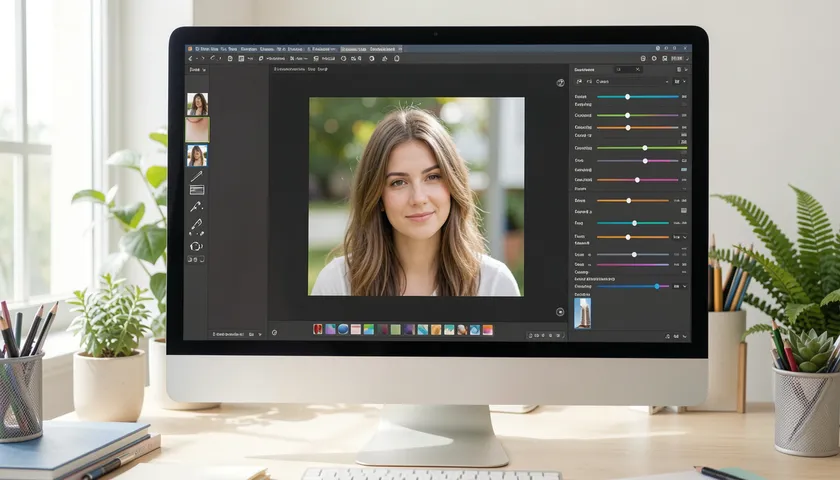
For retouching, layer-based compositing, and precise color correction, professional photo-editing software provides full control. JPEG files can be created and edited using professional photo-editing software—the kind used by professional photographers and designers for advanced retouching—via a standard “Save As” or “Export” workflow, and most such programs support adjusting JPEG quality on export.
Regardless of the tool, the best practice for extensive edits is to keep an original copy of the image. Work in a non-lossy format (PSD, TIFF, or the application’s native format) and export to JPG only for final sharing or publishing.
This avoids the cumulative quality loss that comes from saving the same JPG repeatedly through its lossy compression method.
Many online editors also let users adjust JPG files directly in a browser, which is useful for quick tweaks when desktop software is not available.
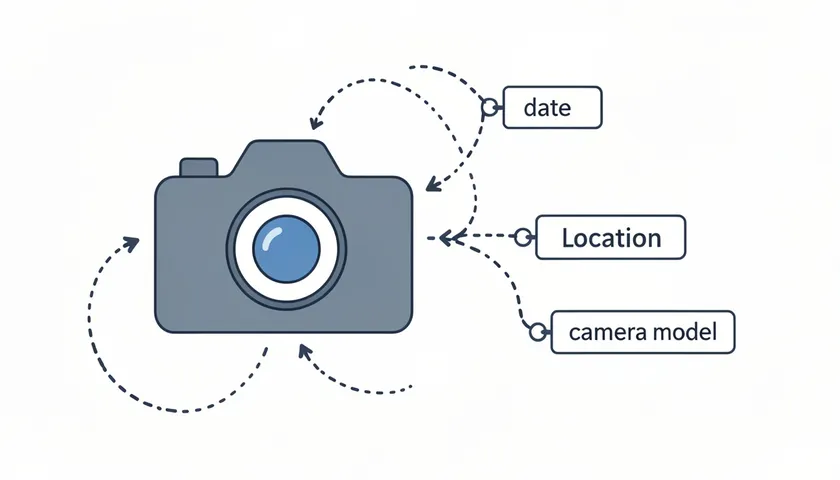
JPG files carry more than pixel data. Embedded within the file, typically in a section called the exchangeable image file format (EXIF), is metadata recorded at the moment the photo was taken. JPEG files support metadata like camera settings and timestamps.
Common EXIF fields include:
- Camera make and model (e.g., “Canon EOS R5,” “iPhone 15 Pro”)
- Lens and focal length
- Aperture, shutter speed, and ISO (camera settings that describe exposure)
- Date and time the photo was captured
- GPS coordinates (latitude and longitude, if location services were enabled)
This exif data is stored as marker specific payload data within the file structure. Each metadata block begins with bytes indicating the marker type, followed by just those two bytes that identify what kind of data follows, and then the marker specific payload data itself.
Privacy note: If GPS coordinates are embedded and the file is shared publicly, anyone with basic tools can determine where the photo was taken. Many social media platforms strip location data on upload, but sharing raw photographs via email or direct download does not.
JPG files can also embed ICC color profiles (like sRGB or Adobe RGB), which tell displays and printers how to interpret the file’s color spaces accurately.
Converting between image formats is common, though it is worth understanding what conversion can and cannot do. For the complete picture, our guide on how to save a picture as a PDF on any device walks through every method and format.
JPG to PNG. Useful when you need transparency or want to stop further lossy degradation. The converted PNG will not recover detail already lost during JPEG compression; it simply preserves the current state in a lossless format.
PNG to JPG. Reduces file size when transparency is not needed. Be aware that flat-color graphics with sharp edges may show artifacts after conversion.
JPG to PDF. Combining multiple JPGs into a single PDF is a standard workflow for reports, portfolios, and document archives.
For archival or print. Formats like TIFF, raw photographs from cameras, or newer codecs like lossless WebP preserve more fidelity than JPG. The best practice: keep the highest-quality source file and only export to JPG for final distribution.
Simple conversions (JPG to PNG, JPG to BMP, and the reverse) can be done in desktop editors or through reliable online conversion tools. Converting a JPG to another lossy format will not restore lost detail; it only changes compatibility, features, or file size characteristics.
When should you use a JPG file?
Choosing the right format comes down to what the image contains and where it will be used. Here are practical guidelines:
Choose JPG when:
- You are sharing photographs via email, social media, or messaging apps.
- You are publishing product photos, blog images, or gallery pages on a website where smaller file size speeds up loading.
- You are archiving personal photos where storage space matters more than pixel-perfect preservation.
- You are preparing images for a travel blog, news article, or online portfolio.
In other cases, a different format serves the image better:
Choose a different format when:
- The image is a logo, icon, or illustration with flat colors and sharp edges (use PNG or SVG).
- You need a transparent background (use PNG or SVG).
- The graphic will be edited repeatedly before final export (work in PSD, TIFF, or another lossless format).
- The image is a high-detail screenshot of a user interface (use PNG for crisp text).
A concrete example: for a travel blog, save gallery photos as JPGs at quality 75–85 to keep page load times under two seconds. For the site’s logo in the header, use SVG so it renders crisply at any screen size.
Key Takeaways
- A JPG file is a compressed image file format based on the JPEG standard, designed to balance image quality and file size for photos and web graphics.
- JPG and JPEG are the same image file type created by the Joint Photographic Experts Group, differing only in the file extension (.jpg vs. .jpeg).
- JPG uses lossy JPEG compression (including the discrete cosine transform and entropy coding) to achieve compression ratios like 10:1 with acceptable image quality for everyday use.
- JPEG compression follows a pipeline of colorspace conversion, discrete cosine transform, quantization, and entropy coding to compress images efficiently.
- JPG is the default or most common image format on digital cameras, smartphones, operating systems, and web browsers due to its smaller file size and broad compatibility.
- While JPG is ideal for photographs and realistic images, it is less suitable for images needing transparency, crisp edges, or repeated editing, where other image file types like PNG, SVG, or modern formats may be better.
JPG remains the format you’ll reach for most often, whether you’re sharing a quick photo or preparing images for print. Understanding its trade-offs helps you know when to switch formats instead of fighting compression artifacts.
To convert, organize, or archive your JPG images together with other documents, you can use online image-to-PDF and file conversion tools that turn multiple JPGs into compact, shareable PDFs in just a few steps.
FAQ about JPG files
Is a JPG file the same as a JPEG file?
Yes. JPG and JPEG refer to the same file format, the same compression, and the same image quality. The only difference between them is the length of the file extension: “.jpg” (three characters) versus “.jpeg” (four characters).
Both extensions are recognized by modern operating systems, every major image viewer, and all current web browsers. No conversion is needed to switch between them; renaming the extension is sufficient, and it does not alter the file’s content.
Can a JPG file be lossless?
Standard JPG files always use lossy JPEG compression, meaning some information is discarded when the file is saved. The JPEG standard does define a rarely used lossless mode, but virtually no consumer cameras, browsers, or editing tools produce or expect it.
If you need lossless compression for photographs, formats like PNG, lossless TIFF, or lossless WebP are the practical options. These are not the same file type as a typical JPG.
Why do my JPG images look blocky or blurry after editing?
Each time a JPG image is opened, edited, and re-saved, the encoder re-applies the full compression process, including quantization. Artifacts from the first save get baked in, and new artifacts are added on top. After several cycles, blocking (visible 8×8 grid patterns) and blurring become obvious.
The solution: keep a high-quality original (in RAW, TIFF, or a PSD working file) and export to JPG only for the final version you intend to share or publish.
Do JPG files support transparency like PNG?
No. Classic JPG does not support an alpha channel and cannot store transparent backgrounds. Any pixel in a JPG must have an opaque color value. For logos, icons, and graphics that need to sit on varying background colors, use PNG (which supports full alpha-channel transparency) or SVG (which is vector-based and inherently supports transparency).
How can I reduce the size of a JPG without losing too much quality?
Start by lowering the JPEG quality setting when exporting. Dropping from 100% to around 75–85% often cuts file size by half or more with minimal visible impact. If the image is larger than needed for its intended display size, resize it to match (for example, 1200 pixels wide for a blog column).
Dedicated optimization tools can also re-encode JPGs using optimized Huffman tables and progressive encoding to compress images further without additional quality loss beyond the initial save.