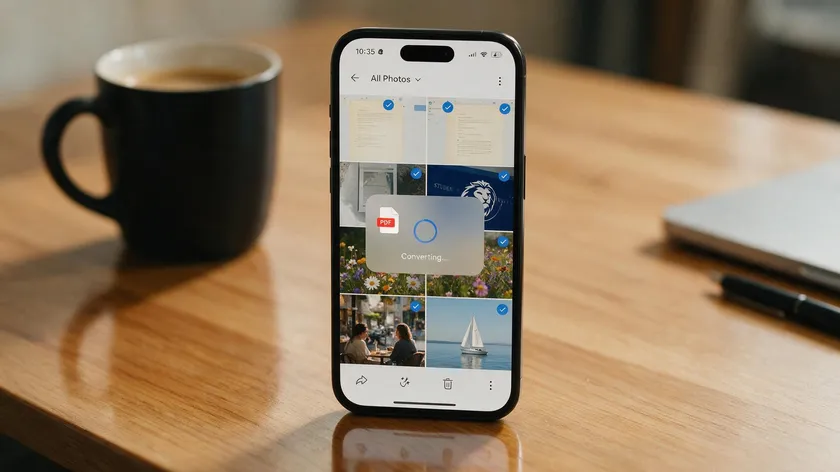
Combining several photos into one PDF file is straightforward on any phone, no computer required. You can do it with built-in tools, free apps, or browser-based converters. This guide covers how to convert multiple images to one pdf in mobile with full Android depth (the biggest gap in existing guides), a shorter iPhone overview, and troubleshooting tips.
Table of Contents
Why Convert Multiple Images to One PDF on Mobile?
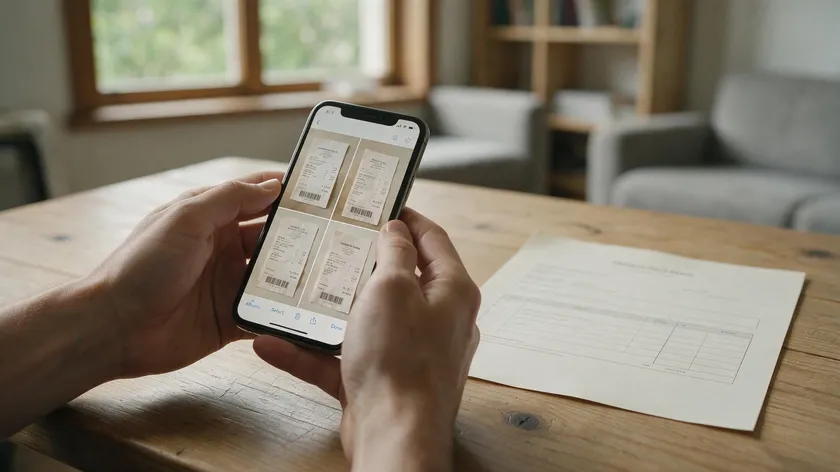
Plenty of everyday tasks call for combining individual images into a single file: submitting homework photos to a school portal, sending scanned ID pictures for a rental application, archiving dozens of receipts from a business trip, or consolidating visual content from chat apps into one record.
PDFs created from images can be easily shared via email, uploaded to portals with strict format requirements, or stored long-term without worrying about loose files.
Merging multiple photos into one PDF beats sending a folder of JPG images for several reasons:
- One PDF file opens consistently on any device or operating system, including Android, iOS, Windows, and macOS.
- Recipients see pages in the order you intended rather than a jumbled gallery.
- A single document is easier to archive, search (with OCR tools), and attach to forms than dozens of separate pictures.
Supported image formats include JPG, PNG, GIF, and TIFF, plus newer mobile formats like HEIC and WEBP. All of these can typically be merged into a new PDF file without desktop software. For the full picture on saving any image as a PDF, see our complete guide.
How to Convert Multiple Images to One PDF on Android (Main Methods)
Android devices often use Google Drive or the gallery app to create PDFs, but the exact workflow depends on manufacturer, Android version, and installed apps. Below are the main paths, starting with the most universal.
Google Photos + “Print to PDF” Method
Many Android devices include a built-in Print → Save as PDF option. Here is the process:
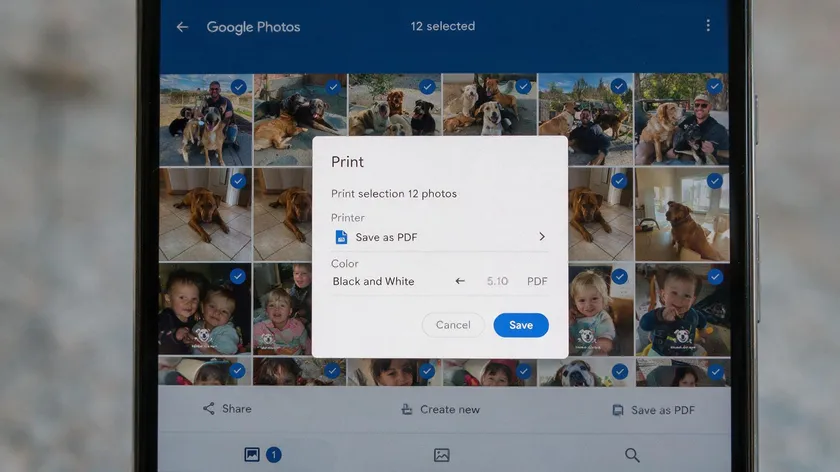
- Open Google Photos and select images by long-pressing one, then tapping additional photos.
- Tap the three-dot menu or Share icon, then choose Print.
- In the print dialog, change the printer to “Save as PDF.”
- Tap the PDF download button and save the merged PDF to your phone.
PDF conversion supports multiple image formats, including JPG and PNG, so mixed-format batches generally work. To control page order, select photos in the sequence you want them to appear. If your gallery auto-sorts by date, renaming files with numbered prefixes (01, 02) forces correct ordering.
Alternative: Samsung Gallery or Files App
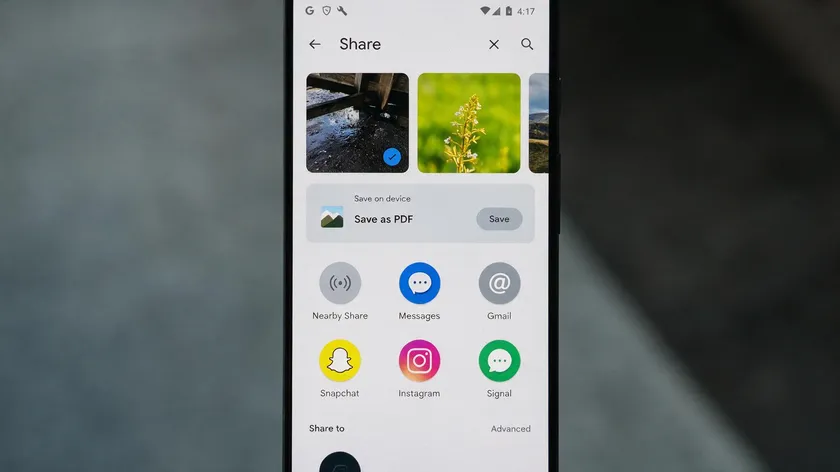
On Samsung phones running One UI 5 or 6, the gallery includes a hidden feature called Gallery Labs. Enable it by tapping the Gallery version number repeatedly in Settings. Once active, you can select multiple images, tap “Create,” and choose “Save as PDF.” This feature has been available across multiple Samsung One UI versions for several years.
On non-Samsung devices, you can often select multiple photos in any gallery or file manager, tap Share → Print, choose “Save as PDF,” and pick page size (A4, Letter) and orientation. These workflows process files locally, so they work offline and keep data on your phone.
Using a Dedicated Android Image-to-PDF Converter App
Users who regularly convert JPGs or handle multiple image formats benefit from a dedicated PDF converter app from Google Play. Some mobile PDF apps allow image reordering and editing before conversion, which the built-in print dialog lacks.
A typical app workflow looks like this:
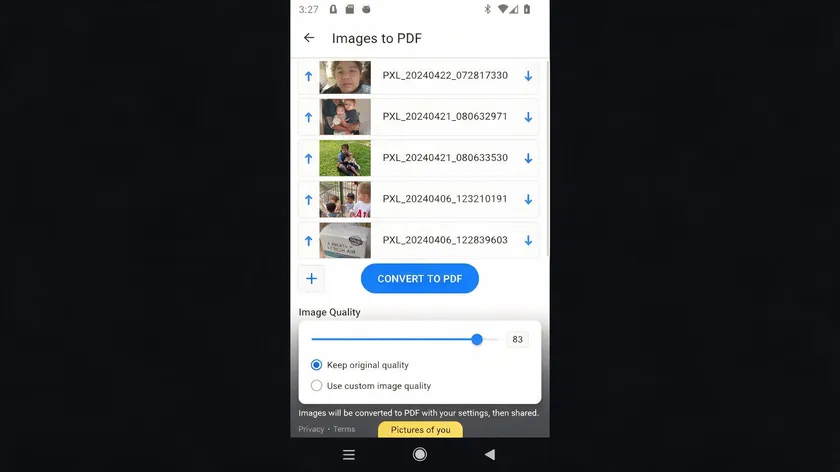
- Install an app (e.g., “Image to PDF Converter” by TrueForm Labs or “JPG to PDF Converter”).
- Tap “Image to PDF” or “Photos to PDF.”
- Multi-select from your camera roll, downloads folder, or clipboard.
- Drag thumbnails to arrange order, set margins, and pick image quality.
- Tap convert to create one new PDF file.
You can convert JPG, PNG, HEIC, BMP, GIF, TIFF, and WEBP in a single batch. Some advanced PDF apps provide extra creation features on mobile devices, including password protection and direct export to cloud platforms like Google Drive or Dropbox. Power users should look for options to edit, compress, or add watermarks.
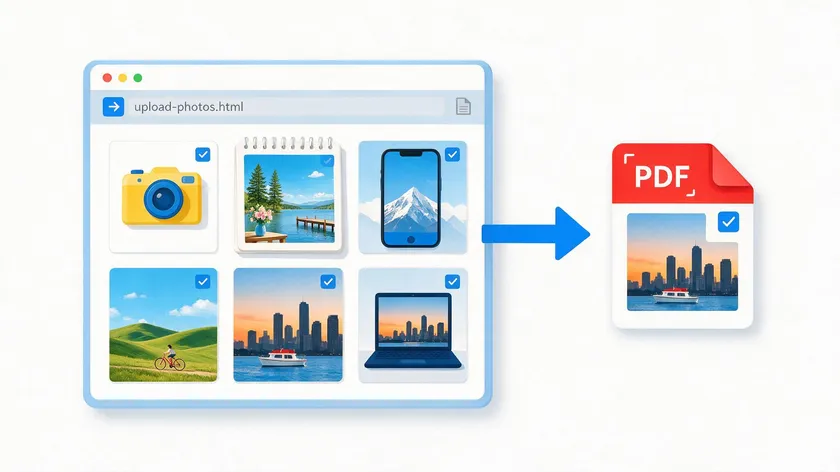
When you do not want to install an app, an online tool works well for one-off tasks. Open Chrome, navigate to a converter site, and upload your photos. Most online converters allow image-to-PDF conversion without installation and support various image formats, including JPG and PNG, directly in the browser.
You can also use online merge tools to combine images into a PDF on mobile or web, without installing an app.
You can upload ZIP archives containing multiple image files on some services, which speeds up large batches. You can drag and drop images to reorder them before conversion on most of these sites.
Many tools let you drop files into the upload area, adjust a quality slider, set page size, and preview the result before saving. Uploaded files are typically automatically deleted after a set period; some services purge within one hour.
Check for HTTPS and a clear privacy policy before uploading sensitive documents like ID photos or medical records.
How to Convert Multiple Photos to One PDF on iPhone (Short Overview)
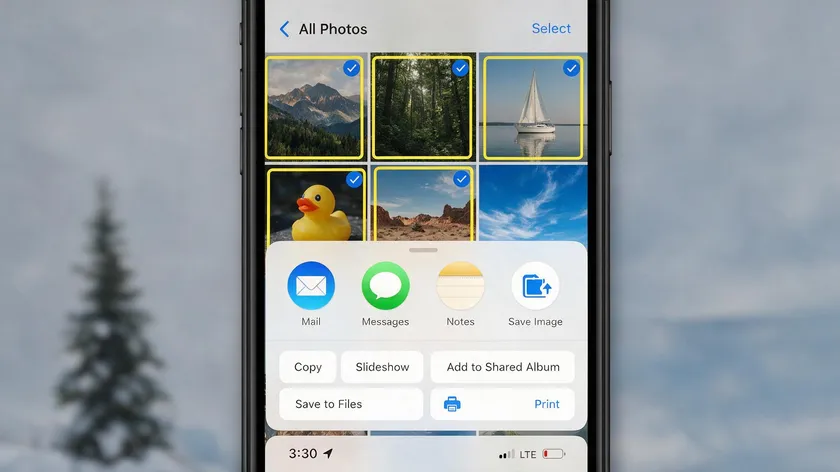
iPhones can create PDFs using the Photos or Files app. The core idea is the same: select images, share or print them, and save them as a single PDF. You can reorder pages, rename the file, and share it via Mail, Messages, or cloud platforms.
Detailed step-by-step iOS instructions are covered in our existing guides on how to save image as PDF on iPhone and how to convert JPG to PDF on iPhone. Those articles walk through the full process, including handling multiple pages and controlling which photo appears as the first page.
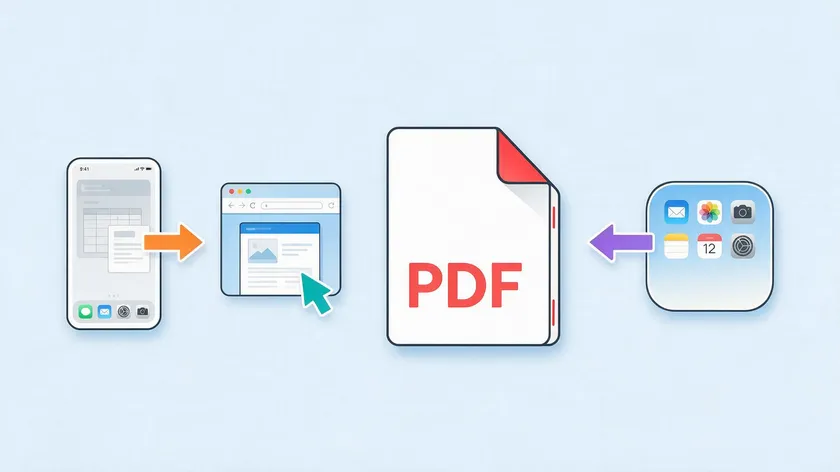
Three paths exist for converting multiple images to one PDF on mobile: the built-in print/save feature, a browser-based online tool, and a dedicated converter app. Each fits different situations.
| Feature | Built-In (Print to PDF) | Online Tool | Dedicated App |
|---|
| Offline use | Yes | No | Yes (after install) |
| Max images per batch | Dozens (device-dependent) | Varies; up to 50 on some sites | Often unlimited or very high |
| Layout control | Basic (page size, orientation) | Moderate (reorder, quality slider) | Full (margins, compression, color/grayscale) |
| File types supported | JPG, PNG, device-native formats | JPG, PNG, HEIC, WEBP, tiff, gif, bmp | JPG, PNG, HEIC, WEBP, AVIF, tiff, bmp |
| Privacy | Local processing | Server-dependent | Local processing (most apps) |
| Setup required | None | None | Install from Play Store |
Best for quick, occasional tasks. No app installs, no uploads, works offline. The trade-off: few layout options, no compression slider, and limited format support on older Android versions.
Ideal for one-off conversions, working across different operating systems, or when you need extra pdf tools like compress, merge, or sign in the same browser session. Some tools handle format conversion (e.g., HEIC to JPG) on the fly, which helps with mixed-format batches.
Keep batches reasonably sized for smooth performance; some tools process everything client-side in the browser for added privacy.
Dedicated Apps
The right choice for frequent conversions, large batches of multiple photos, or when you need advanced compression, password protection, or automated workflow features. Some apps also let you create Word, Excel, or PowerPoint-compatible documents or export presentations alongside your PDF documents.
Think about privacy (local vs. server processing), storage space on your phone, and how often you need to convert before committing to a method.
Tips to Control Layout, Order, and File Size of Your Merged PDF
Beyond just creating one PDF, page order, readability, and keeping the file small enough to send all matter.
Controlling Page Order
- Rename files with numbered prefixes (01_receipt, 02_receipt) before selecting them.
- In apps that support it, drag thumbnails to reorder before tapping convert.
- In Google Photos, tap images in the exact sequence you want for all the images to appear in the final PDF.
Fixing Orientation
- Photos taken with the phone camera sideways contain EXIF rotation data. Some converters ignore this, producing sideways pages.
- Rotate images in the gallery before conversion.
- Preview PDF pages in the converter if available, and fix orientation before saving.
Managing File Size
- Choose medium image quality rather than maximum resolution; most documents look fine at 150 DPI.
- Photos from a 48 MP phone camera can be 10+ MB each. Downscale or compress before merging to avoid a bloated PDF.
- After conversion, run the result through a compressed PDF tool if it still exceeds email attachment limits.
- Name output files with dates or project identifiers (2026-07_receipts.pdf) for easy retrieval on your phone or in cloud storage.
Troubleshooting Common Mobile Images to PDF Problems
Mobile users regularly hit a few recurring issues when creating a merged PDF from photos. Here are fixes for each.
Sideways or Rotated Pages
EXIF orientation tags embedded in photos tell viewers which way is “up.” Some PDF converters ignore these tags. Fix: Rotate the image in your gallery app or use the rotate tool in the converter’s preview before saving.
Missing or Invisible Images
On Android 10+, apps need READ_MEDIA_IMAGES permission. If images do not appear, check app permissions in Settings. Move files from restricted folders into Pictures or Downloads, where most apps scan by default.
Upload or Conversion Failures
Switch from mobile data to Wi-Fi for large batches. Reduce batch size if you are uploading many images at once. Compress very large files before upload.
PDFs Too Large to Send
Lower image quality settings in the converter. Split one large batch into two smaller merged PDFs. Some PDF tools offer a “compress PDF” function that can cut file size by 50% or more, and images are embedded in the PDF without quality loss at moderate compression.
Blurry Results
Increase quality settings. Avoid extreme compression. Check that the original pictures are not already low resolution; a blurry source photo cannot produce a sharp PDF page regardless of settings. You can also scan originals again with a higher-resolution phone camera if needed.
Key Takeaways
- Mobile devices can easily convert multiple images and photos into one PDF using built-in Android/iOS options, online tools, or dedicated PDF converter apps.
- Android users have powerful native workflows like Google Photos plus “Print to PDF,” with detailed control over page order and basic layout without needing any extra software.
- Online image-to-PDF tools are convenient for occasional tasks and mixed image formats, while dedicated apps are better for frequent batching, compression, and advanced settings.
- iPhone users can also select multiple images and convert them into a single PDF, with full steps covered in existing in-depth iPhone guides.
- Managing orientation, order, and file size before or during conversion ensures the final merged PDF is both readable and small enough to share or upload.
- Simple troubleshooting steps usually resolve common problems such as sideways pages, upload errors, or oversized PDF files when converting multiple image files on mobile.
For readers who convert multiple images to PDF often, explore all our image to PDF and other conversion tools to merge, compress, and manage files right from your browser.
FAQs
These FAQs address common edge cases around limits, format support, and post-conversion editing.
How many photos can I combine into one PDF on mobile?
The limit depends on the method. Built-in Android “Print to PDF” handles dozens of images without issues. Many online services cap batches at around 30-50 images, though the exact limits vary by tool. Dedicated apps often support larger batches.
For reliability, keep each batch to 30-50 standard photos and create separate PDFs if you hit slowdowns.
Most modern Android apps and online tools accept multiple image formats in the same batch. PDFs can be created from various image formats like JPG and PNG, plus HEIC, WEBP, and others. On devices running Android 9 or older, HEIC files may need a third-party decoder or conversion to JPG first. Current Android versions (10+) handle HEIC natively.
Reputable online tools use HTTPS encryption and delete uploaded files after a short window. Always review each service’s data retention policy. For highly sensitive documents (IDs, medical photos), use offline methods like the built-in “Save as PDF” or a trusted free app that processes files locally without uploading anything.
Can I edit or reorder pages after creating the PDF on mobile?
Many PDF apps for Android and iOS let you reorder, delete, or rotate pages in an existing merged PDF without repeating the entire conversion. If the built-in tools feel limited, install a PDF editor app that supports page management.
Will converting multiple images to one PDF reduce the image quality?
Quality depends on chosen settings. Some tools embed images at original resolution, preserving full detail. Others compress by default to reduce file size. Use medium or high quality for important documents, check the PDF zoomed in on your phone, and apply heavy compression only when file size matters more than fine detail.