This guide covers everything you need to know about how to convert JPG to PDF in Google Drive using only Google’s own tools—Google Drive, Google Docs, and the Google Drive mobile app. No third-party PDF converter, no OS-specific print-to-PDF shortcut, and no extra software to install.
Whether you’re on a Windows PC, a Mac, a Chromebook, or your phone, you’ll learn how to convert a single jpg file into a PDF document, combine multiple images into one PDF, and handle all of it from mobile on iOS or Android.
Table of Contents
Why Convert JPG to PDF in Google Drive?
Because this method is entirely browser-based, it works the same way on every operating system. Open any desktop browser—Chrome, Edge, Safari, or Firefox—sign into your Google Drive account, and follow the same steps regardless of your computer.
The drive app on your phone provides a parallel workflow for mobile users who need to convert images on the go.
So why convert JPG images to PDF format in the first place? JPG files compress images at a rate of 10:1, making them lightweight and common for online sharing, but that same compression makes them a poor fit for professional and document-heavy workflows.
PDF files preserve layout and quality, and they’re the industry standard for document sharing. When you need to send receipts, bundle scanned pages, or export documents for a client, PDF is the safer choice.
Google does not have a dedicated “convert JPG to PDF” button. Instead, Google Drive and Google Docs work together to get the job done. Here’s a quick comparison:
| Feature | JPG | PDF |
|---|
| Best for | Online sharing, photos | Printing, archiving, document workflows |
| Compression | Lossy (10:1 ratio) | Preserves layout and quality |
| Multi-page support | No | Yes |
| Searchable text | No | Yes (with OCR) |
| Editability | Easy to crop/edit | Not easily editable compared to JPGs |
PDFs also work better when you need to sign PDFs or add text to finalized documents. For the full picture of saving any image as a PDF across every device, see our complete guide. This post covers single-image conversion, multi-image merging, and mobile methods—all free within Google products that most users already have.
Method 1: Convert a Single JPG to PDF Directly in Google Drive (Web)
This is the fastest path when you just need one JPG image turned into one PDF file with zero editing.
- Go to drive.google.com and sign in.
- Click the blue New button in the top-left corner.
- Select “File upload” and choose your local JPG. Google Drive supports uploading image files, including JPG format, plus PNG, GIF, and other common file types.
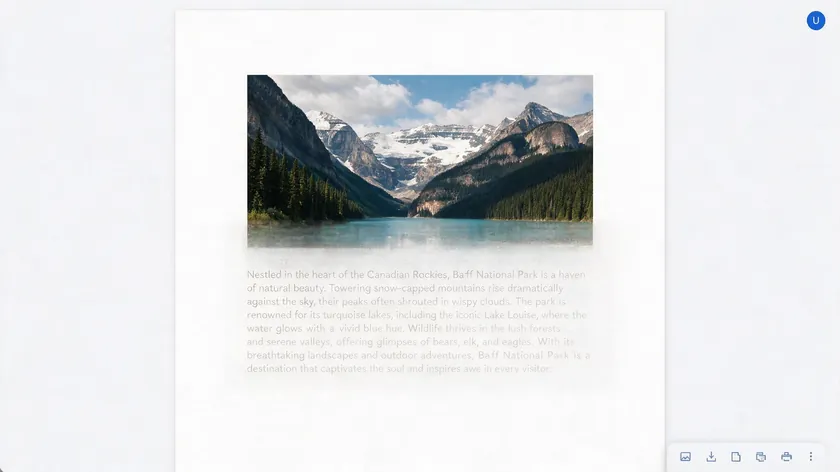
- Once uploaded, click the file to open it in Drive’s preview mode.
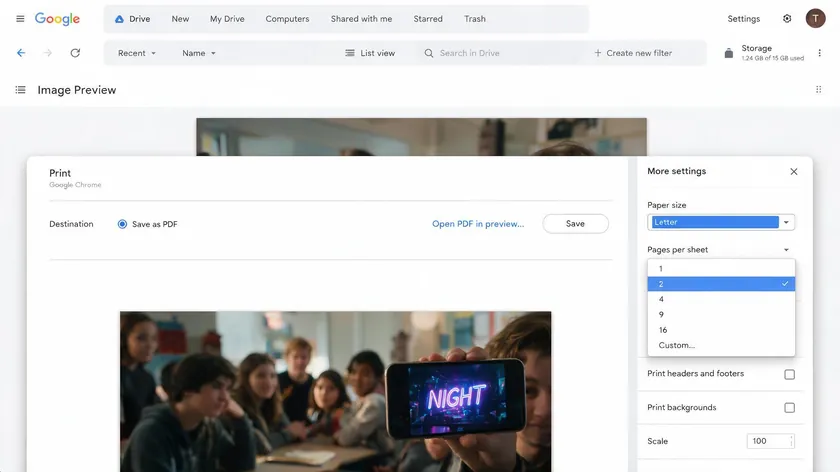
- Open the browser’s Print dialog (Ctrl+P on Windows/Linux, Cmd+P on Mac). Under “Destination,” select Save as PDF.
- Adjust paper size (A4 or Letter) and orientation (landscape for wide photos) so nothing gets cropped, then click print to save.
The result is a clean, single-page PDF with your picture embedded exactly as it appeared. No OCR, no extra text, no layout surprises. This method is ideal for small businesses or any user who wants the simplest image-to-PDF conversion without opening Google Docs.
Method 2: Use “Open with Google Docs” to Convert JPG to PDF
This method gives you more control. Using Google Docs allows for text editing before PDF conversion, so it’s perfect when you want to add titles, captions, or keep searchable text from the photo.
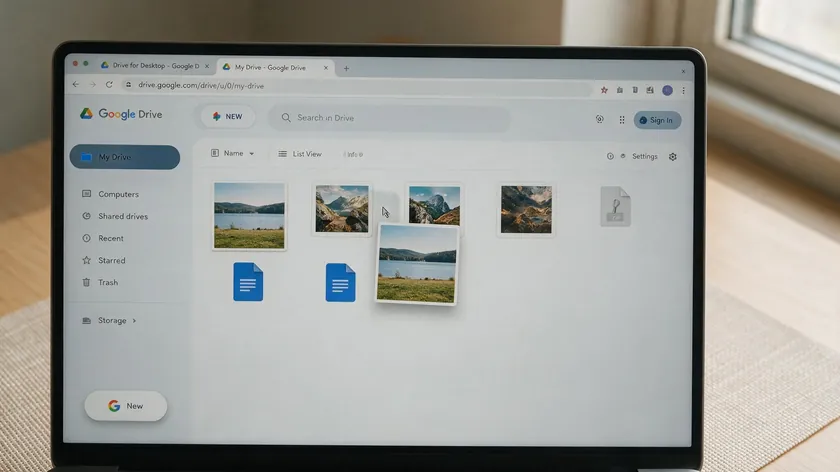
- Upload your JPG to Google Drive (if it isn’t there already).
- Right click the uploaded JPG and select Open with → Google Docs.
- Google Docs can create a document containing an image when opening a JPG file. The image appears at the top of a blank document, and Docs may run OCR to detect and insert editable text underneath.
From here, users can adjust images within Google Docs prior to downloading as PDF documents. Center or resize the image, delete unwanted OCR text, or add text and headers above or below the photo.
When you’re ready, select File → Download → PDF document (.pdf). The PDF format can be downloaded directly to a computer from Google Docs. You can then share, print, or archive the converted PDF however you need.
This method is best when you want searchable text, page numbers, or custom layout—not just a flat image file.
Combining Multiple Images into One PDF via Google Docs

Full Layout Method
When you need to merge several photos—for example, a trip album or a set of scanned pages—into one file, Google Docs handles it well.
- In Google Drive, click New → Google Docs → Blank document to create a new doc.
- Rename it to something descriptive (e.g., “Trip Photos 2026”).
- Use Insert → Image → Upload from computer (or choose from Drive) to add images one by one in order.
- Between each image, add a page break: Insert → Break → Page break. This ensures each photo starts on a fresh page.
- Resize photos to fit the margins, and optionally add captions or section titles.
- Export via File → Download → PDF document (.pdf).
This keeps all your images together in a single multi-page PDF document—no separate online tool or folder of loose JPGs.
Quick Method (Minimal Editing)
If you don’t need polished formatting, this lighter approach saves time.
- Upload all images into one folder in Google Drive. Name files in order (e.g., page-01.jpg, page-02.jpg).
- Create a new blank document in Google Docs.
- Use Insert → Image → Drive to pick images directly from that folder, selecting them in sequence.
- Keep default sizes. Only use image options if something clearly overflows the page width.
- Add page breaks only where images split awkwardly across pages.
- Download as PDF—same step as above.
This is the simplest way inside the Google ecosystem to combine multiple images into one PDF when appearance isn’t critical. If you’re on your phone and don’t need Google Docs at all, our guide to combining multiple images into one PDF on mobile covers dedicated apps built just for that.
Convert JPG to PDF Using the Google Drive Mobile App (iOS & Android)

On iPhone, iPad, and Android devices, the Google Drive app provides a consistent workflow that doesn’t require a desktop or browser.
Uploading existing JPGs:
- Open the drive app and tap the + button.
- Tap Upload and select photos from your phone’s gallery.
- Once the file appears in Drive, tap it, then use the three-dot menu to access sharing or printing options that lead to saving as PDF.
Scanning new documents:
- Tap “+”, then “Scan” (or the camera icon). The app opens your camera with automatic edge detection.
- Capture the first page. Tap + Add page to scan additional pages into the same document.
- Crop, rotate, and apply filters (color, grayscale) before saving.
- Choose your folder, set a filename, and save. The result is automatically saved as a PDF in Drive.
This workflow is ideal for receipts, forms, or any paper document. Multi-page scanning builds everything into one PDF without needing a computer, an internet connection to a desktop, or a separate app.
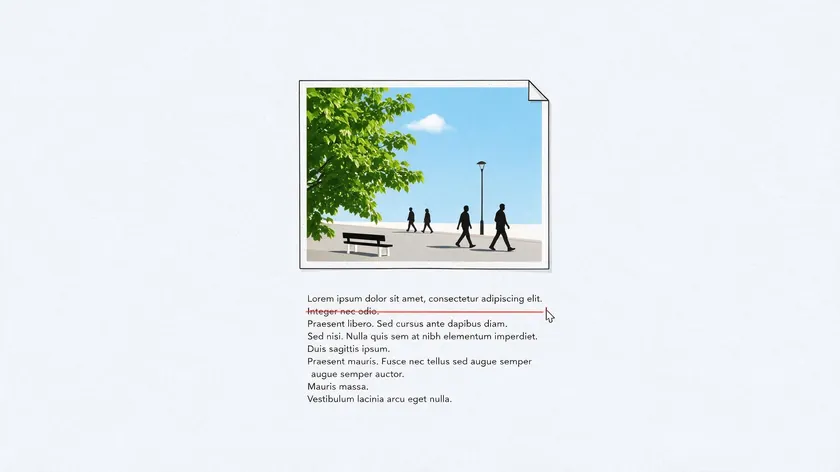
When you open a JPG with Google Docs, Google automatically runs OCR—optical character recognition—to detect and convert text within the image into editable characters. This is helpful when you want to edit text or create a searchable PDF, but it can cause problems.
Common issues include:
- Extra text blocks appearing below the image
- Odd line breaks and misaligned spacing
- Unexpected font changes compared to the original picture
How to prevent these problems: If you don’t need OCR, use the preview-and-print method from Method 1 instead. If you’ve already opened it in Docs, simply select and delete the recognized text before you download it as a PDF.
If you want OCR but it’s messy: Manually edit the recognized text, fix spacing, and remove artifacts. This is worth doing for academic or business documents where searchable text adds real value. You can also compress images before upload to reduce file size without losing critical detail.
Tips for Managing Image-to-PDF Files in Google Drive
Good cloud storage habits prevent your converted files from getting buried. Here are a few practices:
- Organize into folders: Create labeled folders by year, project, or client. A folder named “2026 Receipts” is easier to navigate than a flat list of unnamed files.
- Rename files: Right click (or use the three-dot menu) and select Rename. Change “IMG_1234.jpg” to “2026-08-receipt.pdf” so every user on your team can find it.
- Share smartly: Right-click the PDF, choose Share, and either add specific email addresses or create a view-only link for quick distribution.
- Watch file sizes: Each image inserted into Google Docs must be under 50 MB and no more than 25 million pixels in total area. Documents themselves max out around 50 MB, so compress large images before upload if needed. The same size limits apply if you’re inserting a screenshot instead of a photo—see our guide on turning a screenshot into a PDF for device-specific shortcuts.
While this guide focuses on Google’s free tools, some users may want additional capabilities, such as dedicated online converters that support more image formats or batch editing across multiple platforms. These are worth knowing about, though Google Drive handles most everyday conversion needs on its own.
You can also export documents in other formats like PPT from Google Slides if your workflow demands it, and Google Photos can serve as a source for images you want to convert.
Key Takeaways
- Google Drive and Google Docs let you convert JPG to PDF on any device with a browser, without installing a separate PDF converter or relying on OS-specific print tools.
- There are two main web methods: download a JPG directly as a PDF preview from Drive or open it with Google Docs and then export it as a PDF.
- For a single image, the fastest path is often to open the JPG in Drive’s preview and use the browser’s “Save as PDF” option from the print dialog.
- To customize layout, add text, or combine multiple images into one PDF, insert your images into a Google Doc and download the file as a PDF document.
- On mobile, the Google Drive app can upload existing photos or scan paper documents and save them directly as PDFs, including multi-page scans.
- If “Open with Google Docs” adds unwanted text or alters formatting, remove the OCR text or switch back to the simpler preview-and-print-to-PDF method.
When you need more flexible options—such as converting many formats at once, compressing PDFs, or running dedicated image-to-PDF workflows—use our online PDF conversion tools alongside your Google Drive documents.
FAQs
Yes. The same steps apply to PNG, GIF, JPEG, and most common image formats. Upload to Google Drive, open in preview to print as a PDF, or insert into a Google Doc and download as a PDF file. There’s no difference in the workflow based on image file type.
No. There is no single PDF converter button inside Google Drive. Instead, you use Drive’s preview combined with the browser’s print-to-PDF option or the Google Docs “Download as PDF” workflow to convert images to PDF format.
Will converting a JPG to PDF in Google Drive reduce the image quality?
Generally, no. Google’s conversion preserves the original resolution. However, print dialog settings like paper size and scaling can affect how sharp the image looks in the final PDF. If the source JPG was already heavily compressed, that quality loss carries over.
Can I reorder pages when I combine multiple images into one PDF using Google Docs?
Yes. Before you download, cut and paste images up or down within the Google Doc to change the final page order. You can also drag images or add images between existing ones and insert new page breaks as needed.
Is there a way to make the text in my JPG searchable after converting it to PDF?
Opening the JPG with Google Docs triggers OCR, which recognizes text in the image. If you then download it as a PDF, the resulting document contains selectable, searchable text—not just a flat picture. This is useful for academic notes, scanned forms, or any document where you need to search or copy specific words.