
This guide walks you through every built-in way to convert JPG to PDF on Windows—no extra software required. Whether you need to turn a single JPG image into a PDF file or combine multiple JPG images into one PDF document, your operating system already has the tools.
We cover three methods: the photos app, File Explorer’s right-click print trick, and browser printing. You will also learn how to enable Microsoft Print to PDF if it is missing, organize files for correct page order, and preserve image quality throughout the process.
If you are a student submitting scanned assignments, a professional digitizing receipts, or anyone sharing images as polished PDF files on a Windows PC, this guide is for you.
Table of Contents
Introduction: Why Convert JPG to PDF on Windows?
JPG is the most common image format for photos and scans, while PDF format is the universal standard for documents you print, share, or archive. Converting a JPG file to a PDF on Windows requires no extra software—Windows includes a built-in “Microsoft Print to PDF” feature that handles the job.
This guide focuses specifically on how to convert JPG to PDF on Windows using native tools first, then covers optional apps for advanced needs. The methods work on Windows 10 and Windows 11. Older versions like Windows 7 and 8 lack the virtual printer by default and may need a third-party alternative.
By the end, you will know how to quickly convert a single image file, merge multiple JPGs into a single PDF, and handle batch conversion for larger projects.
Method 1: Convert JPG to PDF Using Photos (Windows 10 & 11)
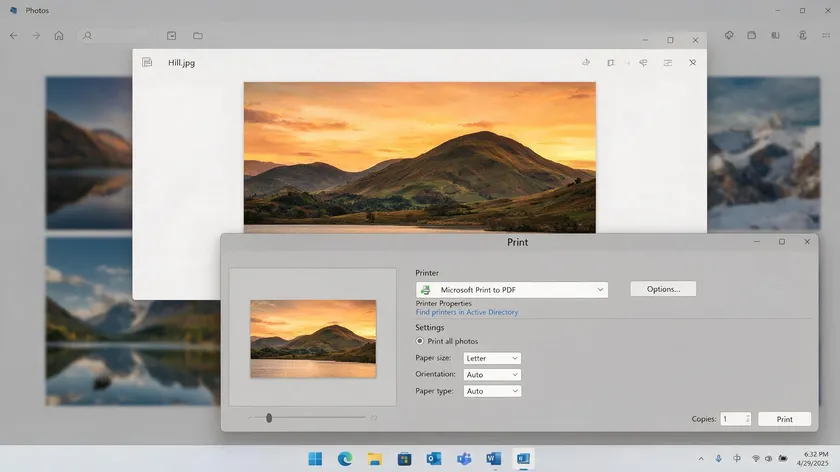
The Photos app is the fastest built-in way to convert images on modern Windows. You can convert JPGs to PDF using the Photos app in Windows with just a few clicks.
Single JPG conversion:
- Double click the jpg file to open it in Photos (or right-click → “Open with” → Photos).
- Click the printer icon in the top right corner or press Ctrl + P to access the print dialog for conversion.
- In the drop-down menu, choose “Microsoft Print to PDF” as the printer.
- You can choose paper size and orientation when printing to PDF from a JPG—pick A4 or Letter, portrait or landscape.
- Click print, then click save and choose any location on your computer. You can save converted PDFs to any location on your computer.
Multiple JPGs into one PDF:
- Open Photos, navigate to the correct album or folder, and click “Select” to choose multiple images in the desired order.
- Click the printer icon or share icon options; make sure “Microsoft Print to PDF” is chosen in the drop-down menu.
- Adjust the “Fit picture to frame” checkbox—checked stretches the image to fill the page; unchecked preserves the full aspect ratio with margins.
- Click print and save. Select multiple JPGs in Photos to combine them into one PDF.
JPG to PDF converters maintain high image quality during conversion, and the built-in method is no exception. The converted file is an image-only PDF document, though. If you need an editable PDF with selectable text, you will need OCR processing afterward.
Method 2: Convert JPG to PDF Directly from File Explorer (Right-Click)
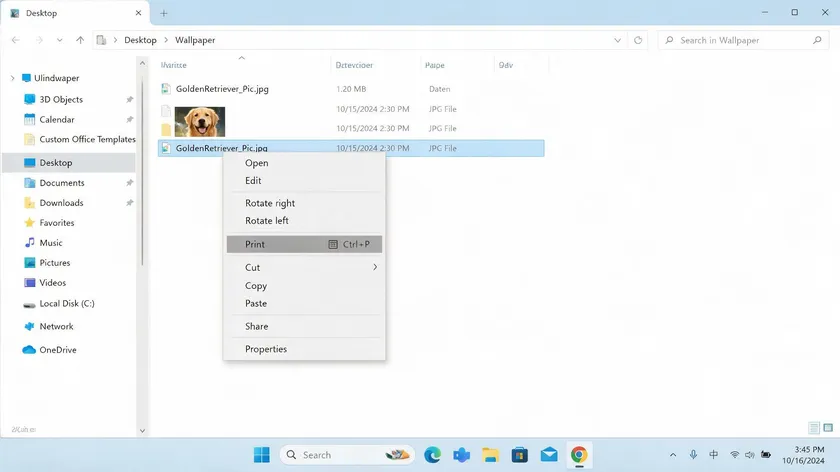
This method feels like you are not even opening an app. File Explorer’s built-in print command does everything.
Single JPG:
- In File Explorer, right-click the JPG file and select “Print” (on Windows 11, you may need to click “Show more options” first).
- In the Print Pictures dialog, choose “Microsoft Print to PDF” from the printer list, pick the layout—full page photo, contact sheet, or other files layout—and then click “Print” to save the converted PDF.
Multiple images at once:
- Rename your JPG files with numeric prefixes so they sort correctly—use a file name pattern like 01, 02, 03.
- Select all the image files (Shift-click or Ctrl+A), right-click any selected image, and choose “Print.”
- Confirm the preview thumbnails appear in the right order, then print to a single multi-page PDF
To convert multiple JPGs to a single PDF, use the print feature in Windows exactly like this. Sort your folder by “Name” or “Date modified” and always check the preview before saving. This method is ideal for quick batch conversion when you already have images organized in a Windows folder.
Method 3: Convert JPG to PDF in Any Browser (Chrome, Edge, etc.)
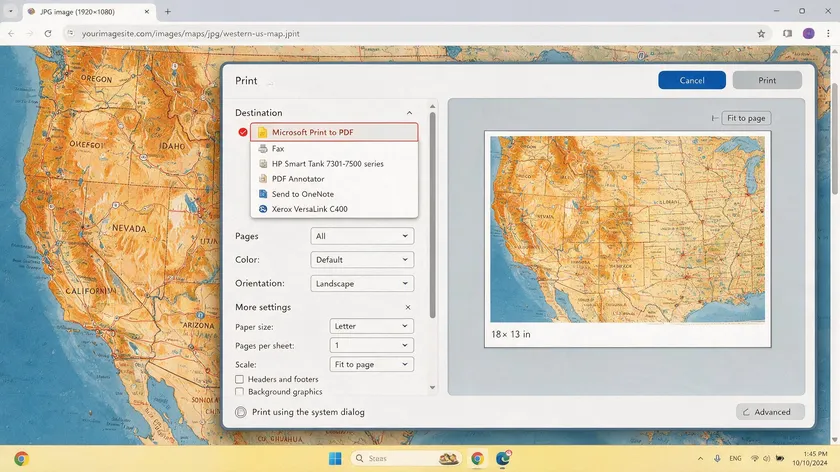
If Photos is not your default viewer or you just have a browser open, this approach works as a reliable backup.
- Right-click the JPG file, choose “Open with,” and select Microsoft Edge or Google Chrome.
- Press Ctrl + P or use the menu → Print, then switch the printer to “Microsoft Print to PDF” in the drop-down menu.
- Adjust scale and paper size if available, then click print and choose a save location for the new PDF.
This method converts one image at a time—most browsers on Windows do not easily merge multiple JPGs into a single PDF in one go. It relies on the same Microsoft Print to PDF feature, so if that works, this works.
Beyond built-in options, online converters can be used for JPG to PDF conversion without software installation. Web-based converters process JPG files and return downloadable PDFs, and free online tools exist for converting JPG files to PDF format.
Just keep in mind that these require an internet connection, and you should simply upload only non-sensitive files unless the service guarantees deletion afterward.
Enabling and Checking the “Microsoft Print to PDF” Feature
Some Windows users may not see “Microsoft Print to PDF” in their printer list. Here is how to check and fix that.
Before we get to the fix, here is a quick comparison of the three methods covered above:
| Method | Best For | Combines Multiple Images in One Go? |
|---|
| Photos app | Visual selection, previewing layouts | Yes—select multiple jpgs in the gallery |
| File Explorer right-click | Fast “no app” batch conversion | Yes—select multiple files, right-click → Print |
| Browser printing | Quick single-image conversion, backup method | No—one image per browser tab |
Check if It’s Installed
- Open the Print dialog from any app and look for “Microsoft Print to PDF” in the Printer drop-down menu.
- Alternatively, go to Settings → Devices → Printers & Scanners and see if the virtual printer is listed.
- If it is missing, proceed to enable it.
Enable It in Windows Features
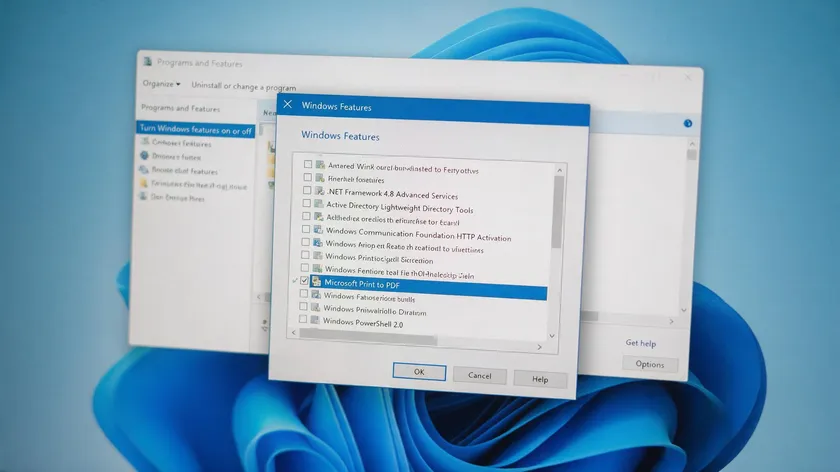
- Open Control Panel → Programs → “Turn Windows features on or off” (or run optionalfeatures.exe).
- Find and tick “Microsoft Print to PDF,” click OK, let Windows apply changes, and then restart if prompted.
- For command-line users, run PowerShell as admin: Enable-WindowsOptionalFeature -Online -FeatureName “Printing-PrintToPDFServices-Features”.
Once enabled, all methods—photos, File Explorer, and browsers—can use this virtual printer to convert JPG to PDF. Note that older versions like Windows 7 and 8 may not have this feature and might require a third-party PDF converter instead.
On some Windows 11 24H2 builds and VDI environments, the feature may show as enabled, but the printer is still missing. Reinstalling via DISM or manually adding the printer driver usually resolves the issue.
Organizing, Combining, and Preserving Image Quality in Your Converted PDFs
Getting your converted PDF to look right and appear in the correct order takes a bit of planning.
Organize Your Files
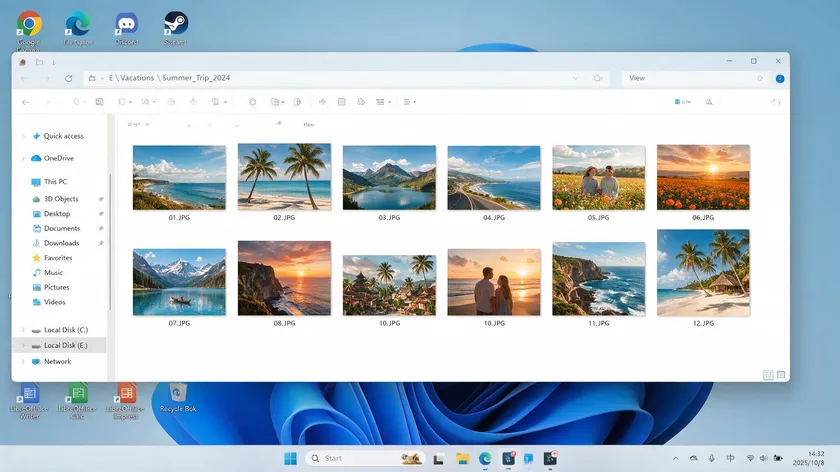
- Rename JPG files with numeric prefixes (01, 02, 03) so Windows sorts them in the correct sequence by file name.
- Keep all image files in a dedicated folder to simplify batch selection and avoid accidentally including other files.
Combine Multiple JPGs
- As described in Methods 1 and 2, select multiple images in File Explorer or Photos to create a single multi-page PDF.
- Always check the preview window to confirm the page sequence before printing to PDF. Batch conversion allows multiple JPGs to be combined into one PDF efficiently.
Preserve Image Quality
- Use high-quality images as your source and avoid repeatedly saving the same JPG before converting—each re-save introduces compression artifacts.
- Choose larger paper sizes or landscape orientation if your photos are being cropped by layout options.
- Multiple image formats can be converted to PDF, including JPG, so the same advice applies whether you are working with PNG, BMP, or TIFF files.
You can compress a converted PDF later if the file size is large, but balance size against clarity—especially for high-quality images you need to look professional.
While Windows tools are free, dedicated converters handle advanced needs like heavy batch conversion, PDF editing, and editable PDF creation.
General benefits of desktop app converters:
- Convert multiple image file formats (JPG, PNG, TIFF, BMP, GIF, and other image file formats) to PDF in one batch.
- Merge, reorder, rotate, or delete pages inside the converted PDF directly. Dedicated PDF software can import multiple JPGs and combine them into one PDF.
- Many dedicated PDF apps allow batch conversion of JPGs to PDF, with fast processing and consistent quality across large sets of images.
- Some converters retain high image quality in PDFs with no file size limits or watermarks added.
Editable PDFs and OCR:
- To turn scanned JPG text into an editable PDF, you need to perform OCR (optical character recognition). OCR technology can convert JPG images into editable PDF documents.
- Most JPG to PDF converters support OCR for editable PDFs, turning image-only output into searchable, modifiable text.
- Microsoft Word can also be used to convert JPGs to PDF files by inserting images and using select export or “Save As PDF.”
Privacy and security considerations:
- Reputable online converters use strong encryption for file security and delete files after conversion to protect your privacy.
- Look for clear privacy policies and local (offline) processing when converting sensitive image files.
When to consider these tools:
- Large volumes of images—hundreds of scans where GUI methods become tedious.
- Frequent need to convert JPG to PDF and back, convert PDF to Word, sign PDFs, or handle multiple PDFs at scale.
Automating JPG to PDF Workflows on Windows (Batch & Power User Tips)
This section is optional—if you only need an occasional conversion, feel free to skip ahead.
- Use File Explorer to select large groups of images and convert them in batches with the Print to PDF trick. Create separate folders per project (e.g., “Invoices 2025”) and convert each folder into its own PDF file.
- This approach lets you quickly convert entire project batches without installing a PDF conversion tool or desktop app.
Automation with PowerShell and PowerToys
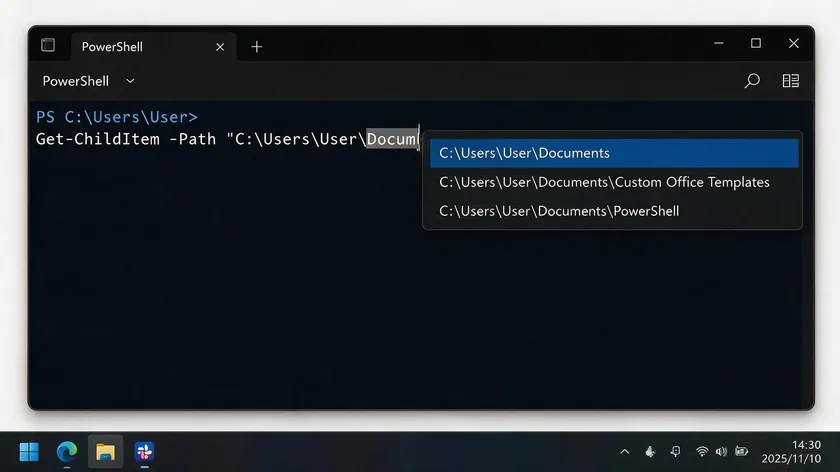
- PowerShell scripts can call the Print to PDF function or invoke command-line tools like img2pdf for semi-automated batch conversion across multiple folders. For example, img2pdf *.jpg -o output.pdf converts an entire directory in seconds.
- PowerToys can help with bulk renaming files to maintain consistent naming conventions, though it does not currently include a dedicated jpg to PDF converter module.
- This level of automation is mainly for IT professionals or advanced users, not beginners. It helps maintain date-based file names and reduces manual steps for recurring tasks across operating systems.
Key Takeaways
- Windows 10 and Windows 11 let you convert JPG to PDF for free using the built-in “Microsoft Print to PDF” virtual printer.
- You can convert images from the photos app, File Explorer’s right-click “Print” menu, or a browser like Edge or Chrome.
- To combine multiple JPGs into one converted PDF, select all the images in the correct order, then print to PDF as a single multi-page document.
- Renaming and organizing your image files first helps preserve the right page order and makes batch conversion easier.
- For editable PDFs or heavy batch conversion, Windows users can add an OCR-enabled PDF editor or converter on top of the built-in options.
If you regularly convert images, merge multiple files, or need unlimited conversions with PDF tools that handle everything from image to PDF conversion to PDF editing and beyond, explore our image to PDF conversion tools to streamline your workflow. A free online tool or a full-featured PDF converter can save you significant time when working with multiple file types.
For step-by-step instructions covering every device, see our complete guide to saving a picture as a PDF.
FAQs
Here are answers to common follow-up questions about converting images to PDF on Windows.
Yes. The same Print to PDF methods work for most image formats—PNG, BMP, GIF, TIFF, and other image file formats. Simply open or select the image file type you have and follow the same steps shown for converting JPG to PDF.
The process is identical regardless of the source format, since the virtual printer converts whatever is displayed on screen.
How Do I Reduce the File Size of a Converted PDF Without Losing Too Much Image Quality?
Use a PDF compression tool after conversion to shrink the file size while preserving acceptable clarity. Choosing a lower DPI or smaller paper size at print time also keeps the converted file smaller.
Many online JPG to PDF services and desktop apps offer a compression slider so you can balance size against image quality for your specific needs.
Is It Possible to Password-Protect a PDF Created from JPG Images on Windows?
The basic Microsoft Print to PDF feature does not add passwords. To apply password protection or encryption, open the converted PDF in a PDF editing tool or security-focused application. Most dedicated PDF converters and editors include this option in their export or save settings.
Can I Make Text in a Scanned JPG Searchable Inside the Resulting PDF?
The default Windows PDF conversion creates an image-only PDF document where text is not searchable or selectable. To get searchable or editable text, you must perform OCR using a PDF editor or JPG to PDF converter that supports optical character recognition.
Several free and paid OCR tools, including some open-source options like Tesseract, can add a text layer to your converted file.
What Should I Do if Microsoft Print to PDF Is Missing or Not Working?
Check Windows Features in the Control Panel and re-enable “Microsoft Print to PDF,” then restart your PC. If the driver files are corrupted, running DISM /Online /Enable-Feature /FeatureName:”Printing-PrintToPDFServices-Features” from an admin command prompt often fixes the issue.
As a temporary workaround, you can use a third-party PDF printer or a free online tool that handles PDF conversion while you troubleshoot.