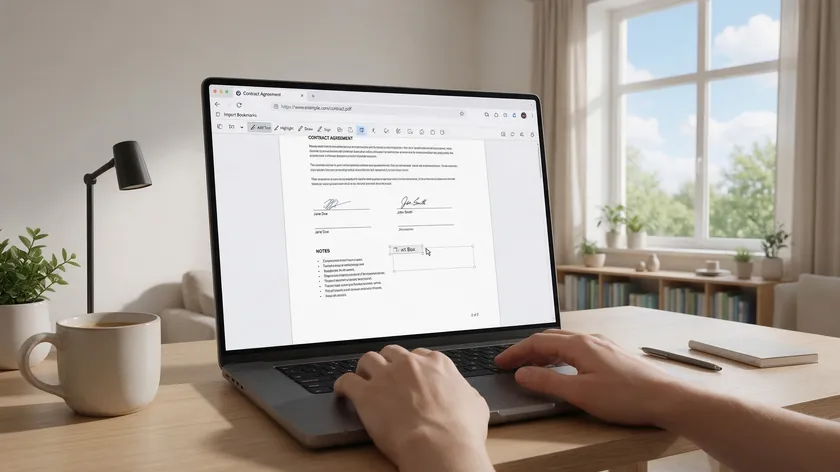
Need to add a missing date, a comment, or a label to a PDF file you already have? This guide walks you through how to add text to a PDF using an online PDF editor—no retyping, no recreating the document from scratch.
Table of Contents
What “Adding Text to a PDF” Actually Means
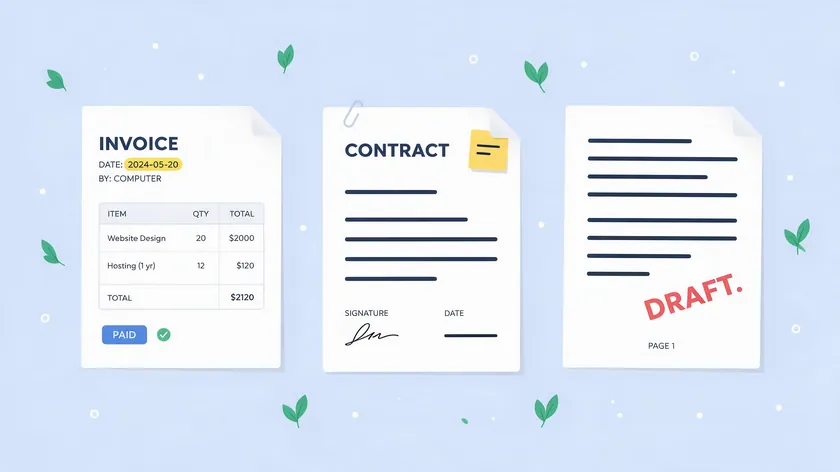
Adding text and trying to edit existing text are two different things. Adding text places new text boxes on top of the current page. Editing existing text means modifying words already baked into the file’s content stream—a trickier process that often requires specialized software.
PDF is a page description language that specifies coordinates for text and shapes. Adding text to a PDF generally falls into two categories: overlay annotation and true in-line editing.
Annotation tools add a new independent text object on top of the existing page coordinates, while true editing modifies the underlying text layer of a PDF.
Built-in utilities in most online tools primarily use an annotation layer for PDF editing, and overlay annotation places a transparent text box over the existing PDF layout.
This guide focuses on the overlay method—inserting new text into an existing PDF file. Think of adding a missing invoice number, typing today’s date on a contract, or dropping a “DRAFT” label onto document pages before sharing.
| Method | What It Does | Best For | Tool Needed |
| Adding text (overlay) | Places a new, independent text box on top of the existing page | Dates, labels, comments, stamps, filling non-fillable forms | Any online PDF editor (e.g., pdfapp.com) |
| Editing existing text | Modifies the words already baked into the PDF’s content stream | Correcting typos inside original paragraphs, reflowing content | Adobe Acrobat Pro or converting the file to Word |
No need for Adobe Acrobat Pro or heavy desktop software. A browser and an internet connection are enough.
The Easiest Way to Add Text to a PDF Online
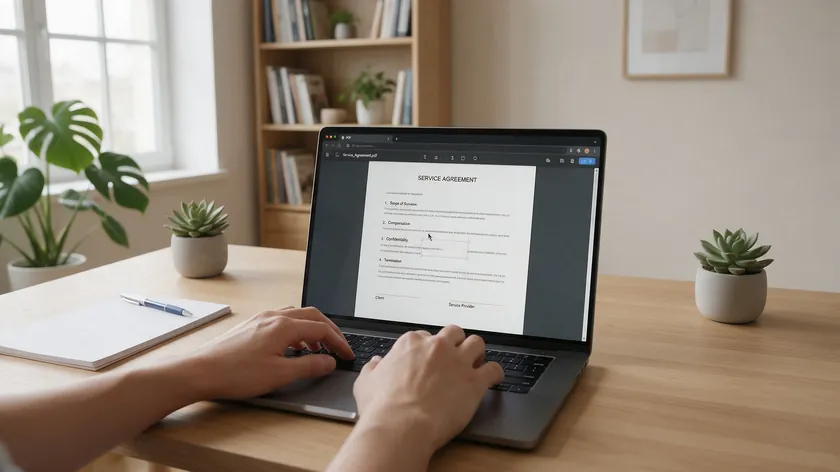
Using an online PDF editor is the easiest way to add text without installing anything. Web-based PDF editors allow you to upload a PDF and add text through a browser interface—and pdfapp.com gives you all the tools in one place.
Step 1. Open pdfapp.com/edit-and-sign. Simply upload your PDF by clicking the upload area or drag and drop the file directly into the editor.
Step 2. Once the file loads, select the text tool—look for the “T” icon in the toolbar. Click anywhere on the page where you want to insert text, and a new text box appears.
Step 3. Start typing. Add names, addresses, dates, and short paragraphs—whatever your document needs. The text box stays editable until you finalize.
Step 4. Hit the save button or download the edited PDF to your device.
This works on Chrome, Edge, Firefox, and Safari across Windows, macOS, and Chromebooks. Most browser-based PDF editors, including this one, let you start editing for free and only ask you to sign up with Google or your email when you’re ready to download the finished file.
How to Insert, Move, and Delete Text Boxes in an Existing PDF File
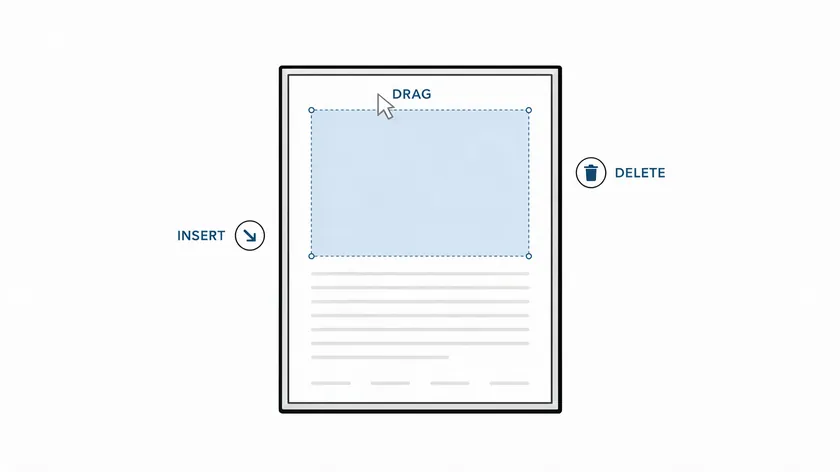
Once you know the basics, fine control over text boxes lets you place everything exactly where it belongs.
Inserting text boxes
Click the text tool, click on the page, and type. You can repeat this across different pages to add new text wherever your cursor lands. Each click creates a separate, independent box.
Moving text boxes
Text blocks can be moved by dragging them in edit mode. Click once on an existing text box to select it, then drag it to a new location that better matches margins or surrounding content. You can resize the text using the size control in the side panel, which adjusts how the content fits within the box.
Deleting text boxes
Select any text box and click the trash or delete icon that appears, or press your keyboard’s Delete key. This only removes the added text—the underlying PDF stays intact. If you hover over the wrong box and delete it by mistake, simply re-add the text before you save.
How to Format Text When Adding It to a PDF
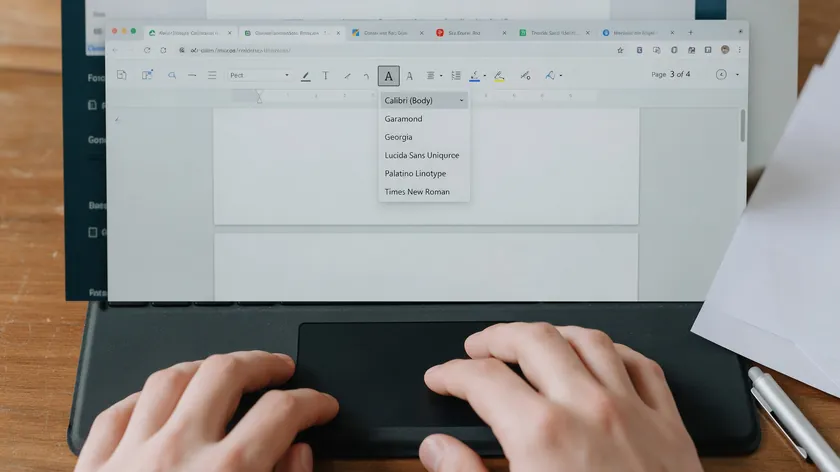
A PDF is not a full word processor, but you can still format text to keep things professional. You can customize font size and color when adding text—adjust these in the side panel after selecting your text box.
Match font size to surrounding content (12 pt is a safe default for standard letters). Use black for normal content and red or blue for corrections and annotations.
Desktop PDF editors like Adobe Acrobat also let you format text properties such as font and size, but they usually require an installation or subscription—an online editor gives you the same basic formatting without either.
Keep in mind that advanced layout changes—like reflowing entire paragraphs—are not possible with overlay tools. But for headers, footers, labels, and signatures, formatting added text is quick and reliable.
When to Add Text to a PDF Instead of Editing Existing Text
There are many reasons to add text rather than try to modify existing text. Here are the clearest scenarios:
- Filling out a non-interactive form (scanned PDF with blank lines but no fillable fields).
- Adding a clarifying comment or note to a contract.
- Inserting a missing date or address on an exported invoice.
- Placing a “CONFIDENTIAL” or “DRAFT” stamp on document pages.
Direct editing allows you to type directly into paragraphs as if using a word processor, but this level of editing usually requires a paid subscription or desktop software like Adobe Acrobat.
For major revisions, converting the PDF into an editable Word document is another option—but for quick touches, overlay is faster and keeps the original layout intact.
Adding text overlays is ideal for small corrections and annotations. When you need to edit the text at a deeper structural level—changing whole paragraphs, reflowing content—you would need a specialized PDF editor or the source files.
Whenever you need to quickly insert text into a PDF without recreating it, an online tool handles it in seconds.
Key Takeaways
- Adding text to a PDF means placing new text boxes on top of the existing page, not rewriting the original document like a word processor.
- The easiest way: simply upload your PDF to pdfapp.com, click the text tool (“T” icon), click on the page, start typing, and then save or download.
- You can format text (font size, color), move text boxes to any new location, resize them, or delete them before saving.
- This works in any modern browser on Windows, macOS, Linux, and ChromeOS—no desktop installs needed.
Ready to add text to your next PDF? Open the pdfapp.com Edit PDF tool, drop in your file, and start typing—no installs needed, just a quick sign-up with Google or your email when you’re ready to download.
FAQ
Can I edit existing text in a PDF the same way I add new text?
The workflow above focuses on adding new text boxes on top of the existing PDF—not modifying or reflowing original paragraphs. You can visually cover mistakes by placing corrected text nearby or over a blank area.
To fully edit existing text or modify existing text inline, you would typically need a paid tool like Adobe Acrobat Pro or convert the file to Word first.
What if my PDF is a scanned document or an image?
You can still insert text boxes on top of scanned PDF documents—the overlay works regardless. However, the underlying scan itself is an image, not selectable text. For full text editing of scans, you would need OCR (optical character recognition).
OCR software converts scanned documents into selectable text, which is separate from simple “add text” functionality. You can also organize scanned files or convert them to JPG if needed.
Is adding text to a PDF secure when done online?
Reputable online tools use encrypted connections (SSL/TLS) for uploads and downloads. For extra security, avoid editing sensitive files on shared or public computers, and delete downloaded files from those machines afterward. Google Drive or similar cloud storage can help you keep edited copies safe.
Can I add text to a PDF on my phone or tablet?
Yes. The same browser-based editor works on mobile—Safari on iOS and Chrome on Android. If you want the exact taps for each system, see how to edit a PDF on iPhone and how to edit a PDF on Android. That said, working on a desktop or laptop gives more precise control over where text boxes land, especially for complex layouts.
On a smaller screen, it can be tricky to position text boxes exactly, but it is fully functional for quick edits on the go. You can enable the same text formatting options available on desktop.
Will the added text stay in the PDF when I share or print it?
Once you save or download the edited PDF, all added text boxes become a permanent part of the new file. Anyone who opens or prints it will see your additions.
Save a copy with a clear filename—for example, “Contract-edited-September-2026.pdf”—to distinguish it from the original version. The download includes everything you added: text, images, and annotations.