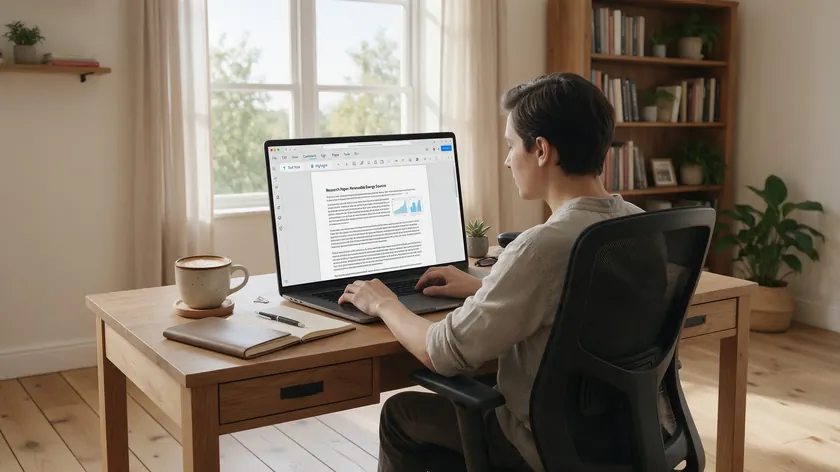
Editing a PDF file without Adobe software is very common, yet many people still assume they need an expensive Acrobat subscription to change a single word or sign a form.
There are several effective methods for editing PDF files, and most of them don’t require downloading anything at all—online PDF editors can be accessed from any device with a modern browser.
This guide focuses on how to edit a PDF without Adobe using pdfapp.com directly in the browser, with no installation and no Adobe account.
Readers who want a broader overview of PDF editing concepts can see the pillar article on editing a PDF, while this piece dives into the non-Adobe workflow specifically.
The article covers text edits, comments, signing PDFs, and basic page management using pdfapp.com, with brief mentions of alternative tools for readers who need them.
Table of Contents
Why People Want to Edit a PDF Without Adobe
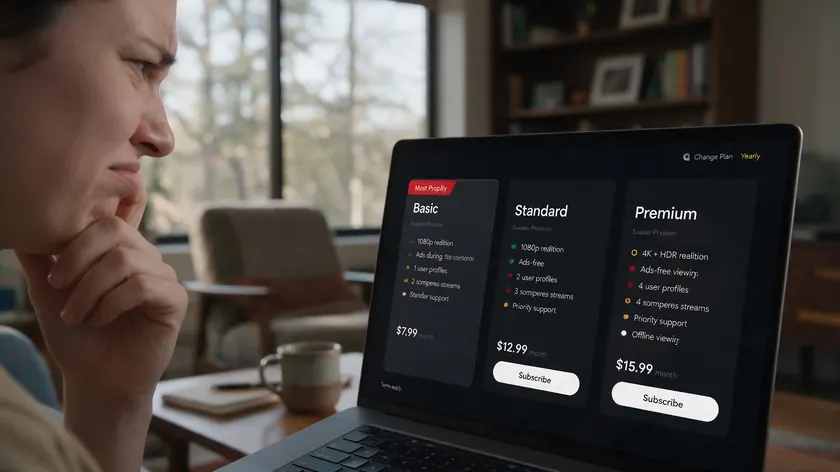
Threads across Adobe’s own community forums and Reddit are filled with users frustrated by Adobe Acrobat’s subscription model.
At roughly $19.99 per month for Acrobat Pro, many people feel the cost is hard to justify when they only need to fix a date, swap a phone number, or sign a single form.
Adobe Acrobat converts PDFs to Word, Excel, and PowerPoint, and its online PDF editor supports various annotation types—but that power is overkill for most occasional users.
Even Adobe Acrobat’s free editor allows adding comments and annotations, yet full text editing remains locked behind the paid tier.
The most common motivations for going without Adobe include:
- Avoiding a recurring subscription that auto-renews whether you use it or not.
- Not wanting to create an Adobe account or install heavy desktop software on a managed work laptop or Chromebook.
- Preferring a lightweight, browser-based tool for simple tasks like modifying text, adding annotations, or organizing pages.
- Privacy concerns—some users handling sensitive documents want tools that don’t require uploading to unfamiliar cloud services.
OCR technology can make scanned PDFs editable, but that capability is typically reserved for specialized or paid tools.
If you regularly work with image-based scans, Acrobat or a dedicated OCR solution may still be necessary. For everything else, a browser tab is usually enough.
Editing PDFs in Your Browser with pdfapp.com
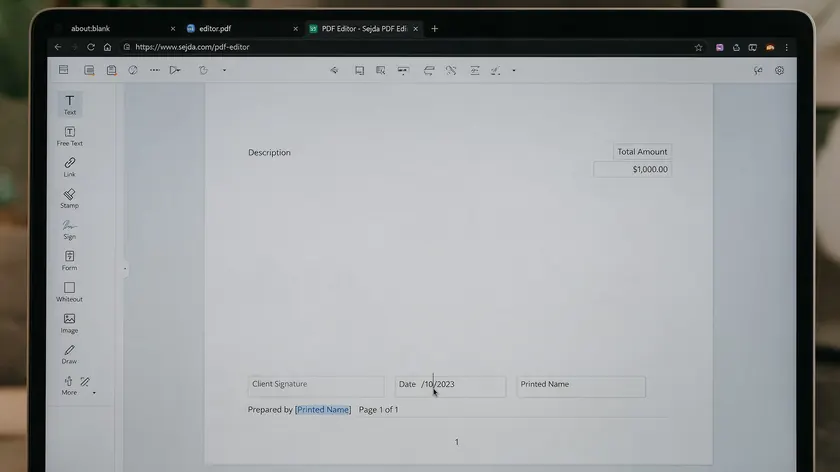
Web-based tools are the fastest option for quick changes, and pdfapp.com is built around that principle. You can upload your PDF, edit text, insert images, add annotations, sign PDFs, and organize pages—all inside your browser without installing software.
Modifying a PDF without Adobe products is straightforward once you have a tool that handles it natively. For a deeper look at text-editing mechanics, see How to Add Text to a PDF.
Here’s the high-level workflow: go to pdfapp.com, drag and drop files onto the page, begin editing existing text, shapes, or images, and prepare to download.
The editor supports true text editing—meaning it modifies the underlying PDF content, not just an overlay layer—for files up to 100 MB.
Pricing transparency: in-browser editing is free with no signup. Downloading the edited PDF starts a $0.99 trial that auto-renews at $35/month after 7 days unless you cancel. pdfapp.com is not a free PDF editor end-to-end; the cost applies at the download step.
This makes pdfapp.com ideal when you’re on a managed work laptop, a Chromebook, or a public computer where no installation is required or even possible.
Students fixing a resume date, freelancers updating an invoice, or small businesses correcting contract details can start editing in just a few clicks.
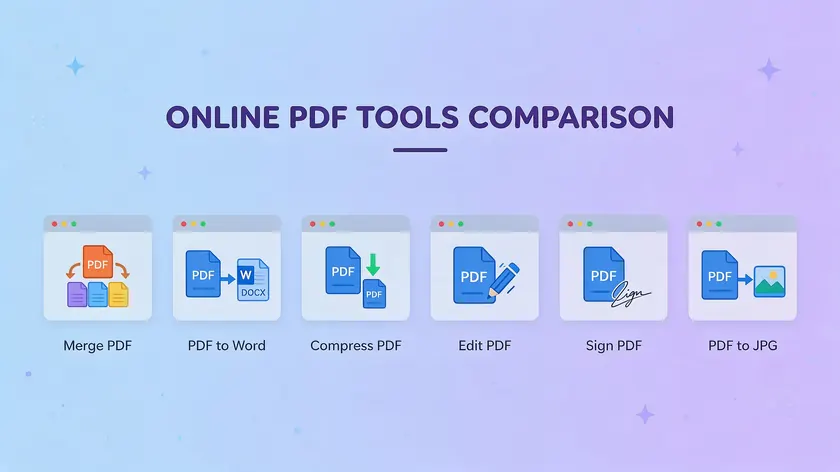
pdfapp.com is the top recommendation for editing a PDF without Adobe—it’s a browser-based tool with true text editing and no account needed to begin editing.
That said, other online PDF editing tools exist for readers who want alternatives or need a genuinely free download path.
A quick rundown of other options:
- Canva—design-style PDF editing with a free tier.
- iLovePDF—a utility toolkit for merging, splitting, and basic edits.
- Sejda—browser-based text editing with daily task limits.
- Xodo—processes files on your device without uploads.
- Smallpdf—a broad toolkit with over 40 PDF conversion and editing tools.
- PDFescape—lets you build PDFs and forms from scratch.
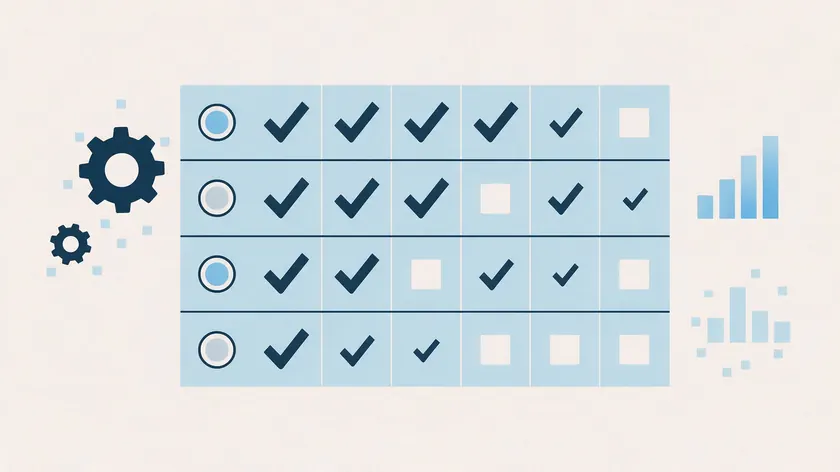
| Tool | No Installation Required | No Account to Edit | True Text Editing | Cost |
|---|
| pdfapp.com (Recommended) | Yes—browser only | Yes—no signup to edit | Yes—edits existing text | Free to edit; $0.99 trial to download, then $35/month |
| Canva | Yes—browser only | No—account required | Limited—overlay-style | Free tier available; Pro is ~$12–15/month. |
| iLovePDF | Yes—browser only | Partial—account for export | Limited—annotations and overlays | Free downloads with limits; Pro ~$6/month |
| Sejda | Yes—browser only | Partial—account for saving | Yes—edits existing text | Free: ~3 tasks/hour; paid: ~$7.50/month |
| LibreOffice Draw | No—desktop install | Yes—fully offline | Yes—edits text and images | Completely free, open-source |
| Smallpdf | Yes—browser only | Partial—account for some tools | Limited | Free tier; Pro plans available |
| Xodo | Yes—browser only | Partial—account for cloud sync | Yes—dedicated text editing too | Free tier very limited; paid from $7.99/month |
pdfapp.com is the simplest starting point for most readers because it combines true text editing with a no-install, no-account-to-edit workflow.
LibreOffice Draw is the strongest option for fully offline work. Sejda is the closest browser-based competitor for true text editing, though its free tier caps tasks per hour.
Xodo processes PDF files entirely on your device without uploads, making it another privacy-focused alternative worth considering.
Free Desktop Alternatives to Adobe Acrobat
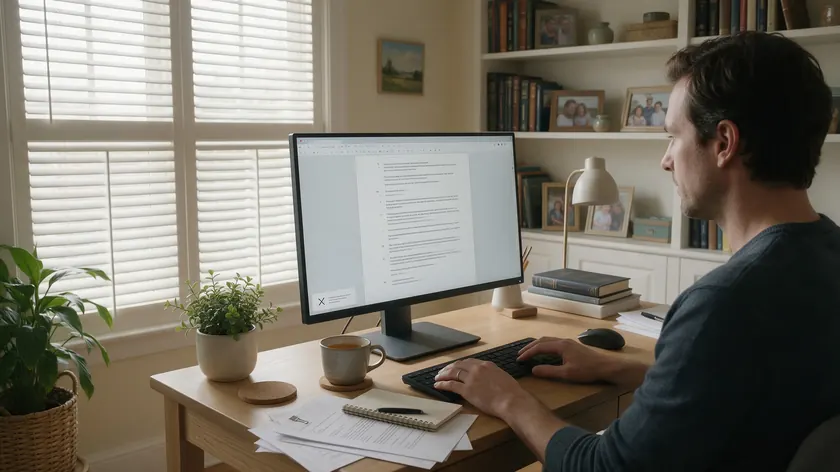
For readers who prefer offline editing or need to work without an internet connection, installable desktop software is the way to go.
Converting PDF files to Word can simplify the editing process for text-heavy documents, and several free tools handle this well.
LibreOffice Draw is the main free desktop option. It’s open-source, available on Windows, macOS, and Linux, and LibreOffice Draw can import many PDFs for editing directly.
You open a PDF in Draw, modify text boxes and images on each page, and then export back to PDF format.
The trade-off is that complex layouts—multi-column designs, custom fonts, and vector graphics—can experience formatting shifts like text boxes stretching or hyperlinks dropping.
These tools work best for text-heavy documents like contracts, forms, and handouts rather than intricate, design-heavy PDFs.
Beyond LibreOffice Draw, command-line utilities can handle structural changes like splitting or merging for technically inclined users.
Lightweight PDF Viewers with Editing Features
Built-in operating system tools can often support basic PDF modifications—macOS Preview, for instance, handles annotations, form-filling, and simple signatures out of the box. Minimal third-party readers offer similar features with slightly more flexibility.
These viewers typically provide free access to highlighting, comments, sticky notes, basic form-filling, and sometimes e-signatures. However, true text editing—modifying existing text within the PDF content stream—is almost always locked behind paid upgrades.
Position this as a middle-ground option if you want a familiar reader-style interface with occasional light editing needs, without installing a full PDF editor.
Step-by-Step: How to Edit a PDF Without Adobe in Common Scenarios
This section walks through pdfapp.com’s workflow for everyday tasks. Each scenario is concise—upload your PDF, make the edit, and save. It’s recommended to keep a backup of the original PDF before editing any document.
Editing Text in a Contract
Go to pdfapp.com and drop files onto the editor. Click on the text you need to change—a date, a name, or a dollar amount—and edit text directly.
Once you’ve corrected the PDF content, download the edited file (remember, downloading starts the $0.99 trial). Always proofread the edited PDF before sending.
Annotating a Report
Upload your PDF to pdfapp.com. Use the annotation tools to add annotations, text boxes, and comments where feedback is needed. You can also add drawings to highlight sections visually. For detailed annotation techniques, see How to Highlight in PDF.
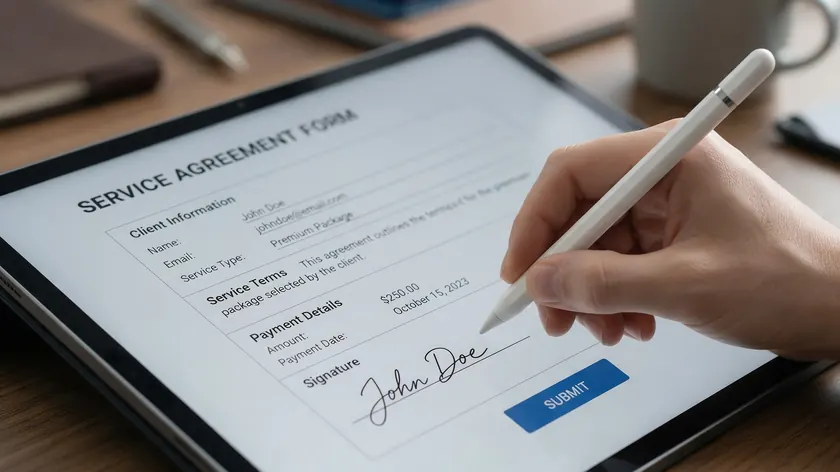
Upload the form to pdfapp.com. Use the built-in sign tool to draw or type your signature directly onto the page. Position it, save, and download the new PDF to return via email. This handles one-off agreements without needing dedicated e-sign software.
Rearranging Pages in an Edited PDF
Upload a multi-page document, then use pdfapp.com’s page management to reorder, delete, or reorganize pages as needed.
This is useful when compiling PDF pages from different formats into one file. If you need to locate specific content before rearranging, see How to Search for Keywords in a PDF.
Each scenario above should take under five minutes for straightforward PDF documents.
Security and Privacy When Editing PDFs Online
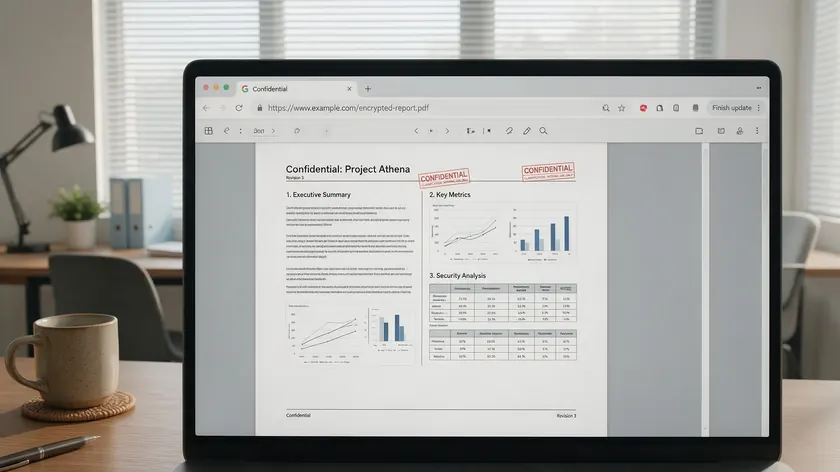
Uploading sensitive documents—contracts, IDs, client files—to any online tool carries risk. Reputable PDF editing tools use TLS/HTTPS encryption for file transfers and follow data protection practices similar to the OWASP data protection recommendations.
Always check a provider’s own privacy policy for its specific data retention terms before uploading sensitive documents.
Before uploading to any browser-based editor, including pdfapp.com, check:
- Does the provider publish a clear data retention and deletion policy?
- Are file transfers encrypted?
- Does the tool process files server-side or client-side?
For contracts or confidential files, prefer using offline tools like LibreOffice Draw, where nothing leaves your device. Xodo processes PDF files on your device without uploading them, which is another secure option.
Always avoid uploading anything that violates your company’s or client’s data policies, and password protect sensitive documents when possible.
How to Choose the Right Way to Edit a PDF Without Adobe
The right approach depends on what you’re editing, how often, and how sensitive the document is.
Key decision factors:
- Frequency—occasional users benefit most from pdfapp.com’s no-install workflow; heavy daily editing may justify Acrobat Pro or a desktop tool.
- Edit type—true text editing versus annotations only. If you just need to add annotations or sticky notes, even a built-in OS viewer works.
- Online vs. offline—if you can’t upload files, LibreOffice Draw or another desktop tool is the answer.
- Budget—pdfapp.com‘s low-cost download step suits occasional use; users who edit PDF documents daily should compare subscription options.
For an occasional user fixing a typo or signing a form, pdfapp.com is the ideal solution—open a browser, upload, edit, and done. A student or freelancer who edits a few PDFs per month gets strong value.
For someone who needs unlimited access to advanced automation, batch processing across dozens of files, or certified redaction, Adobe Acrobat Pro remains the industry standard. But for most people, most of the time, a browser-based editor handles the job.
Key Takeaways
- You can edit a PDF without Adobe directly in your browser at pdfapp.com—no installation required and no account needed to start editing.
- pdfapp.com offers free in-browser editing for text, images, annotations, and page management; downloading the edited file starts a $0.99 trial that auto-renews at $35/month after 7 days unless canceled.
- Free desktop options like LibreOffice Draw exist for fully offline editing when privacy is a priority.
- Always check a provider’s data retention policy before uploading sensitive PDF documents to any online editor.
- Choose your workflow based on the specific task—edit text, sign PDFs, or rearrange pages—rather than searching for one tool that does everything.
Edit your PDF free in your browser at pdfapp.com—no Adobe, no installation. Downloading your finished file starts a low-cost $0.99 trial that converts to a $35/month subscription; cancel anytime.
FAQ
These questions cover common concerns about editing PDFs without Adobe Acrobat that weren’t fully addressed above.
Can I truly edit PDF text for free without using Adobe Acrobat?
Editing text in pdfapp.com is free directly in the browser—you can modify existing text, add text, and adjust layout without paying or signing up. Downloading the edited file starts a $0.99 trial that renews to $35/month unless canceled.
The distinction matters: annotation-only tools let you layer comments and highlights over PDF content, while true text editing changes the underlying document. Many online PDF editor options gate true editing behind paid tiers, so always check before committing to a workflow.
What’s the safest way to edit a confidential PDF without Adobe?
For highly sensitive documents, use an offline desktop editor like LibreOffice Draw so nothing is uploaded to a third-party server. If you use a browser-based editor like pdfapp.com, check the provider’s data retention policy directly, since retention terms vary by tool.
Avoid shared or public devices for confidential edits, store files locally rather than in cloud storage, and delete temporary copies once you’re finished.
How do I sign a PDF without Adobe Acrobat?
pdfapp.com includes a basic e-sign tool that lets you draw or type your signature directly in the browser. Upload your PDF, place your signature, and download the signed document.
For legally binding e-signatures at scale for enterprise contracts and regulated industries, dedicated e-sign platforms or Acrobat Pro may still be preferable.
But for one-off agreements, returning a signed form, or easy sharing of a completed document, pdfapp.com handles the task without requiring different formats or extra software.
Simple documents like letters, invoices, and basic forms typically survive editing well in pdfapp.com, especially when the PDF was created digitally with standard fonts.
Complex layouts—multi-column designs, custom typefaces, and embedded vector graphics—may need extra proofreading after edits.
Always review the edited PDF page by page, especially for multi-page contracts or marketing assets, before finalizing and sending. If layout fidelity is critical, convert to a different format for editing and then save back to PDF as a fallback.
Do I need to create an account to edit a PDF without Adobe?
pdfapp.com does not require an account to start editing in the browser. You can upload, edit text, insert images, add drawings, and rearrange PDF pages with no login.
An account or paid trial is only needed at the download step when you want to save and export the edited file. This contrasts sharply with Adobe Acrobat, which requires a full account and active subscription before you can easily edit any PDF content at all.