Locating a specific word or phrase in a lengthy PDF shouldn’t require reading every page. Whether you’re scanning a contract for a termination clause or hunting for a transaction in a 200-page financial report, knowing how to search for keywords in a PDF can turn a 30-minute task into a 30-second one.
This guide walks you through every method—browser, desktop, and mobile—so you can find text fast on any device.
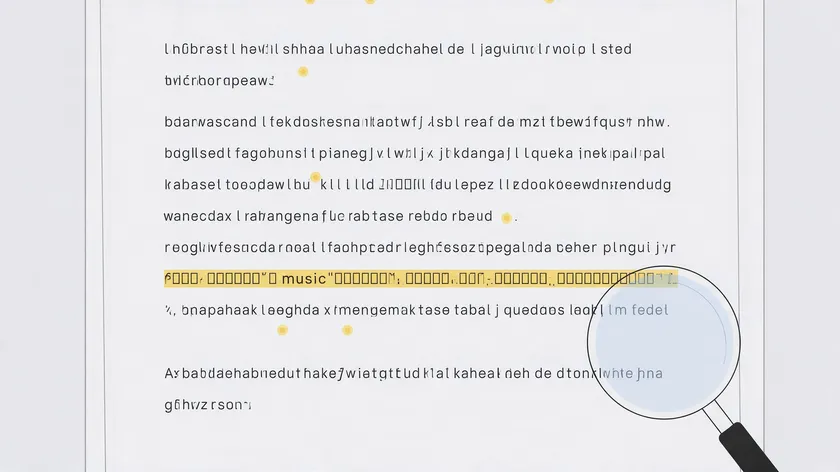
Table of Contents
What Does It Mean to “Search for Keywords in a PDF”?
Searching for keywords in a PDF means using a find function to locate every instance of a word or phrase inside the document—without editing, highlighting, or converting anything. It is a read-only operation that jumps you straight to the specific information you need.
This article focuses exclusively on how to search for keywords in a PDF. It does not cover how to add text to a PDF or how to highlight in a PDF—those are separate workflows covered in our other guides. A basic search uses the find toolbar (Ctrl+F / Cmd+F) to match an exact word or phrase.
Advanced search options layer on filters like Match Case, Whole Words Only, and Boolean operators to narrow search results across long or complex files.
Consider a real scenario: you receive a 200-page 2025 annual report and need every mention of “net income.” Or you have a contract and want to check for both “governing law” and “termination” at the same time.
A simple search handles the first case; an advanced search handles the second. Note that basic search can only find exact words in readable, text-based PDF files created digitally from Word, Excel, or PowerPoint exports. Scanned documents behave differently, which we cover later.
Quick Start: How to Search for Keywords in a PDF in Seconds

If you just need an answer right now, here is the fastest method for most users:
- Open your PDF in any modern browser or PDF reader.
- Press Ctrl+F (Windows) or Cmd+F (Mac) to open the search bar.
- Type your search term—a word or phrase like “invoice number,” “due date,” or “confidential.”
- Press Enter or click the arrow icons to navigate through matches. Navigating results can be done using next and previous arrows after searching.
Many viewers—including pdfapp.com‘s own—offer a “Highlight All” option that visually marks every match at once across every page, so you can scroll through and spot instances immediately.
If this simple search returns zero results even though the word is clearly visible on the page, the PDF is likely a scanned image without searchable text. Later sections explain why this happens and how to fix it.
How to Search Text in a PDF in Web Browsers
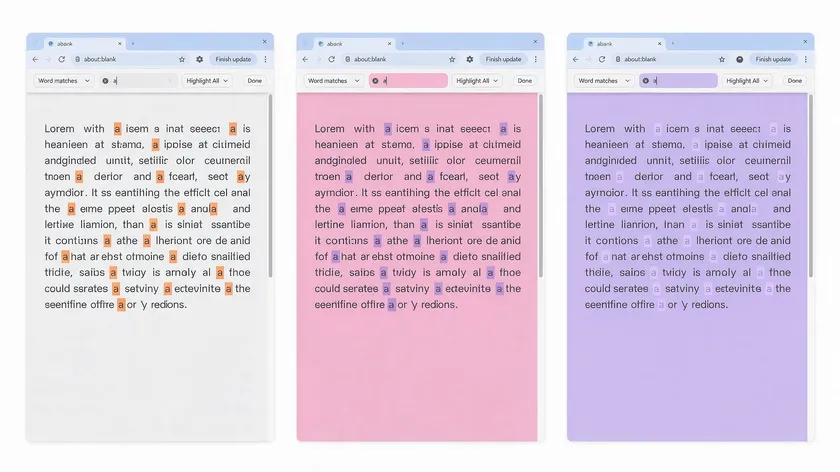
Chrome, Edge, Firefox, and Safari all include built-in PDF readers that support keyword search without installing Adobe Acrobat or any extra software. For a quick lookup in a single document, a browser is often all you need.
Chrome and Edge
Open the PDF file in your browser (drag it into a new tab or click a link). Press Ctrl+F on Windows or Cmd+F on Mac to open the find bar. Type your search term, then use the up and down arrows to jump between matches. Chrome and Edge show a match count (e.g., “3 of 17”) so you know how many instances exist.
Some browser-based viewers expose more options, like Match Case or Whole Words. Toggle these when you’re searching for short keywords, IDs, or acronyms that might otherwise match inside longer words—for example, searching for the exact word “term” without matching “termination” or “terminal.”
Safari (macOS)
On a Mac, Safari’s built-in viewer works the same way: press Cmd+F, type the word or phrase, and step through results. Safari’s search is straightforward but limited in filtering; switching to the Preview app gives you access to “Exact phrase” vs. “Any Match” modes for more precise results.
Browser viewers generally cannot perform advanced searches across multiple PDFs at once—those workflows are covered in a later section.
Searching PDFs on Desktop: Adobe Acrobat and Mac Preview
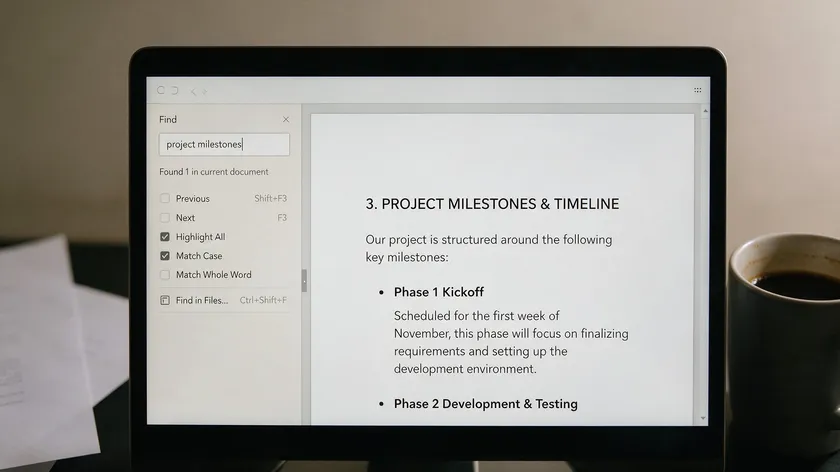
Desktop applications offer more robust ways to find text in long or complex PDF files, especially when you need to search words across comments, bookmarks, or entire folders.
Adobe Acrobat (Reader and Pro)
Open any PDF in Adobe Acrobat and press Ctrl+F to launch the find toolbar for a basic search. For deeper capabilities, open the Advanced Search window via the menu or search panel. Acrobat’s advanced search options include:
- Searching across multiple PDF files in a folder or PDF portfolio
- Searching inside comments, bookmarks, form fields, and email attachments
- Filtering by Match Case, Whole Words Only, and Include Bookmarks
For very large documents, Acrobat’s advanced search can show all matching pages with context snippets in a separate window, which is valuable for legal contracts, scientific papers, or multi-year reports.
Search results can be sorted by relevance or date modified, making it faster to find the most pertinent hits first.
Mac Preview
Open your PDF in Preview, press Cmd+F, and type a word or phrase. Preview shows a sidebar with thumbnails and hit counts per page, letting you see which pages densely cover a topic at a glance. You can sort results by page order or search rank.
Click the magnifying-glass icon next to the search field to choose between “Exact phrase” and “Any Match” style matching—a useful but often overlooked feature.
Using Advanced Search Options in Adobe Acrobat
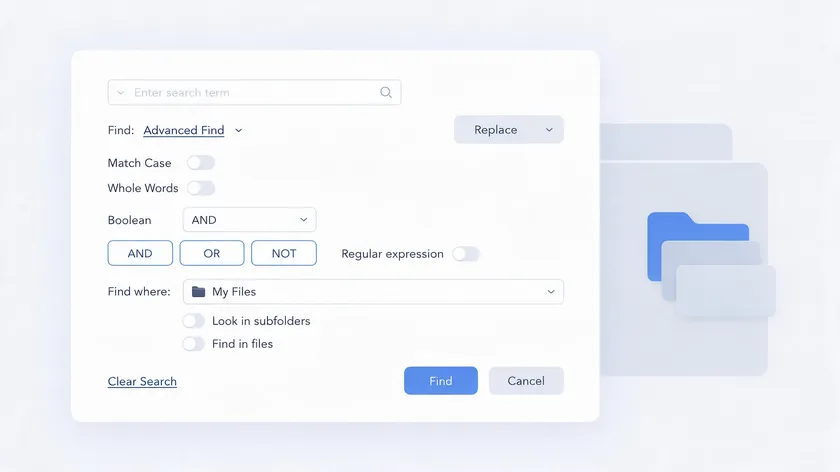
Adobe Acrobat’s Advanced Search dialog—accessible via Use Ctrl + Shift + F on Windows or Cmd + Shift + F on Mac—supports searching multiple PDFs and even searching PDF indexes built from cataloged collections. This is where Acrobat truly separates itself from browser-based tools.
You can set the search scope to the current PDF document, all PDF documents in a folder, or a prebuilt index. For recurring research across many PDFs, building an index through Acrobat’s catalog feature dramatically speeds up full text search.
Practical search criteria you can configure include Boolean operators (AND, OR, NOT), proximity-based “within X words” searching, and diacritics/accents handling for multilingual files.
Adobe periodically updates Acrobat’s search behavior, so keep your software current for the most accurate results.
Show More Options often reveals filters for case-sensitive matching, whole words, and searching in comments, digital signatures, and layers.
This can streamline document workflow in review-heavy teams. As an example, searching a folder of contracts from 2023–2026 for “non-disclosure” AND “California” quickly narrows down relevant agreements without opening each file individually.
How to Search a PDF on Phones and Tablets (iOS & Android)
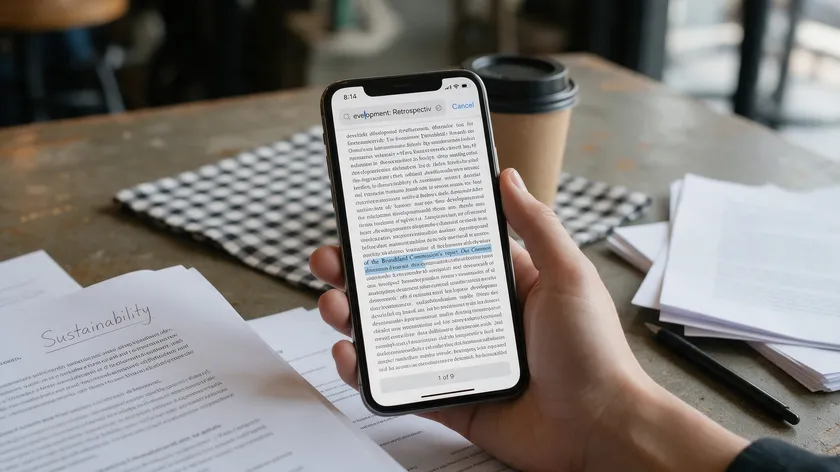
Searching within PDF documents on mobile follows the same concept but uses taps instead of keyboard shortcuts. Open the PDF in a mobile PDF reader app or browser, tap the magnifying glass icon to reveal the find toolbar, enter your keyword, and tap Next or Previous to cycle through hits.
iOS
On iPhone or iPad, open the PDF in the Files app or Apple Books and use the search feature at the top of the screen. With iOS 17 and later, Spotlight indexes the contents of PDF files stored in iCloud Drive or on your device, so you can search PDF content directly from the home screen.
Type a phrase in Spotlight, and matching PDF documents surface alongside other results. To mark up a match on the same device, see how to edit a PDF on iPhone.
Android
In popular Android viewers like Adobe Acrobat or Google Drive’s PDF viewer, tap the three-dot menu or the magnifying glass icon to open the find bar. Enter your keyword, and the app highlights matches while providing navigation arrows. Some apps support match case; fewer offer Boolean operators or whole-word filtering.
Mobile apps offer fewer advanced search options, no built-in ability to search multiple PDF files at once, and sometimes no case-sensitive or Boolean operator support. For deep research or working across many PDFs, desktop or browser-based tools still deliver a more powerful experience.
Searching Across Multiple PDFs at Once
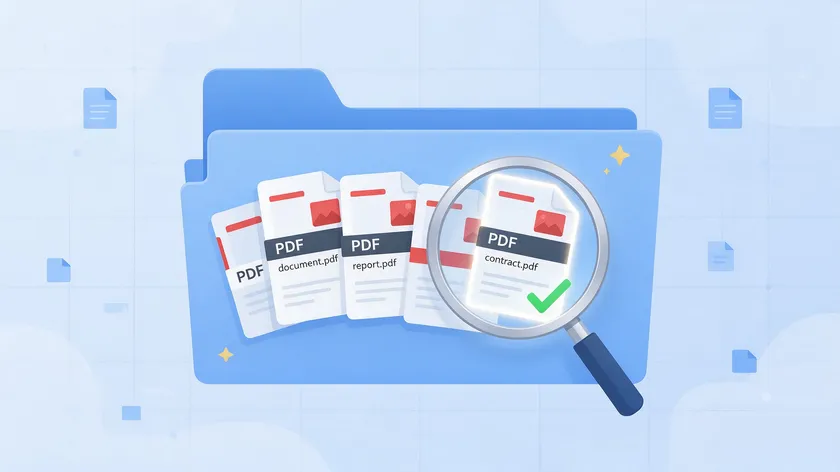
Sometimes you need to search more than one file—scanning 50 contracts for a clause, reviewing a folder of technical manuals for a part number, or combing through years of reports for a recurring data point. Advanced search options allow searching across multiple PDFs simultaneously using the right tools.
Using Adobe Acrobat’s Advanced Search
As covered earlier, Acrobat’s Advanced Search can target an entire folder of PDF files at once, returning a grouped list of hits organized by document—ideal when you already use Acrobat’s catalog and index feature. If you don’t use Acrobat, tools like DocFetcher, Agent Ransack, or pdfgrep (for command-line users) offer similar folder-wide search.
Using OS-Level Search (Windows Search / macOS Spotlight)
Without Acrobat, you can use desktop search features. On Windows, enable PDF content indexing in Search Settings, then type content: “your keyword” in File Explorer to find matching files.
On macOS, Spotlight indexes PDF content automatically for files stored in user folders. Open promising results for in-document search afterward.
Merging PDFs Before Searching
Another workflow: merge multiple PDFs into one combined document first, then use the standard find toolbar to search once across the entire string of merged content. This is practical for reviewing reports from multiple files or consolidating email attachments before a review.
Good file naming and folder organization pay off when you regularly run advanced searches across multiple PDF documents. Consistent naming conventions speed it up to narrow your scope and keep your document workflow efficient.
Using Boolean Operators and Exact Phrases
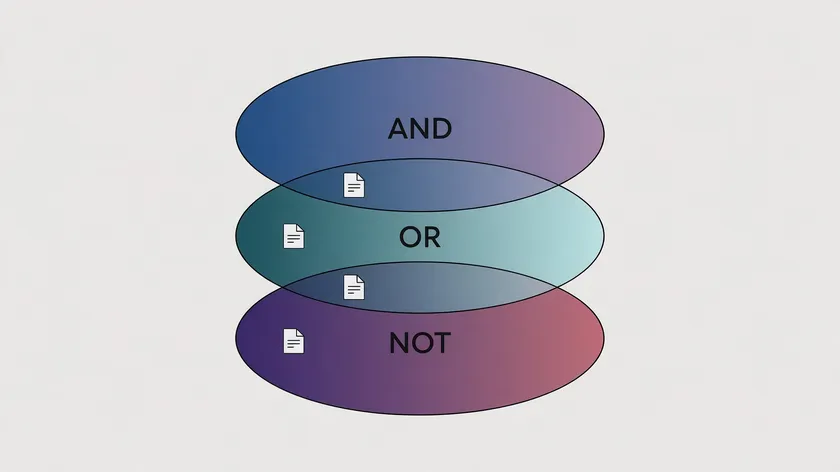
Boolean operators like AND, OR, and NOT help refine searches in advanced search panels. For example, “termination AND penalty” finds pages that contain both words, while “invoice OR receipt NOT draft” excludes drafts from your search results.
To search for an exact phrase, use quotation marks where supported—for example, “governing law” returns only instances where those two words appear in the same order, side by side. This method differs from typing the words separately, which may match them on different parts of the page.
Some search windows offer “Any of the words” vs. “All of the words” modes, effectively mirroring OR and AND behavior without typing operators.
In Acrobat, you can even run wildcard searches—wildcard characters like asterisks or question marks can be used to match variable characters within a search term (e.g., “legislat*” matching “legislation,” “legislative,” and “legislator”).
Here’s a practical example: searching a folder of compliance documents from 2024–2026 for “GDPR” AND “data processing agreement” instantly reveals which files reference both, saving you from opening each one manually.
Note that exact-phrase searches can fail where line breaks or hyphenation split words across two lines—the next section covers workarounds for this.
Advanced PDF Search Tips for Faster Results
Once you know how to search for keywords in a PDF, a few extra tricks speed things up in dense or poorly formatted documents.
Search for unique, longer keywords rather than short ones. “Indemnification” will return far fewer irrelevant hits than “term,” which appears hundreds of times in most legal PDF files.
When a word like “indemnification” is broken across two lines, the entire string won’t match. Try a partial-word search like “indemnifi” to catch hyphenated instances.
Enabling or disabling Match Case matters for case-sensitive codes—searching “PCI-DSS” with case sensitivity on avoids matching lowercase “pci” in unrelated contexts.
If the obvious keyword isn’t found, try synonyms: “severance,” “redundancy,” or “layoff” when reviewing HR documents. Modern AI tools can search by concept instead of exact keywords, which is increasingly useful for large, messy collections where terminology varies.
To improve future search results, consider adding metadata and keywords to PDFs when you create or organize PDFs—this makes OS-level and indexed searches more reliable over time.
Comparing PDF Search Methods
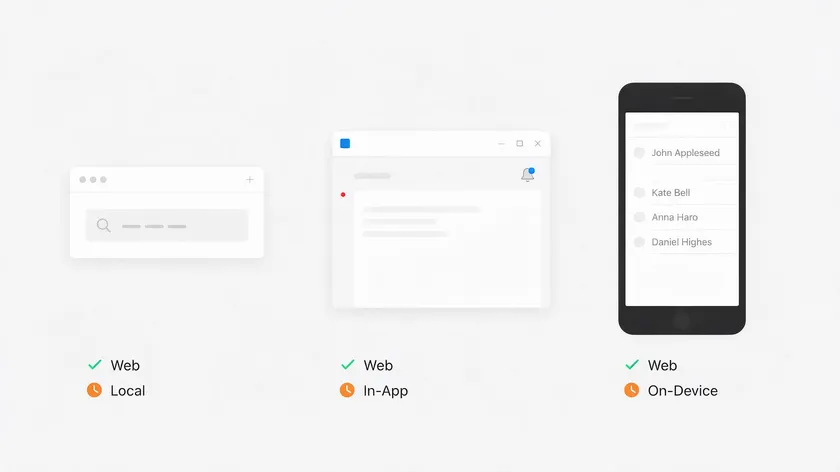
The table below compares three common environments for PDF search so you can choose the right tool for the job.
| Feature | Browser Viewer | Adobe Acrobat (Desktop) | Mobile App |
|---|
| Basic Ctrl+F / Cmd+F | ✅ Supported | ✅ Supported | ✅ Via tap/icon |
| Highlight all matches | Varies by browser | ✅ Full support | Limited |
| Match Case / Whole Words | Limited options | ✅ Full set of filters | Rare |
| Boolean operators (AND, OR, NOT) | ❌ Not supported | ✅ Supported | ❌ Rarely supported |
| Search multiple PDFs | ❌ Single file only | ✅ Folder, portfolio, or index | ❌ Single file only |
| Search comments / bookmarks | ❌ No | ✅ Optional filters | ❌ Rare |
| OCR for scanned PDFs | ❌ No built-in OCR | ✅ The Pro version includes OCR. | App-dependent |
Adobe Acrobat offers the most comprehensive search feature for professional workflows, while browser viewers are best for quick, on-the-fly lookups in a single PDF. Mobile apps land somewhere in between—functional for basic searches but limited in precision and scope.
Why Some PDFs Aren’t Searchable (and How to Fix It)
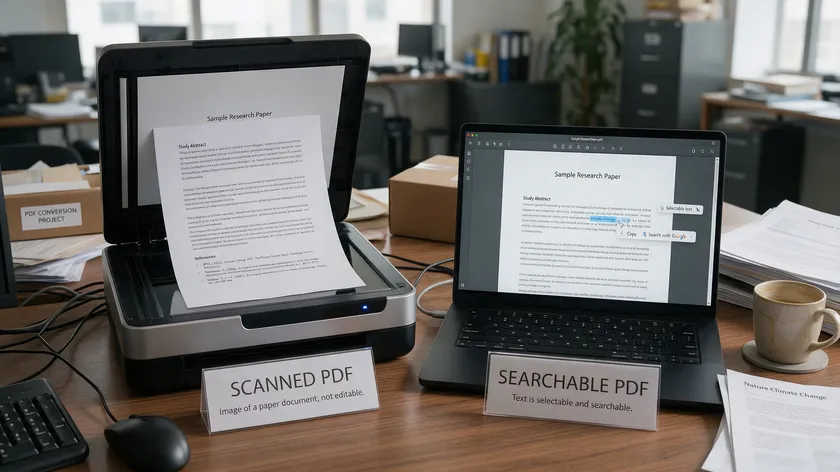
If the find toolbar shows “0 results” even for words you can plainly see, the PDF document is likely a scanned image with no underlying text layer. Search fails if the PDF is an image-based scan because there is no searchable text for the search bar to match against.
To verify, try selecting and copying text from the page. If clicking and dragging behaves like selecting a photo or copied text comes out as garbled characters, the file lacks a proper text layer. Text encoding issues can also prevent successful searches in PDFs, even when a text layer technically exists.
Optical character recognition (OCR) is the fix. OCR converts scanned PDFs into searchable text by analyzing the images and adding a searchable text layer on top of the scanned pages.
This works for printed contracts, old books, and reports from the 1990s alike. Scanned PDFs require OCR for text searching—there is no shortcut around this.
OCR quality depends on the clarity of the scan. Low-resolution or skewed scans from old copiers may produce errors or missing characters in search results, so always verify if the text layer is selectable after processing to confirm OCR worked properly.
Finally, password-protected PDFs may restrict search functionality. Some restricted PDF files block searching or copying until the correct password or permissions are provided. Check the document’s Properties or Security tab to see what operations are allowed.
Key Takeaways
- Open any PDF, press Ctrl+F (Windows) or Cmd+F (Mac), type your keyword or exact phrase, and use Highlight All or the navigation arrows to jump through every instance.
- The fastest method for most users is your browser’s built-in find toolbar; advanced search options and Boolean operators (AND, OR, NOT) matter most when handling multiple PDF files or very long reports in professional workflows.
- Non-searchable scanned PDFs require OCR before any keyword search will return results reliably.
- Apply these techniques immediately on a real PDF—such as a 2024 tax statement, 2026 employment contract, or academic article—to cement the skill.
Ready to try it? Open any PDF at pdfapp.com and click the magnifying-glass icon to search instantly—no signup required. Toggle Match Case, Match Diacritics, Whole Words, or Any Word for precision, then hit Highlight All to see every match at once. Want to save your PDF afterward? A free account takes seconds.
FAQ
The questions below address common edge cases not fully covered in the main sections. Each answer is kept short; refer to earlier sections for full step-by-step instructions.
How do I search for a date or number in a PDF?
Search for the exact format as it appears in the document—”2025-06-30,” “06/30/2025,” or a prefixed number like “INV-10432.” If you don’t know the format, try variations. Whole-word search prevents matching parts of longer numbers.
For financial or scientific PDF files, non-breaking spaces or special characters sometimes interfere, so copying one known example from the page directly into the search bar can increase accuracy. For large collections of monthly statements, advanced search in a desktop tool is more efficient than opening each file individually.
Can I save or reuse my PDF search settings?
Basic browser find toolbars don’t save search history or settings beyond the current session. Some desktop apps like Adobe Acrobat remember certain advanced search preferences, such as the last search scope or whether you had Show More Options enabled.
For recurring tasks, keep a simple text file of commonly used keywords and Boolean queries to paste into the search window. Power users handling regular, large-scale research may benefit from automated scripts or third-party utilities that offer persistent search profiles.
How do I search inside a password-protected PDF?
Many password-protected PDFs still allow searching once the correct open password is entered, as long as the author hasn’t disabled text extraction.
If the document restricts search or copying, those protections can only be removed with explicit permission or file ownership. Check the PDF’s Document Properties, then the Security tab in apps like Adobe Acrobat, to see what operations the file allows before troubleshooting further.
Can I search for text in images or scanned pages inside a PDF?
Normal keyword search cannot read words that exist only as pixels in a scanned image—OCR must first convert those images into text. Run OCR on scanned documents before attempting any advanced search.
After OCR, hits may still be imperfect if the scan is blurred, tilted, or uses unusual fonts, so expect occasional missed or misrecognized words. Double-check critical passages manually in key legal or financial PDF documents, especially for dates and amounts.
Why does search find some words in my PDF but not others?
This usually happens when the file has mixed content: some pages are text-based while others are scanned, or certain fonts use unusual encoding that breaks searchable text. Test problem words by copying and pasting them—if they turn into random characters, encoding is the issue.
Re-running OCR on affected pages or converting the PDF to another format like DOCX can normalize the text layer. Always work on a copy when reprocessing important archival or compliance-related PDF files.