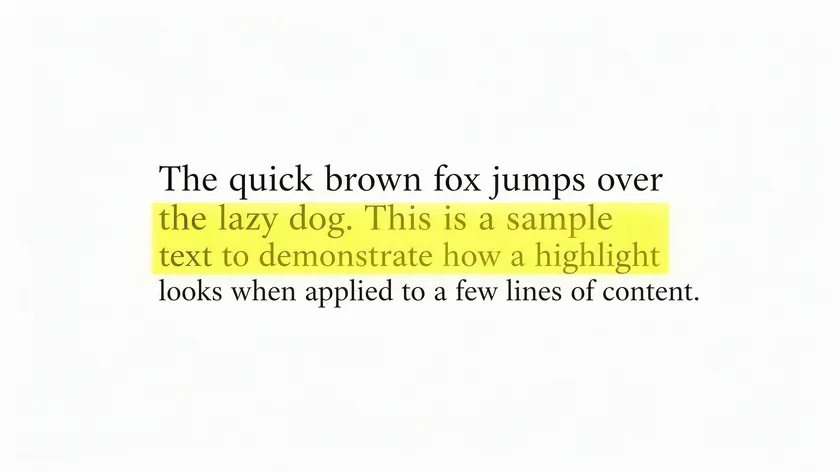
This guide explains how to highlight text in a PDF, online and offline, across desktop and mobile. It also covers how to fix common issues when highlighting does not work, how to manage your highlights over time, and how to pair them with other annotation tools.
Table of Contents
What “Highlight in PDF” Means and Why It Matters
Highlighting text in a PDF places a semi-transparent color overlay on existing content. The overlay sits on the PDF document layer as an annotation; it does not alter, delete, or add to the underlying text. This makes it distinct from inserting new text (which creates content) or blacking out passages (which hides content). PDF highlighting is purely for emphasis and review.
Concrete examples show why this matters. Students mark exam topics and definitions across research papers. Lawyers reviewing contracts flag clauses that require negotiation.
Project managers draw attention to deadlines buried in long specification files. In each case, highlights let readers return to key details without rereading every page.
Most PDF editors offer preset highlight colors: yellow, green, cyan, pink, and red. A simple color-coding system improves the organization of highlights; scanning a 40-page document for every red-marked action item takes seconds instead of minutes.
Fastest Way: Highlight a PDF Online in Your Browser
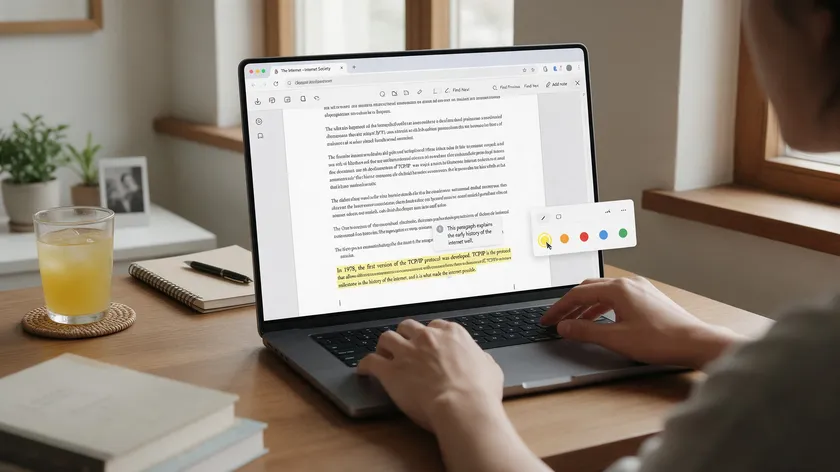
Highlighting text in a PDF is straightforward when you use a browser-based PDF editor. No desktop app install is required. The core workflow looks like this:
- Upload the PDF file using a drag-and-drop area or file picker.
- Wait for pages to load in the editor.
- Select the highlight tool from the sidebar or top toolbar.
- Pick a highlight color from the presets (yellow for key points, green for examples, and red for action items) and adjust thickness if the tool allows it.
- Drag over text or click-and-drag boxes across passages to create highlights, then repeat across pages.
- Save or hit the download button to export the updated PDF.
Highlights embedded this way remain visible in any standard PDF viewer. pdfapp.com follows this exact workflow and works across Chrome, Firefox, Safari, and Edge with no download required.
Open pdfapp.com‘s Edit PDF tool, upload your file, select the Highlight tool from the sidebar, choose from five color presets, and drag over any passage. Use “Show all” to review every highlight before downloading.
How to Highlight Selectable Text vs. Scanned PDFs
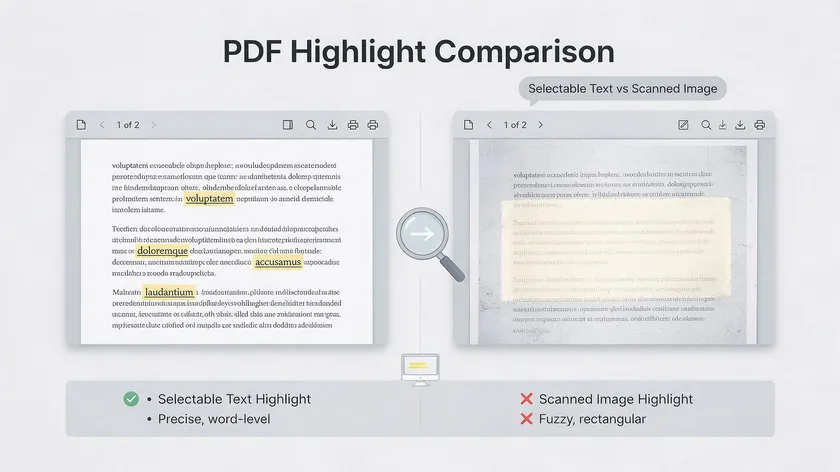
The method you use to highlight a PDF depends on whether the file contains selectable text or is a scanned document. This distinction determines tool behavior and output quality.
Selectable text means you can drag your cursor over words and copy text. Text-based highlight tools snap neatly to individual characters and words, producing clean, precise highlighted areas. Standard text highlighting works best with selectable, searchable text like this.
Scanned PDFs are images, not selectable text. Because there are no text objects underneath, you cannot select or copy anything. Highlight tools in this case lay a colored box over a region of the image rather than tracing individual words. Most browser-based PDF editors support highlighting both selectable text and scanned images using this approach.
If you want crisp, word-level highlights on a scanned PDF, you need optical character recognition (OCR) first. OCR converts the image of printed text into actual text objects. Once processed, the file behaves like a text-based PDF.
Quick test: try pressing Ctrl+C (or Cmd+C on Mac) on a line. If nothing copies, the PDF is likely a scan and needs area highlighting or OCR before text-level marking will work.
Step-by-Step: Highlight Text in a PDF on Desktop (Windows & macOS)
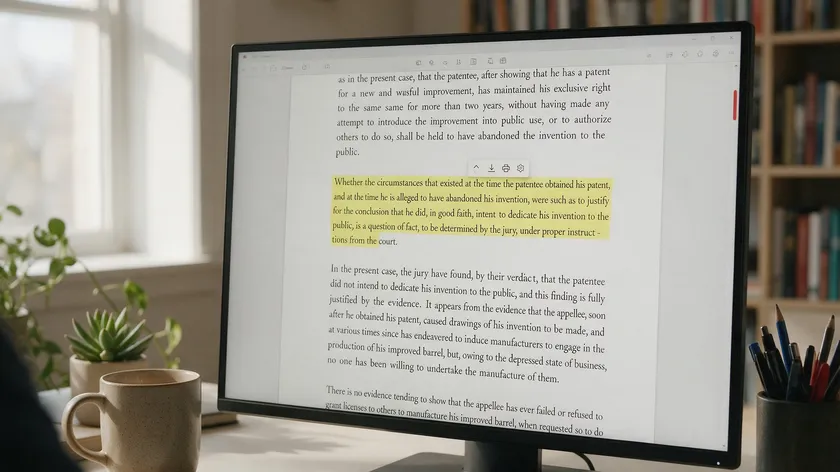
These options let you highlight a PDF offline without relying on a PDF online tool.
Adobe Acrobat
Open the PDF document in Adobe Acrobat. Select the Comment tool or the Highlight Text tool from the Tools panel. Drag your cursor over the passage you want to mark. To change highlight color, right-click the highlighted area, open Properties, and pick a new color or adjust opacity.
Check “Make Current Properties Default” to apply that preferred color to future highlights. Save with File > Save to embed annotations.
Preview on Mac
Open the PDF in Preview. Go to View > Show Markup Toolbar to reveal annotation options. Click the highlighter tool icon, then use the dropdown arrow beside it to choose a highlight color (yellow, green, blue, pink, or purple). Select text to highlight it.
To review all highlights at once, open View > Highlights & Notes; this sidebar lists every annotation so you can jump between pages.
Microsoft Edge on Windows
Microsoft Edge allows PDF highlighting on Windows devices using its built-in PDF toolbar. When the PDF opens in Edge, click the highlight text tool, pick a color, and drag over the passage.
Press Ctrl+S to save. Edge handles large PDF documents reliably, though its color and opacity customization options are limited compared to Adobe Acrobat.
Desktop methods are best for frequent reviewers who work offline with large files. Each tool preserves annotations in standard file formats, so the annotated PDF remains readable in other viewers.
How to Highlight a PDF on Mobile Devices

Many people now highlight PDFs on phones and tablets while commuting, studying, or reviewing contracts on the go.
Browser-Based Approach
Open a PDF online editor in Safari or Chrome on your device, upload the file, zoom in with a pinch gesture, select the highlight tool, and drag with a finger or stylus.
Download the updated PDF through the browser’s share or download menu. pdfapp.com allows highlighting text in PDFs online from any mobile browser, with the same five-color toolset as desktop.
App-Based Approach
Several dedicated PDF editor apps are available for iOS and Android devices, ranking among the top choices for mobile annotation. Import your PDF, tap the highlight icon, select a highlight color, and tap or drag over text.
Practical tips for mobile highlighting:
- Zoom in for precise selection on small fonts.
- Use landscape orientation for multi-column PDFs.
- Sync to cloud storage (iCloud, Dropbox, OneDrive) so annotations are never lost.
- If highlight tools are missing in your current viewer, switch to a more capable app or browser-based editor.
These adjustments make highlighting just as reliable on a phone or tablet as it is on desktop. Once your workflow is set, switching between devices takes no extra setup — your highlight colors and habits carry over automatically.
Changing, Reviewing, and Removing Highlights in PDF Documents
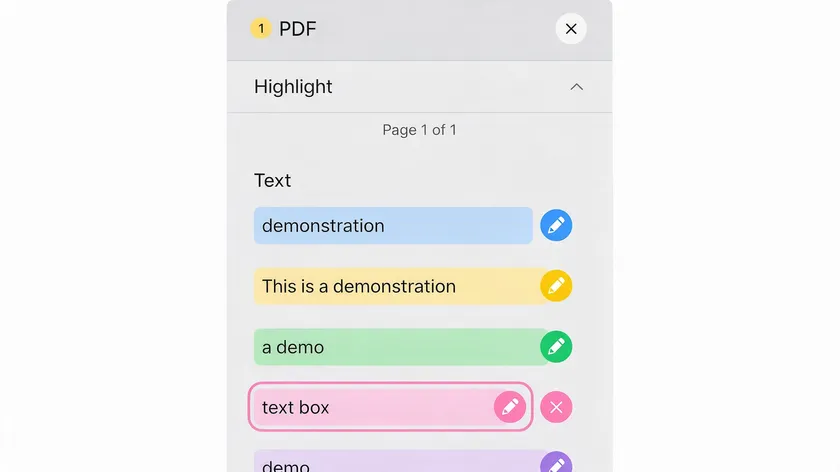
Highlights are not permanent. You will often need to adjust a highlight color, review all marked passages, or delete marks before sharing a clean version.
Changing Highlight Color
To change highlight color, select the highlighted area and adjust settings in the properties or style panel. Most PDF editors let you pick a new color or lower the opacity. Lower opacity can enhance readability of highlighted text, especially on dense pages.
Most browser-based PDF editors automatically save highlights when closing documents, so changes persist without a manual save step.
Reviewing All Highlights
Use features like “Show all highlights,” the “Highlights & Notes” sidebar, or search filters to jump between highlighted text across long PDF documents.
You can manage annotations using comments or summary panels in PDF editors. Many PDF editors allow users to filter and view only highlighted text, which is useful when extracting key findings from a 100-page report.
Removing Highlights
Users can remove highlights by selecting and deleting them. In most editors, click the highlighted region, then choose Delete or Remove Highlight.
Most PDF editors let users remove highlights by selecting the highlighted area and choosing “Remove Highlight,” or by pressing the delete key. Clean up cluttered notes before sharing to provide clear feedback without visual noise.
Common Reasons You Can’t Highlight in a PDF (and Fixes)
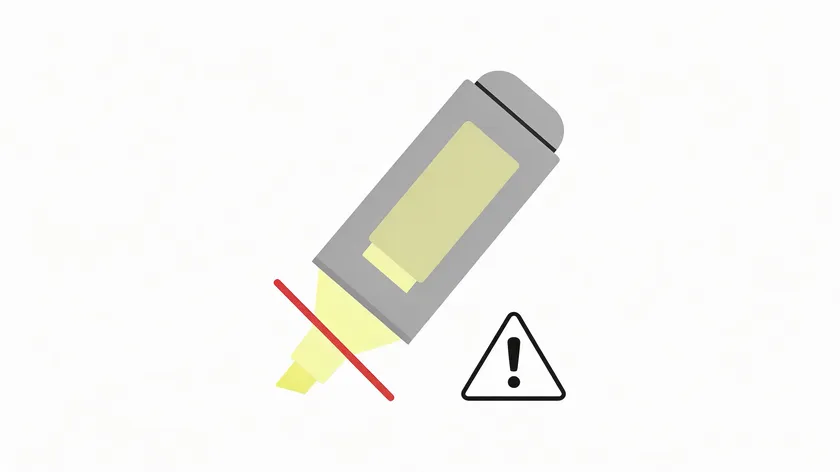
Users often try to highlight in PDF, and nothing happens. Most issues trace back to file type, security settings, or the viewer itself.
- Scan or photo-based PDF: text is not selectable. Use area/marker highlighting, or run OCR in a PDF editor that supports text recognition first. OCR is needed to highlight text in scanned documents at the word level.
- Copy/edit restrictions: document security properties may block annotation. PDFs with copy restrictions block highlighting features. Only unlock the file if you have the permissions password.
- Viewer lacks markup support: highlighting fails if the PDF opens in a viewer without markup support. Basic readers show text but hide annotation tools. Switch to a browser-based PDF editor or full-featured desktop app.
- Corrupted or unusual structure: occasional files reject highlight text tools. Re-save via “Print to PDF” or PDF convert the file to a fresh document, then try again.
| Issue | Why It Happens | Fix |
|---|
| Cannot select text | PDF is a scanned image, not selectable text | Run OCR or use area highlighting |
| The highlight tool is greyed out | Security settings restrict annotations. | Check permissions; unlock if authorized |
| No annotation toolbar visible | Viewer does not support markup | Open in a full PDF editor or browser tool |
| Highlights disappear after save | Corrupted annotation layer or unusual encoding | Print to PDF to create a fresh file |
Practical PDF Highlighting Tips for Study and Work
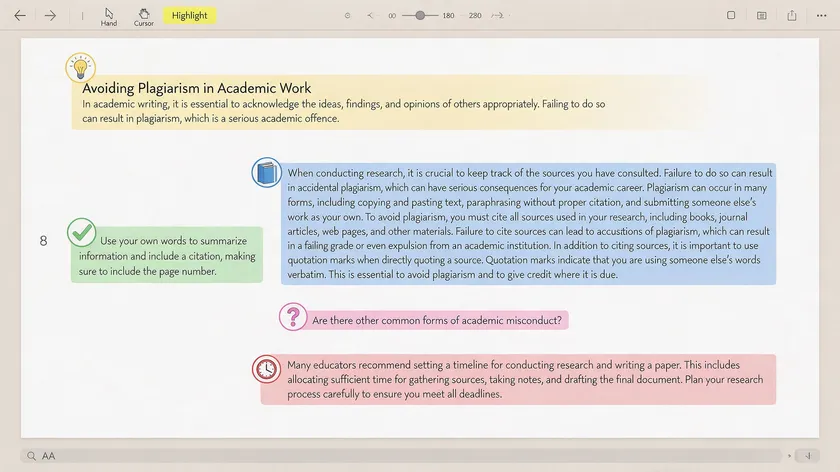
The goal of highlighting is to make important sections stand out, not to repaint every page. Over-highlighting can make it difficult to identify important points.
A good rule of thumb is to highlight the smallest passage that makes sense: a key phrase, a date, a figure, or a single obligation in a contract. Highlight sparingly so that important information pops on each page.
Use highlights to support later tasks. Copy highlighted passages into summaries, to-do lists, or meeting notes. When reviewing contracts, flag risk clauses in red, then export only those passages for your legal team.
| Color | Meaning | Typical Use Case |
|---|
| Yellow | Main points, definitions | Textbook study, key lines in reports |
| Green | Examples, evidence | Case studies in research papers |
| Blue | References, citations | Sources to revisit during writing |
| Red | Actions, warnings, deadlines | Contract risks, task deadlines |
| Pink | Questions, uncertain items | Passages needing follow-up |
Highlighting is one of several annotation tools in most PDF software, but it serves a specific purpose: drawing attention to existing content for emphasis. Underlining works for lighter emphasis; strikeouts mark deletions. Shapes and arrows connect ideas visually across scanned pages or diagrams.
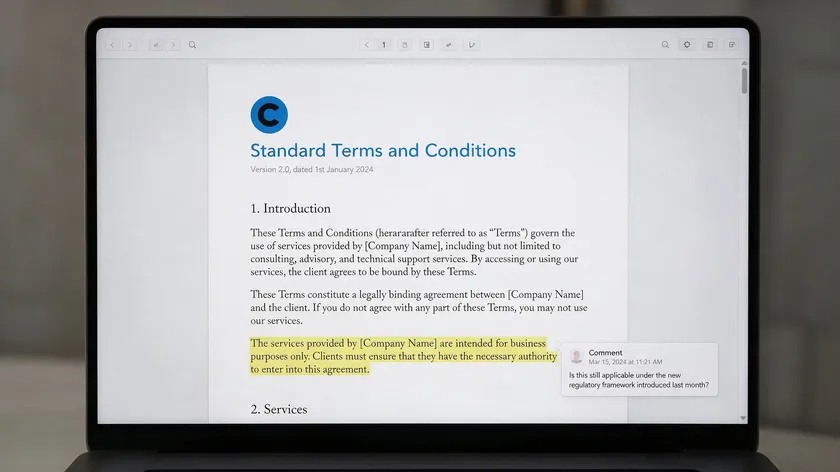
Pairing highlights with short notes adds context. Most PDF editors allow you to attach comments directly to highlights. Comments can capture reactions, questions, or reasons for highlighting a passage.
A practical workflow for reviewing contracts: highlight a clause, then add a comment with a question or action item for a teammate.
For full annotation workflows covering stamps, batch highlighting, advanced highlighting features, and cross-platform collaboration, broader “annotate PDF” guidance goes beyond basic highlighting. Keep your highlight layer clean and consistent; let other annotation options handle the rest.
Key Takeaways
- To highlight a PDF online, upload a PDF document, pick the highlight tool, choose a highlight color, drag over text, then download the updated file.
- Highlighting selectable text produces word-level precision; scanned or image-based PDF documents need area highlighting or OCR first.
- You can change, review, and remove highlights in any capable PDF editor to keep your PDF highlighting organized.
- Both online (browser-based PDF editor) and offline tools (Adobe Acrobat, Preview, Microsoft Edge, mobile apps) support highlighting a PDF.
- When you cannot highlight in PDF documents, the cause is usually security restrictions, a scan without OCR, or an unsupported viewer.
To highlight PDFs right now, open pdfapp.com, upload your file, and select the Highlight tool. Pick from five color presets (yellow, green, cyan, pink, red), adjust thickness, drag over any passage, and use “Show all” to review every mark at once. Downloading your annotated PDF requires a free sign-up with Google or email.
FAQ
How can I quickly highlight a PDF for free online?
Open any modern browser, navigate to a free online PDF editor like pdfapp.com, upload your PDF document, select the highlight tool, drag over the text you want to mark, and hit the download button. No desktop software is needed. Some tools limit the number of free tasks per day or gate advanced features behind a paid tier.
Can I change the highlight color after I’ve already highlighted text?
Yes. Most modern PDF editors let you click on existing highlighted text, open a properties or style panel, and pick a new highlight color or opacity level. The annotation updates are in place without requiring you to delete and redo it.
In Adobe Acrobat, right-click the highlight and select Properties. In Preview, control-click and choose a different color.
How do I print a PDF so that all highlights are visible?
Printing usually includes highlights automatically. If they do not appear on paper, check your print dialog for options like “Document and Markups” (Adobe Acrobat) or “Include annotations.” These settings ensure highlighted text and other annotations render on the printed pages.
Is it possible to copy only highlighted text from a PDF?
Some PDF editors let you export or filter annotated content into a summary. If your tool lacks that feature, use the “Highlights & Notes” sidebar to jump between highlights, copy text from each highlighted passage manually, and paste it into a separate notes document.
A filter or search view in most PDF editors can also isolate highlighted text for quick extraction.
Why do my highlights look different in another PDF viewer?
Annotation rendering varies between viewers. Colors or transparency may shift slightly because each application interprets opacity and color values with minor differences. The highlighted areas themselves are preserved in the file.
For the most consistent appearance, open annotated PDFs in well-known readers like Adobe Acrobat, Preview, or a browser-based editor rather than niche or outdated PDF software.