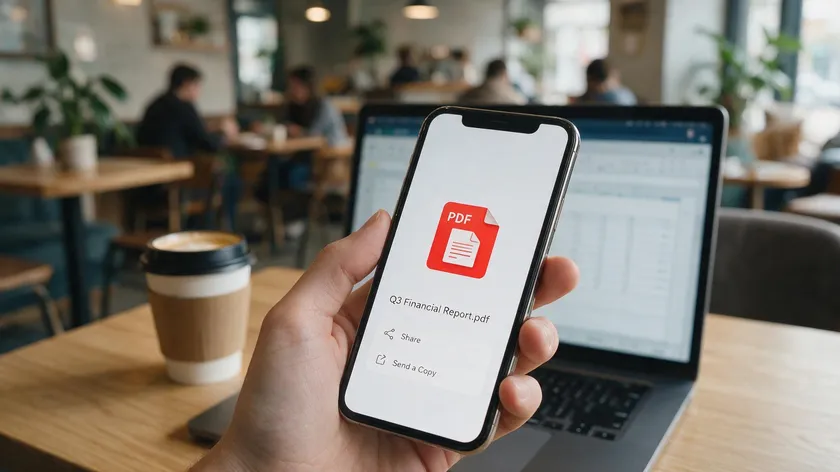
This guide covers how to send pictures as PDF once your images are already converted across email, messaging apps, device-to-device sharing, and cloud links.
The focus here is entirely on sharing, not the conversion process itself. Whether you’re sending scanned documents, photos, or confidential images like IDs and contracts, you’ll find the right method below.
Table of Contents
- Why Send Pictures as a PDF Instead of Image Files?
- Step 1: Convert Your Picture to PDF (Before You Send It)
- How to Send a Picture as PDF by Email (Gmail, Outlook, Yahoo, etc.)
- How to Send a PDF Picture via Messaging Apps (WhatsApp, Messages, iMessage, SMS/MMS)
- Sharing PDF Pictures Using AirDrop, Nearby Share, and Other Device-to-Device Tools
- Send Pictures as PDF via Cloud Links (Google Drive, Dropbox, OneDrive)
- Choosing the Best Way to Send Pictures as PDF (Comparison Table)
- Key Takeaways
- FAQs
Why Send Pictures as a PDF Instead of Image Files?
Converting images to PDF before sending gives you better control over image quality, layout, and compatibility across devices and operating systems. It simplifies sharing and collaboration, especially when dealing with visual content like scans, forms, or photo collections.
Here’s why PDF format wins over raw image files:
- A PDF file preserves layout—multiple photos on one page, consistent margins, and captions—while individual JPG or PNG image formats can appear inconsistent across different apps and screens.
- PDF files are compatible across various devices and operating systems. They open natively on Windows, macOS, Android, iOS, and web browsers without needing special software.
- Combining multiple images into one PDF is usually more organized than sending several attachments. A single PDF document keeps everything together and in the right order.
- PDF files can be compressed to reduce size without losing quality, saving storage space compared to sending many high-resolution image files.
- PDFs can be secured with password encryption, which is critical when sending IDs, contracts, or medical documents. Raw image files offer almost no built-in protection.
- PDFs are designed to be print-ready for high-quality copies, so recipients can download and print exactly what you see on screen.
Step 1: Convert Your Picture to PDF (Before You Send It)
Before sending, you need to convert images to PDF using a reliable to PDF converter or PDF tool. This step is quick; most devices have built-in options.
- Windows users can convert with Microsoft’s built-in print-to-PDF feature. Mac users can convert with the Preview app. Mobile devices allow conversion to PDF through share or print options, and images can be converted to PDF using built-in print commands.
- You can also use an online tool to convert JPG, PNG, BMP, or other image formats without installing software. Online image-to-PDF converters can bundle images into a downloadable PDF document—handy when you need to convert multiple image files into a new PDF file. Scanning apps can photograph physical documents and save them as PDFs too.
- If you haven’t converted your photo to PDF yet, see our full guide on how to save a picture as PDF for a detailed walkthrough on every device.
- Before sharing, open the exported PDF and check page orientation, image quality, and number of pages. A quick review saves you from sending a cropped or rotated file.
How to Send a Picture as PDF by Email (Gmail, Outlook, Yahoo, etc.)
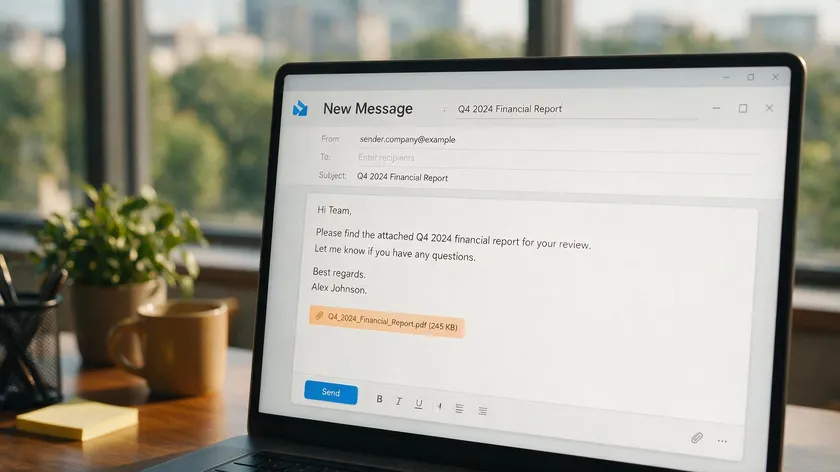
Email remains the most common way to send a PDF file for formal communication. In 2026, most free-tier providers limit attachments to about 20–25 MB per message, and due to Base64 encoding overhead, the effective usable limit is roughly 33% lower than advertised.
- The basic flow is universal: open your email app, compose a new message, tap the paperclip or attach icon, choose PDF from your files, and send. This works identically in Gmail, Outlook.com, Apple Mail, and Yahoo.
- File size matters. Gmail free allows about 25 MB per email, Outlook.com about 20 MB, and Apple iCloud Mail about 20 MB without Mail Drop. Google Workspace Enterprise Plus users now get up to 50 MB as of February 2026. If your PDF exceeds these limits, compress it or switch to a cloud link.
- For sensitive documents—passports, tax forms, and legal papers—password-protect the PDF before attaching. Share the password separately via SMS or phone call, never in the same email.
How to Send a PDF Picture via Messaging Apps (WhatsApp, Messages, iMessage, SMS/MMS)
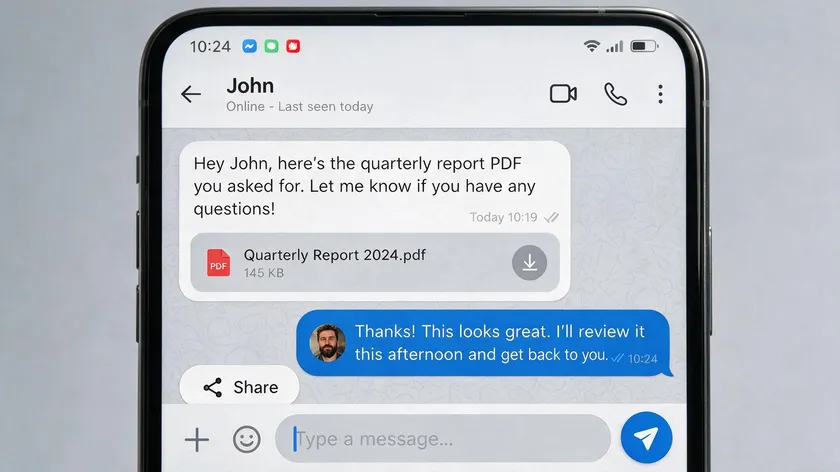
Modern messaging apps can send a PDF document as a “document,” which prevents the automatic compression that destroys image quality when you send photos through the gallery.
WhatsApp
In WhatsApp, open a chat, tap the attachment icon, choose “Document” instead of “Gallery/Photo,” then select your PDF and send. The practical file-size limit is around 100 MB for most users, though this has been increasing—check WhatsApp’s current documentation if you’re sending something close to that size.
iMessage and Messages
On iPhone, tap the “+” icon in Messages or iMessage, select “Files,” locate your PDF, and send. This keeps the original file intact without any recompression.
SMS and MMS
SMS/MMS on older phones may not support PDFs at all or will heavily downscale them. In that case, upload the file to Google Drive or OneDrive and send the link instead.
Messaging apps work best for smaller files and fast, casual sharing. For very large or multi-page documents, cloud links are more reliable.
Local sharing tools are ideal for sending high-resolution PDF files between devices without internet limits. They bypass email and messaging size caps entirely.
AirDrop
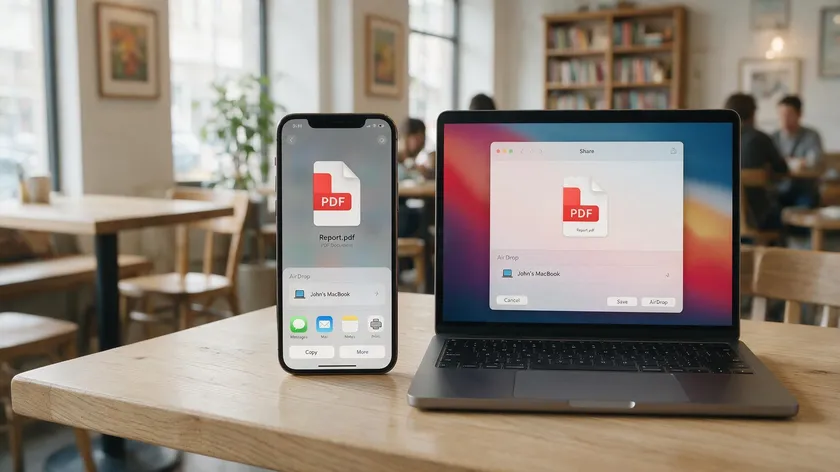
On iPhone, iPad, or Mac, open the folder containing the PDF, tap or right-click Share, choose AirDrop, then pick the nearby Apple device from the list. There’s no published file size cap—even a 150 MB photo book transfers smoothly.
Nearby Share and Quick Share
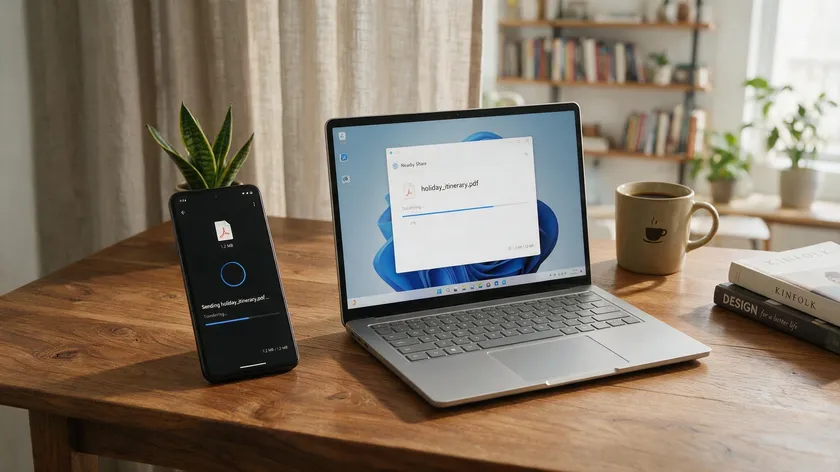
On Android or Windows, open your PDF in Files or Explorer, tap or click Share, then choose the nearby device when it appears. These tools work over Bluetooth and WiFi and handle large files well across iPhone, Android, macOS, and Windows ecosystems.
Both methods require devices to be awake, unlocked, and nearby. They’re perfect for transferring portfolios, photo collections, or any file that would bounce from email.
Send Pictures as PDF via Cloud Links (Google Drive, Dropbox, OneDrive)
When your PDF file is too large or you need to share it with multiple people, uploading to a cloud drive and sending a link is the most reliable approach.
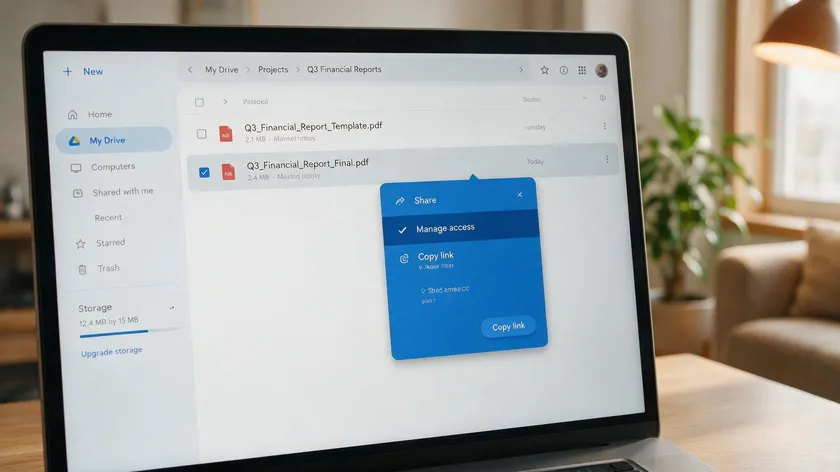
Upload the PDF, set sharing permissions to “Anyone with the link can view,” and paste that link into an email or message. Here’s how the major services compare:
| Service | Free Storage | Link Expiration | Best For |
|---|
| Google Drive | 15 GB | Workspace plans only | Google ecosystem users |
| Dropbox | 2 GB | Paid tiers | Quick external sharing |
| OneDrive | 5 GB | Microsoft 365 plans | Office/Windows users |
Sending a link also lets you update the PDF later—replace a low-resolution scan with a cleaner version—without changing the shared URL.
For privacy, restrict downloads, set expiration dates where available, or limit access to specific email addresses. OneDrive and Dropbox both offer password-protected links on paid plans.
Choosing the Best Way to Send Pictures as PDF (Comparison Table)

There are multiple ways to send image files to PDF, and the right choice depends on file size, urgency, and your recipient’s setup. Here’s a quick comparison:
| Method | Typical Size Limit | Needs Internet? | Best For | Cross-Platform? |
|---|
| Email attachment | ~20–25 MB (free tiers) | Yes | Formal documents, contracts | Yes |
| Messaging apps | ~100 MB (WhatsApp) | Yes | Quick casual sharing | Yes |
| AirDrop / Nearby Share | No strict limit | No (local WiFi/BT) | Large files, nearby devices | Apple only / Android+Windows |
| Cloud link | Storage-dependent | Yes | Large files, multiple recipients | Yes |
For formal communication—resumes, IDs, and legal files—email with a PDF attachment is standard. For quick sends between phones and laptops, messaging apps or device-to-device tools are faster.
When PDFs contain multiple photos or high-resolution scans, a secure cloud link avoids bounced emails and failed uploads. You can also combine methods: upload to a cloud service, then share the link via email or text for maximum flexibility.
Key Takeaways
- Sending pictures as PDF keeps image quality consistent, preserves layout, and works across almost every device and app without extra software.
- Convert images to PDF first using a reliable converter, then choose the right sending method based on file size, urgency, and who you’re sending to.
- Email attachments work well for small, formal documents, while messaging apps and device-to-device tools are faster for casual sharing between phones and laptops.
- When PDFs are large or contain many images, sharing a secure cloud link is usually more reliable than attaching the file directly.
If you regularly convert photos, turn photos into documents, or need to convert multiple image files before sharing, explore our PDF conversion tools to handle everything from a free jpg to pdf conversion to bundling multiple jpg images into a single pdf.
FAQs
How can I reduce a PDF’s file size if it’s too large to email?
PDF files can be compressed without losing quality using a free online tool or a PDF editor with built-in compression. You can also slightly lower image quality during PDF conversion or split a large file into smaller parts. If compression isn’t enough, switch to sharing a cloud link instead of a direct attachment.
Is it safer to send personal IDs as image files or as PDFs?
PDFs are generally safer. You can password-protect a PDF file and restrict editing or printing, which isn’t possible with raw jpg images. When sending confidential images like passports or tax forms, always encrypt the PDF and share the password through a separate channel.
Can I sign or annotate a PDF photo before sending it?
Yes. Most built-in PDF viewers on Windows, macOS, and mobile devices let you add signatures, text, or highlights. You can also use a dedicated PDF editor to sign PDFs, add annotations, and save the changes before sharing. This is especially useful for scanned contracts.
How do I send multiple photos as one PDF file?
Use an image-to-PDF tool or free online tool to drag and drop your multiple photos into a single new PDF. Online JPG to PDF converters let you convert multiple image files—including converting JPG images, PNG, and BMP—into one PDF file without installing any software. Then send that single file through your preferred channel.